
If you’re leaving Google Photos and want the closest thing to a straight replacement, it’s Ente. It’s end-to-end encrypted, open source, and it has a step-by-step import path for Google Takeout archives. If what you’re moving is a real photo archive rather than a camera roll, no single app will do the job. You want a system, with a local master copy, one cloud copy held offsite, and a separate layer for sharing if you need one.
I say this as someone who has done it. I’ve been taking photos for 30 years, my working archive is over 10TB, and it lives on my own storage at home with Backblaze as the offsite copy. I’ve also pulled a complete photo library out of Google Photos, which was more effort than I expected.
So this guide answers the leaving question before the arriving question. Google Takeout will give you everything, but it splits your photo metadata in a way that catches almost everyone out, its archives expire after about 7 days, and each one can only be downloaded 5 times. Get past that and choosing where to go is the easy part.
Table of Contents:
Why People Are Leaving Google Photos in 2026
The 2026 reasons come down to cost and AI. Google now sells its storage tiers bundled with Gemini, so the 2TB plan is called Google AI Plus and the 5TB plan is Google AI Pro, and plenty of people paying for photo storage have noticed they’re now paying for an AI subscription whether they wanted one or not.
The current pricing, as of August 2026, looks like this. The free tier is still 15GB, shared across Gmail and Drive, which a phone fills quickly. 100GB is $1.99 a month. The 2TB Google AI Plus plan is $9.99 a month, or $99.99 a year if you pay annually. The 5TB Google AI Pro plan is $19.99 a month.
These are all pretty reasonable prices for storage. What’s changed is what you’re buying, and for some people, what Google might be doing with a lifetime of their photographs in an AI product cycle. If that sits badly with you, this is the moment to act on it.
I’ve watched this deal change before, because I’ve been a Google Photos user for a very long time. I started back when Picasa was still a thing and there was a desktop uploader, and Google included free unlimited storage. When I bought one of the early Pixel phones, that came with free unlimited backup too. For a magical few years I had every photo I owned backed up for nothing!
Of course, the economics of giving photographers unlimited free storage caught up with Google eventually, and that era ended. To be fair to them, they didn’t delete anything, and the photos I uploaded under the old deal still don’t count against my storage cap today. That said, the organisation and management tools for quite a large library leave something to be desired.
But that’s the lesson, and it’s the real reason this article exists. The deal changed once, in Google’s favour, and there’s nothing stopping Google from changing it further. If the only complete copy of your photos lives inside someone else’s subscription terms, you don’t really own your archive. You’re renting access to it.
How to Get Your Photos Out of Google Photos
Google Takeout will export everything, but it splits your photo metadata between the image files and separate JSON files, so you should import with a tool that reads the JSON instead of just dragging bare image files into a new home.
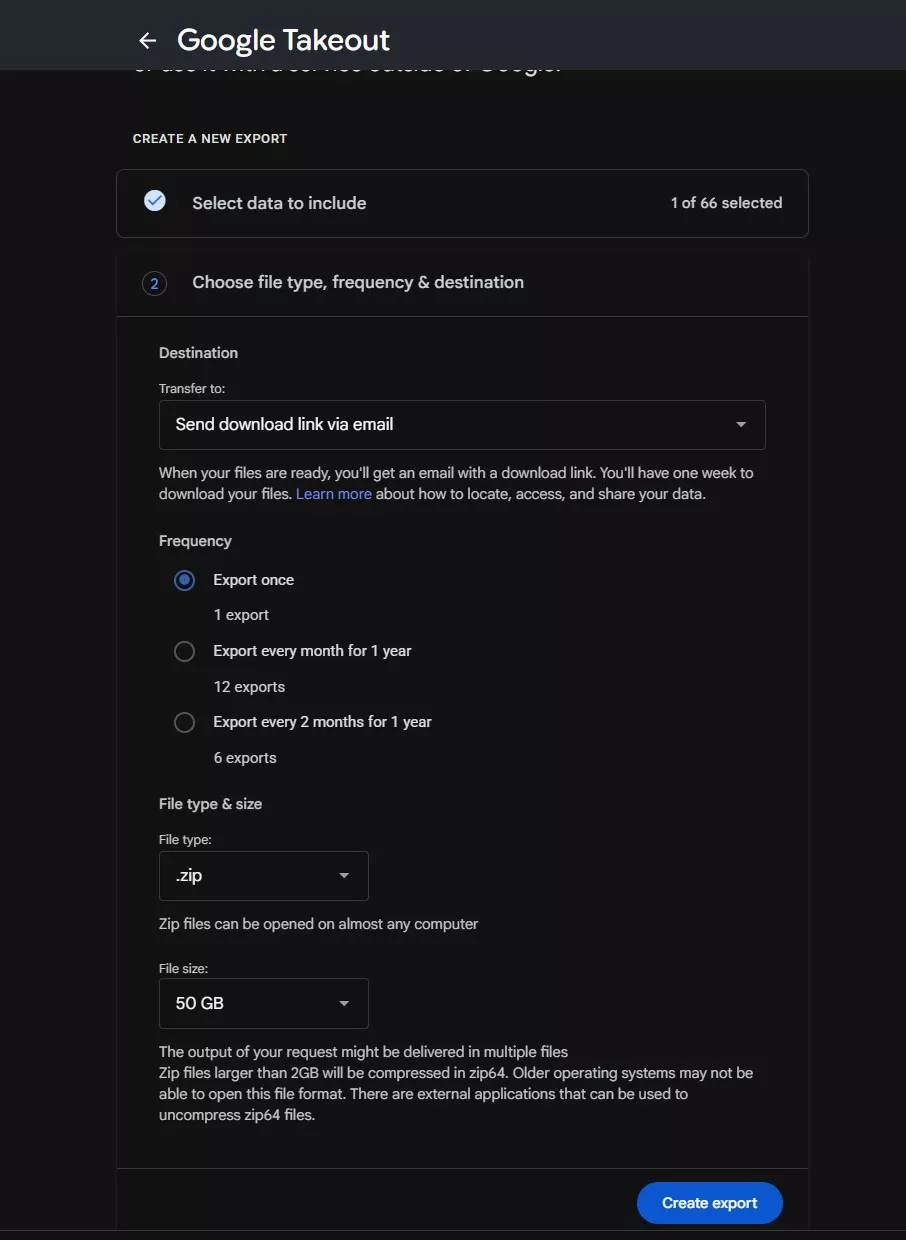
Takeout is Google’s export service for your whole account, and photos are the bulky part. You select Google Photos, pick an archive size (50GB is the largest per-part option, and I’d choose it, because a big library will produce a lot of parts), and Google emails you when the archive is ready to download.
This is the route I took myself. I haven’t left Google Photos completely (my phone still backs up there because it’s convenient and relatively cheap), but I wanted a complete copy of 30 years of photographs on drives I own, not sitting only inside someone else’s account. Run the export early, before you have a reason to be in a hurry.
Now the part that matters. Google’s own documentation explains that the original metadata embedded in your files stays embedded. If your camera wrote a capture date and GPS position into the EXIF data, that survives export untouched.
But everything Google Photos itself knows about a photo lives elsewhere, in a small JSON file exported alongside each image. That includes descriptions you added, people tags, favourites, and, according to the developers of the major import tools, the GPS position and any dates you corrected inside Google Photos.
So if you ever fixed a wrong date or added a location by hand, the corrected version exists only in the JSON. Import just the image files and all of that work is gone.
Two common scares are worth defusing here, because both push people into bad decisions. The first is “Takeout stripped my EXIF”. It didn’t. The embedded metadata is still in the files.
The second is “all my photos are dated today”. That’s your operating system assigning a new file timestamp when you downloaded the archive, which Google’s documentation describes, and it doesn’t touch the actual photo metadata at all. Neither of these is data loss. The real risk is quieter, and it’s the JSON matching problem below.
A few practical details, all current as of August 2026:
- Archives expire in about 7 days, and each archive can be downloaded a maximum of 5 times. A failed download partway through a 20-part export burns one of those 5 attempts, which is exactly when you’ll discover how much you care about this rule. If your connection is slow or flaky, plan the week around it.
- Anything above your chosen part size gets split into multiple files, up to that 50GB per part. Google’s own troubleshooting advice for failed exports is to request smaller archives with fewer products in them, so expect a very large library to need patience and possibly more than one attempt.
- Albums come out as folders. Google doesn’t document the archive’s internal layout, but both of the major import tools are built around a folder-per-album structure, with album membership also recorded in the JSON files.
- Extract everything before you import. Ente’s migration guide warns that if Google splits an image and its JSON file across different ZIP archives, the metadata may not be matched correctly. Their recommended fix, which I’d follow, is to extract all the ZIPs into one parent folder, keep the subfolders as they are, and point your import tool at that.
The import tools do the reassembly work for you. Ente’s importer reads the Takeout JSON directly and carries your albums and favourites across, and the self-hosted world has immich-go doing the same job for Immich. Whichever direction you’re going, the test at the end is simple. Spot-check photos you know you edited inside Google Photos, and confirm the corrected dates and locations made it.
Think in Three Roles, Not One Replacement
The best way to replace Google Photos is with three roles rather than one product. A local master copy you own, one cloud copy that’s offsite, and, only if you need it, a separate layer for sharing photos with other people.
Google Photos bundles all three of those jobs into one subscription, and that bundling is why it’s so hard to leave. Once you split the jobs apart, each one gets easy.
The Local Master Copy
This is your photos on storage you physically own, organised however you like, ideally managed through catalogue software. Mine is a Lightroom catalogue with the files on an Unraid server and a large external drive at home. Yours could be as simple as a folder tree on a desktop external drive. This is the copy you work from, and the copy that makes every later decision reversible.
The Offsite Cloud Copy
One copy somewhere else, whose only job is surviving a house fire or a burglary. It doesn’t need a pretty interface, it needs to be complete and affordable at your archive’s size. I use Backblaze for this, at $99 a year, and I go into why below.
The Sharing Layer
This one’s optional, and it’s the job Google Photos does so well that I never replaced it. Jess and I both back our phones up to Google Photos and share family photos between us there, and for that job it just works.
If your sharing is more about showing finished work to the world, this layer might be SmugMug instead. The point is that sharing is a separate decision from archiving, and mixing them up is how people end up paying gallery prices for backup, or trusting backup jobs to a gallery.
When I moved my own photos out to build this system, the test I used was simple. Did I end up with a complete set, and could I prove it to myself? Everything else, including which logo is on the cloud copy, matters less than that.
My finished edits also sync through Dropbox, which is a convenience and not a backup, but it shows how unglamorous a working system looks in practice. For the full method, including how the 3-2-1 backup rule applies to photos, see my complete guide to backing up your photos.
The Best Google Photos Alternatives in 2026
Across everything I’ve tested and priced, Ente is the closest like-for-like replacement, Backblaze is the best offsite copy for a big library, and Amazon Photos is the best value if you already pay for Prime. The table gives you the overview, and the sections below give you the reasoning, including the caveats the sales pages leave out.
All prices were checked directly against each service’s own pricing page in August 2026, with the billing period stated, because a monthly rate and an annual rate for the same tier can read like two different prices.
| Service | Best for | Headline price (Aug 2026) | The catch |
|---|---|---|---|
| Ente | Like-for-like Google Photos replacement | 1TB at $9.99/month ($119.88/year); 10GB free | Verified plans run 50GB to 2TB, so a 10TB archive needs a different answer |
| Amazon Photos | Prime members with JPEG-heavy libraries | Unlimited full-resolution photos included with Prime | Videos cap at 5GB; RAW files get no previews; the benefit ends if Prime does |
| iCloud Photos | iPhone-first users staying in Apple’s world | 2TB at $9.99/month billed monthly | Priced for camera rolls, not archives |
| SmugMug | Photographers who want a gallery plus storage | Direct plan $20/month billed annually | The unlimited storage headline covers full-resolution JPEGs; RAW is an add-on on every tier |
| Backblaze | The offsite copy of a local archive | $99/year per computer, unlimited data | It’s a backup of your drives, not a photo library you browse |
| pCloud | Pay-once storage | 2TB lifetime for a one-time $399 | The discount is a promotion by pCloud’s own terms, running to 2031 |
| iDrive | Managed storage at 5TB and up | 5TB at $6.99/month first year, then $9.99/month, billed annually | The advertised price is the first-year price, for new signups only |
| Immich | Self-hosters who want Google Photos at home | Free software; your hardware and your time | A server you run is one copy of your photos, not a backup |
Ente
Ente is the pick I’d hand to most people leaving Google Photos, and I didn’t expect that when I started researching this. It’s end-to-end encrypted, so Ente can’t read your photos, let alone train on them. It’s open source and describes itself as audited. It’s cross-platform. And you can use their hosted service or run the server yourself, which is a rare combination.
For a migration specifically, it’s the standout, because Ente maintains a step-by-step Google Takeout import guide and its importer reads the Takeout JSON files, carrying albums and favourites across instead of leaving them behind in the export. The guide is also unusually candid about the split-ZIP metadata hazard I covered above, which tells you the developers have watched real migrations fail and fixed things.
Pricing as of August 2026 runs from 10GB free, through 50GB at $2.49 a month, to 1TB at $9.99 a month ($119.88 a year) and 2TB at $19.99 a month ($239.88 a year). That’s more than Google charges for the same terabytes, and the difference is what encryption and independence cost. For transparency, we have no commercial relationship with Ente. I’m recommending it because it’s the right tool.
Amazon Photos
Amazon Photos is the answer hiding inside a subscription you may already pay for. Prime members get unlimited full-resolution photo storage (Amazon has extended the same benefit to standalone Alexa+ subscribers, and notes it’s available in select countries). For a Prime household with a big JPEG library, that makes it the cheapest serious option on this page, because the marginal cost is zero.
For photographers, two details change the picture, and I had to dig into Amazon’s help pages to pin both down. First, RAW files are supported, with Amazon listing Nikon NEF, Canon CR2 and CR3, Sony ARW and others among supported photo types (DNG gets “limited support”, Amazon’s hedge, not mine). But Amazon Photos generates no previews for RAW files at all. Your RAW archive at Amazon is cold storage. You can’t browse it visually, and you can’t print from it without uploading JPEGs alongside.
Second, videos don’t get the unlimited treatment. Everyone, Prime included, gets 5GB for videos and other files, with more video storage sold from $1.99 a month for 100GB.
Then there’s the fine print that matters most to the very person reading this article, someone parking an archive and walking away. Amazon’s file retention policy deletes all files in an account that’s gone 2 years without a sign-in, upload or download, with an email warning at 18 months.
And if you cancel Prime with a large library in place, an over-quota account starts losing files after 180 days, newest first. So if Amazon Photos becomes your archive instead of your daily app, put a calendar reminder in for the log-in. I mean that literally.
One more migration note. Amazon lists Google Motion Photos among its unsupported formats, so those files from a Pixel can’t land at Amazon at all.
iCloud Photos
If you shoot mostly on an iPhone and live inside Apple’s ecosystem, iCloud Photos is the path of least resistance, and there’s no shame in taking it. Pricing as of August 2026 is $0.99 a month for 50GB, $2.99 for 200GB, and $9.99 for 2TB, all billed monthly.
As an archive answer, I’d pass. The economics are tuned for camera rolls, the whole experience assumes you’re staying in Apple hardware, and at multi-terabyte scale the services further down this list do the storage job for less. iCloud is a fine place for your phone’s photos to live. It’s not where I’d move decades of work.
SmugMug
SmugMug is the sharing layer done right, a real gallery platform where your photos look like photographs instead of a grid of thumbnails, with client galleries and print sales if you want them. I’ve covered it in depth in my SmugMug review for photographers, so here I’ll stick to the storage question.
Read the plans page carefully, because the headline and the feature grid say different things. The headline benefit is unlimited full-resolution JPEG storage. RAW storage is a separate add-on, called Source, on every tier, at $10 a month for up to 1TB and $6 a month for each additional terabyte.
So the real entry price for a RAW archive at SmugMug is the Direct plan at $20 a month plus $10 for Source, which is $30 a month billed annually. The plans themselves run $20 (Direct), $23.50 (Portfolio) and $37 (Pro) per month, all billed annually, as of August 2026.
For the right photographer, someone who wants their archive and their public-facing galleries in one place, that bundle can still make sense. Just go in knowing that “unlimited” has a caveat with the word JPEG attached to it.
Backblaze
Backblaze is not a Google Photos replacement, and that’s exactly why it’s on this list. It’s a backup service that backs up the drives attached to your computer, for $99 a year per computer with no data cap (paying for two years at once saves a further 8%). You browse your local photos in your own catalogue software, and Backblaze holds the copy that saves you when the worst happens.
This is the offsite copy in my own system and has been for years, sitting behind my 10TB+ working archive. If you build the three-role setup from earlier, this is the role I’d fill first. That link gets you a free month, and readers of my photo backup guide will recognise it as my top backup pick there too. The verdict hasn’t changed, just the job description.
pCloud
pCloud sells something almost nobody else does, lifetime storage for a one-time payment. As of August 2026 the lifetime prices are $199 for 500GB (list $299), $399 for 2TB (list $599) and $1,190 for 10TB (list $1,890).
About those strikethrough prices. I went and read pCloud’s own promotion terms, and the “discount” is a limited-time promotional campaign by their own definition, with up to 37% off, and an end date of 1 April 2031. So it’s a promotion in roughly the way a sofa sale is a promotion.
Pay-once economics do suit a photo archive, though. Against Google’s 2TB plan at $99.99 a year billed annually, the 2TB lifetime pays for itself in about 4 years, and photo archives are the definition of long-horizon storage. The bet you’re making is on pCloud still being here in a decade, which is a real consideration for a lifetime purchase, and a good reason to keep pCloud as one copy in a system, never your only one.
iDrive
iDrive wins on price at scale, and among the services in this comparison it isn’t close. On the yearly plans as of August 2026, 5TB is $6.99 a month for the first year and $9.99 a month after that, billed annually, which works out to $83.88 in year one and $119.88 a year from year two. 10TB is $10.49 a month first year, then $14.99, billed annually, or $125.88 and then $179.88 a year. There’s also a free 10GB tier to test with.
I quote both years deliberately, because the first-year figure is the one iDrive advertises and the renewal figure is the one you’ll live with. iDrive’s own footnotes confirm the pattern, with the discount applying to the first year only, for new signups only. Budget on the renewal price and treat year one as a bonus. As a plain storage-and-backup bucket for a large archive, it’s the value pick, and it’s the row in the cost table below that makes several better-known names look expensive.
One service does undercut it, and the catch matters. Jottacloud sells an unlimited personal plan at $129.90 a year, which comes in under iDrive at 10TB. Upload speed is gradually reduced above 5TB, by Jottacloud’s own footnote, and their individual and family accounts are for personal use only, not for storing data commercially. Sell any of your photographs and you’re on their commercial tier at $299 a year, which is well above iDrive. For a hobbyist archive Jottacloud is a real option. For anyone earning from their work, iDrive still wins.
Immich
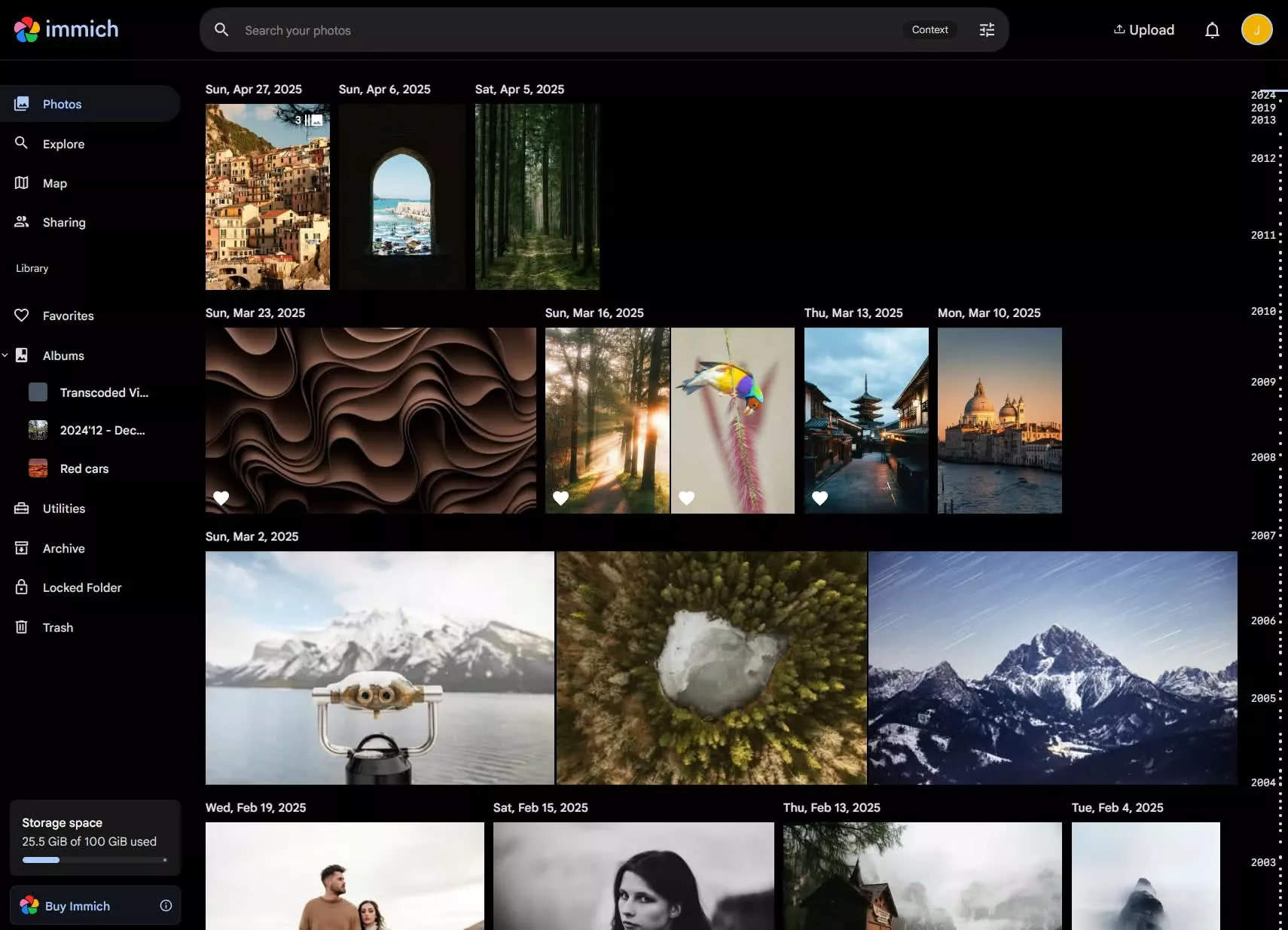
Immich is what happens when the self-hosting community decides to rebuild Google Photos from scratch, and in 2026 it deserves to be treated as a real option. The project shipped its first stable release, v2.0.0, on 1 October 2025, and it’s moved quickly since, reaching v3.1.0 by the end of July 2026. Any coverage you’ve read describing it as perpetually in beta is out of date.
You run it on your own hardware, your photos live on your own drives, and the phone apps do automatic backup the way Google’s do. The Takeout story is solid too, with the immich-go tool built specifically to ingest Google Takeout archives, JSON matching included. The full picture, including what self-hosting asks of you in practice, is a bit further down, because it deserves its own section.
What About Dropbox, OneDrive and Flickr?
Three names people arrive expecting, and three quick verdicts.
Flickr Pro is $82 a year billed annually as of August 2026, and it’s a photo community, not an archive. Flickr doesn’t accept RAW files at any tier (that’s a Flickr limitation, not a Pro one), photos cap at 200MB each, and TIFF and BMP files are converted to JPEG on upload. If you upload a TIFF, you don’t get your TIFF back. It can be a lovely place to share work. As the home for the only good copy of anything, I’d rule it out.
Dropbox is a general file store, and for that job it’s fine. My finished edits sync through Dropbox as part of my own workflow. What it doesn’t have is a photo library’s brain, so treat it as a folder in the sky and nothing more.
OneDrive plays the same role in Microsoft’s world, and a lot of people paying for it don’t realise how much space they already have. As of August 2026, Microsoft 365 Personal is $99.99 a year and comes with 1TB, and Family is $129.99 a year for up to six people with 1TB each. Check what your existing subscription already includes before you buy storage anywhere else.
As an archive answer it has Dropbox’s problem, plenty of space and no photo library to speak of, and 1TB per person doesn’t stretch to decades of RAW files.
What Photo Storage Really Costs at Archive Scale
At 10TB, the cheapest ways to hold a photo archive on this list are Backblaze at $99 a year (as a backup of drives you own) and iDrive at $179.88 a year after the first-year discount. The app-style services either don’t sell those sizes or cost several times as much. This is where the usual rankings reorder themselves, because services that look identical at 200GB are wildly different at 10TB.
The arithmetic below uses each service’s own prices as of August 2026. Where a figure is a monthly rate, I’ve multiplied it out to a year and said so. A dash means the service doesn’t sell that size, or I couldn’t verify a current price for it, so no guessing.
| Service | 2TB per year | 5TB per year | 10TB per year | Basis |
|---|---|---|---|---|
| Backblaze | $99 | $99 | $99 | Flat $99/year per computer, unlimited data (backs up your drives) |
| iDrive | $119.88 | $119.88 | $179.88 | Renewal rates, billed annually; 5TB is the smallest plan; year one is $83.88 / $83.88 / $125.88 |
| Google One (AI plans) | $99.99 | $239.88 | – | 2TB billed annually; 5TB is $19.99/month billed monthly, multiplied out |
| Ente | $239.88 | – | – | Pro+ 2TB at $19.99/month, multiplied out |
| iCloud+ | $119.88 | – | – | $9.99/month billed monthly, multiplied out |
| pCloud Lifetime | $399 once | – | $1,190 once | One-time payment, not annual; break-even against Google’s 2TB plan in about 4 years |
| SmugMug + Source | $432 | $648 | $1,008 | Direct plan ($20/mo) plus the RAW add-on ($10/mo first TB, $6/mo per extra TB), billed annually, multiplied out |
| Amazon Photos | Prime | Prime | Prime | Photos unlimited with a Prime membership; videos capped at 5GB |
Consumer 2TB plans cluster around $100 to $240 a year and tell you almost nothing about which service suits an archive. The real separation happens at 5TB and above, where most photo-app services stop playing and the field narrows to backup-shaped products.
SmugMug’s numbers look steep here, but remember you’re buying a public gallery platform with storage attached, not raw terabytes. And Backblaze’s flat $99 is a bit of a cheat in this company, because it requires you to own the drives it’s backing up. That’s also its advantage. It assumes the master copy is yours.
The Reversibility Test: How Do You Get Out Next Time?
Before moving your photos anywhere, ask three questions. Can I export a folder tree with my original files and their embedded metadata? Do I get my originals back, or something re-compressed? And does the tier I’m relying on depend on something that can be withdrawn?
You’re reading this article because Google changed a deal. The best use of that experience is to make reversibility a test you apply before you commit, rather than a lesson you learn twice.
The third question is the one people miss, so here are the live examples from this list. Amazon Photos’ unlimited tier is a Prime benefit, and Amazon’s retention policy means an over-quota account (which is what yours becomes if you cancel Prime with a big library parked) starts losing files after 180 days, newest first. iDrive’s advertised price lasts one year. pCloud’s lifetime discount is, by its own terms, a promotion.
None of these are scandals, they’re terms, and terms are what burned Google Photos users in the first place.
The second question has a concrete example too. Flickr converts TIFF and BMP uploads to JPEG, so what comes out is not what went in. That’s the pattern to check for anywhere you go.
And the first question you can answer for yourself. Whatever service you shortlist, upload a small, known test set, a few hundred photos including some you’ve edited, then export it and inspect what you get back. Filenames, folder structure, embedded dates. It’s an hour of admin that tells you more than any review, including this one.
Self-Hosting Your Photo Library: What It Really Takes
Immich is the self-hosted option I’d point a technical reader at in 2026. And a self-hosted server is one copy of your photos, not a backup. Both of those sentences are true, and the second one gets skipped in most of the enthusiasm around self-hosting.
The appeal is real. Your photos stay on your hardware, there’s no subscription, and the terms can’t change under you, because there are no terms. With Immich now past its first stable release, the software is the real thing. PhotoPrism is the more established alternative, and Nextcloud can do photos as part of a broader self-hosted setup if you’re already running it.
Now the practitioner’s caveat. I run an Unraid server at home, part of my archive lives on it, and I have a computer science degree and a past life as a software developer.
Even so, self-hosting is a hobby I’ve adopted, with updates to apply, drives to replace, and occasional evenings lost to something that worked fine last week. If that sounds fun, and for me it mostly is, you’ll be in good company. If it sounds like a chore, the hosted services above exist for good reasons.
Whatever you do, don’t let a self-hosted box become your only copy. One server in your house is one copy in your house, and the fire or flood that takes your computers takes it too. Pair it with an offsite copy, which is the role Backblaze plays behind my own server. Self-hosting replaces the Google Photos interface. The backup discipline in my photo backup guide still applies on top.
When Not to Leave Google Photos
If your library is a phone camera roll that fits in the free 15GB or the $1.99-a-month 100GB plan, staying put is the right call. If you have 60GB of phone snapshots, leaving is a downgrade, and I’d tell you that to your face.
Google Photos’ search is the best I’ve used, the face grouping likewise, the app backs up automatically without ever needing a thought, and at 100GB the price is close to nothing. Every alternative on this page asks you to give up some of that polish in exchange for ownership, cost control at scale, or privacy. For a big archive, that trade is worth making. For a camera roll, you’d be trading down and paying for the privilege.
I’ll go further and tell you what I do, since it’s the position this whole article has been building to. My phone still backs up to Google Photos. Jess’s does too, and the family sharing between our accounts is something no alternative I’ve tried matches for sheer lack of friction.
What I don’t do is let Google hold the only copy of anything. My archive, the 30 years of work, lives on my own drives with its own offsite backup. Leaving Google Photos can just mean demoting it, from the place your archive lives to an app your phone uses.
Frequently Asked Questions About Leaving Google Photos
A few questions that come up every time this topic does.
What is the best alternative to Google Photos?
For a straight replacement, Ente. It’s end-to-end encrypted, open source, and has a documented Google Takeout import that keeps your albums and favourites.
If you’re moving a large photo archive, no single app is the answer. Use a local master copy on your own drives, an offsite backup like Backblaze at $99 a year, and add a sharing layer only if you need one.
Should I switch from Google Photos to iCloud Photos?
Only if you’re an iPhone user committed to Apple’s ecosystem, and even then it’s a sideways move, not an upgrade. You’d be swapping one big company’s subscription for another’s, at a similar price ($9.99 a month for 2TB, billed monthly, as of August 2026).
Switch if Apple integration is what you want. If your reasons for leaving Google are cost at scale or owning your archive, iCloud doesn’t solve either.
Does Google Takeout keep my photo metadata?
The metadata that was embedded in your files, like camera EXIF data, stays embedded. But everything Google Photos itself knows, including edited dates, locations, descriptions and people tags, is exported to a separate JSON file alongside each photo.
So the safe answer is yes, if you import with a tool that reads those JSON files, such as Ente’s importer or immich-go. If you copy just the image files, you’ll silently lose every correction you ever made inside Google Photos.
Is Amazon Photos good for photographers?
It’s good value, with real limitations to know about. Prime members get unlimited full-resolution photo storage, and RAW formats like NEF, CR2, CR3 and ARW are supported. But Amazon Photos doesn’t generate previews for RAW files, so you can’t browse a RAW archive visually. It’s cold storage.
Also know the terms. Videos only get 5GB, and an account that goes 2 years without a sign-in, or sits over quota for 180 days after a Prime cancellation, starts losing files.
What is the cheapest way to store a large photo library?
Keep the master copy on your own drives and back it up with Backblaze, which is $99 a year per computer with no data cap. That’s the cheapest serious setup I’ve found at 10TB and beyond, as of August 2026.
If you’d rather have managed cloud storage, iDrive’s 5TB plan renews at $119.88 a year and its 10TB at $179.88 a year, which undercuts every photo app in this guide at those sizes.
Can I self-host a Google Photos alternative?
Yes. Immich is the strongest option in 2026, past its first stable release and importing Google Takeout archives via the immich-go tool. PhotoPrism and Nextcloud are the other established routes.
Two eyes-open caveats. Self-hosting is an ongoing hobby, not something you set up once. And a server in your house is one copy of your photos, so it still needs its own offsite backup.
Further Reading
That covers getting out of Google Photos, but it’s one piece of a bigger discipline. These guides carry on from here:
- My complete guide to how to back up your photos, including the 3-2-1 rule and the full service comparison for backup specifically
- My detailed SmugMug review for photographers, if the gallery layer appeals
- My guide to the best Lightroom alternatives, for the catalogue side of managing an archive
And if you want to improve the photos going into that newly organised archive, my online travel photography course covers everything I’ve learned from 30 years of taking pictures, including the workflow and backup habits from this guide.
Takeout stories in particular will help the next person out of the door, so if you’ve run your own export, tell me how it went in the comments.
Leave a Reply