
I’ve been taking photos professionally since 2010, and in that time I’ve tried pretty much every backup option going. My photo library currently sits at over 10 terabytes of RAW files, and before I was a photographer I worked as a software engineer, so I’ve seen first-hand what happens when hard drives fail and backups don’t exist. A proper backup system is also one of the first things I drum into students on my online photography course. A backup subscription is also one of the picks in our camera-gear gift guide, for anyone whose photos matter more than their gear.
If you’re here because you want to back up your phone photos and stop seeing the “iCloud Storage Full” warning, the short answer is to turn on Google Photos or iCloud Photos and pay for whichever tier covers your library. They’re both reliable, both automatic, and neither requires reading the rest of this article. Google Photos is the better cross-platform option; iCloud Photos is the better choice if everything you own is Apple.
If you’re here because you have a serious photo library, or you’ve finally accepted that hard drives don’t last forever, or you want to know what someone with 10 terabytes of RAW files actually does, keep reading. The rest of this guide covers the proper backup methods, the cloud services that handle photographer-scale libraries, and the local plus cloud workflow I’ve used for years to protect my own work. If you’re weighing whether to leave Google Photos specifically, I’ve written a full breakdown of the services, the real costs at archive scale, and what Google Takeout actually gives you.
If you want the quick version, here’s what I’d buy in 2026 depending on your situation:
Best overall for photographers: Backblaze ($99/year, unlimited storage, includes external drives, and a free month if you sign up through our link)
Best for serious libraries (what I actually use): A network attached storage (NAS) at home plus Backblaze for off-site. Covered in detail in the “How I Back Up 10TB+” section below.
Best for Amazon Prime members: Amazon Photos (unlimited photo storage including RAW, included with Prime)
Best free option for phone photos: Google Photos (15GB free, automatic backup, the right answer for most casual users)
Best for backing up multiple devices: iDrive (one account covers all your computers)
Best one-off payment (no subscription): pCloud (lifetime plans up to 10TB)
Table of Contents:
The 3-2-1 Backup Rule: Start Here
If there is one thing you take away from this article, let it be this: follow the 3-2-1 backup rule. It’s the standard approach recommended by data storage professionals, and it’s what I use myself.
The idea is simple. You should have:
3 copies of every file (the original plus two backups)
2 different types of storage media (e.g. your computer’s hard drive and an external drive, or a hard drive and cloud storage)
1 copy stored off-site (away from your home, such as in the cloud)
This system protects you against almost every disaster scenario. If your computer’s hard drive fails, you restore from your local backup. If your home floods or burns down, you still have the cloud copy. If the cloud provider goes offline, you still have your local copies.
There is of course a very slim chance that all three would fail at the same time, but that’s extremely unlikely. For most people, 3-2-1 is more than enough protection. Backup is only one stage of the process though. If you want to see where it sits alongside culling, organising, sharing and printing, I have written up my full post-trip photo workflow.
Photo Backup vs File Synchronisation
Before we get into the specific backup options, it’s worth understanding the difference between backup and synchronisation. They sound similar, but they work differently, and mixing them up can lead to accidental data loss.
A backup service copies your files one way, from your device to a backup location. If you delete a file from your device, the backup copy usually stays in place for a retention period (often 30 days, sometimes longer). This means you have a safety net against accidental deletion.
A synchronisation service keeps files in sync across multiple devices. If you delete a file on one device, it gets deleted everywhere. Services like Dropbox, Google Drive, iCloud, and OneDrive are primarily sync services. They’re great for accessing files across devices, but they’re not true backups.
Some services blur the line. Google Photos, for example, works as a one-way backup for your phone’s camera roll. You can delete photos from your phone and they’ll stay in Google Photos. OneDrive does the same for photos on Android. These are useful hybrid features, but for your main photo library, I’d recommend a dedicated backup service rather than relying on a sync service.
I use both. Backblaze handles my backup, and Dropbox handles my sync for finished work. They complement each other well.
What to Look for in a Cloud Photo Backup Service
There are quite a few cloud backup options out there, and how much storage you need is usually what decides it. Here are the things I’d consider before picking one.
Storage Space
How many photos do you need to back up? If you shoot in JPG on your phone, 1TB of storage could hold 150,000 to 250,000 photos. If you shoot in RAW on a dedicated camera, that same 1TB might only hold 20,000 to 50,000 images depending on your camera’s megapixel count.
My library is over 10TB, so I need an unlimited storage option. If you’re just backing up your phone, you might be fine with a smaller, cheaper plan.
File Type Support
If you shoot in RAW, check that the service supports your camera’s specific RAW format. There’s no universal RAW standard, and not all services handle every manufacturer’s files. This is less of a concern for JPG shooters, but it’s a deal-breaker for many serious photographers.
Retention Period
This is how long the service keeps your files after you delete the local copy. Most services offer 30 days by default. Backblaze now includes one year of version history free with all plans, which is a big improvement over the 30-day default they used to offer.
I’d recommend at least 30 days. Longer is better if you can get it, because you might not notice a missing file straight away.
Cost
Expect to budget around $80 to $120 a year for a solid cloud backup service. I think that’s very reasonable considering what you’re protecting. Many of these photos are irreplaceable memories, and the cost works out to less than the price of a single camera lens.
Recovery Options
It’s one thing to back up your photos, but you also need to be able to get them back. If you have a 10TB library and need to restore everything, downloading it all could take weeks on a slow connection.
Some services (including Backblaze) offer to ship you a physical hard drive with your data on it. If you have a very large library, this can be the fastest recovery option by far.
Number of Devices
Some services cover one computer, others allow multiple. If you have a desktop and a laptop, check whether you need separate licences. Services with unlimited storage tend to limit you to one device, while services that charge by capacity often allow more.

Best Cloud Photo Backup Services
Here are my recommendations for the best cloud backup services, based on years of personal use and testing. I’ve split these into two categories: services for backing up your phone photos, and services for backing up your computer (which is where most serious photo libraries live).
Best for Phone Photo Backup
Google Photos
This is what Jess and I use for our phone backups, and I’d recommend it for most people. Google Photos automatically uploads your photos from your phone to your Google account whenever you’re connected to WiFi (or mobile data, if you prefer).
All Google accounts get 15GB of free storage, shared across Google products like Gmail and Drive. You can upgrade for more. Personally we pay for the 100GB service which we are still very far from filling even with years of phone photos backed up. I’d recommend choosing the original quality upload setting, which saves your images at full resolution.
The thing I like most about Google Photos is that it’s a true backup for your camera roll, not just a sync service. You can delete photos from your phone to free up space, and the cloud copies stay put. The app even has a built-in option to free up device storage automatically.
On top of the backup, Google Photos has good search, basic editing tools, and integration with printing services. It supports a wide range of file types including most RAW formats.
iCloud Photos
If you’re an iPhone user, iCloud Photos is the obvious option, and it works well enough for short-term backup. However, there’s an important caveat: iCloud Photos is a synchronisation service, not a backup service. If you delete a photo from your iPhone to free up space, it also gets deleted from iCloud (after a 30-day grace period).
Apple gives you 5GB for free, which won’t last long. Paid plans offer more, but the sync behaviour means I wouldn’t rely on iCloud as your only backup. Use it alongside one of the other options on this list.
Amazon Photos
If you’re already an Amazon Prime member, this is worth checking out. Amazon Photos is included with Prime in many countries and offers unlimited full-resolution photo storage, including RAW files.
Once your files are uploaded, you can delete them from your phone and they’ll stay in the cloud. The search features are good, and there are basic editing options too. It’s a solid added benefit if you already pay for Prime.
If you don’t have Prime, you get 5GB for free. The standalone paid plans exist but aren’t particularly competitive compared to dedicated backup services, so I’d only recommend this as a Prime add-on rather than a primary backup solution.
pCloud
If you want a one-off payment rather than an ongoing subscription, pCloud is worth considering. They offer lifetime plans with up to 10TB of storage. “Lifetime” means 99 years or the life of the account holder, which is generous, though of course if the company goes out of business that wouldn’t be honoured.
The mobile apps for iOS and Android support automatic photo upload, and there’s a built-in option to free up device storage once your photos are backed up. You get 10GB free to try the service, which should be enough to test whether it works for you.
OneDrive
Microsoft’s OneDrive is primarily a sync service, but for photos it operates as a one-way backup. Once photos are uploaded, you can delete them from your device. On Android, the app can automatically clean up local photos once they’re safely in the cloud. This feature isn’t available on iPhone, unfortunately.
You get 5GB for free, and 1TB is included if you subscribe to Microsoft 365, which is good value if you already use Office. RAW file support is included.
SmugMug
SmugMug is primarily a portfolio and photo selling platform (you can read my full SmugMug review here), but all plans include unlimited photo backup via the mobile app for both iOS and Android.
The app automatically backs up your images to the cloud, after which you can delete them from your device to free up space. If you’re already using SmugMug for portfolio or print sales, the mobile backup is a useful bonus. For pure phone backup though, Google Photos or Amazon Photos are simpler and more cost-effective.
Backing Up to Your Computer
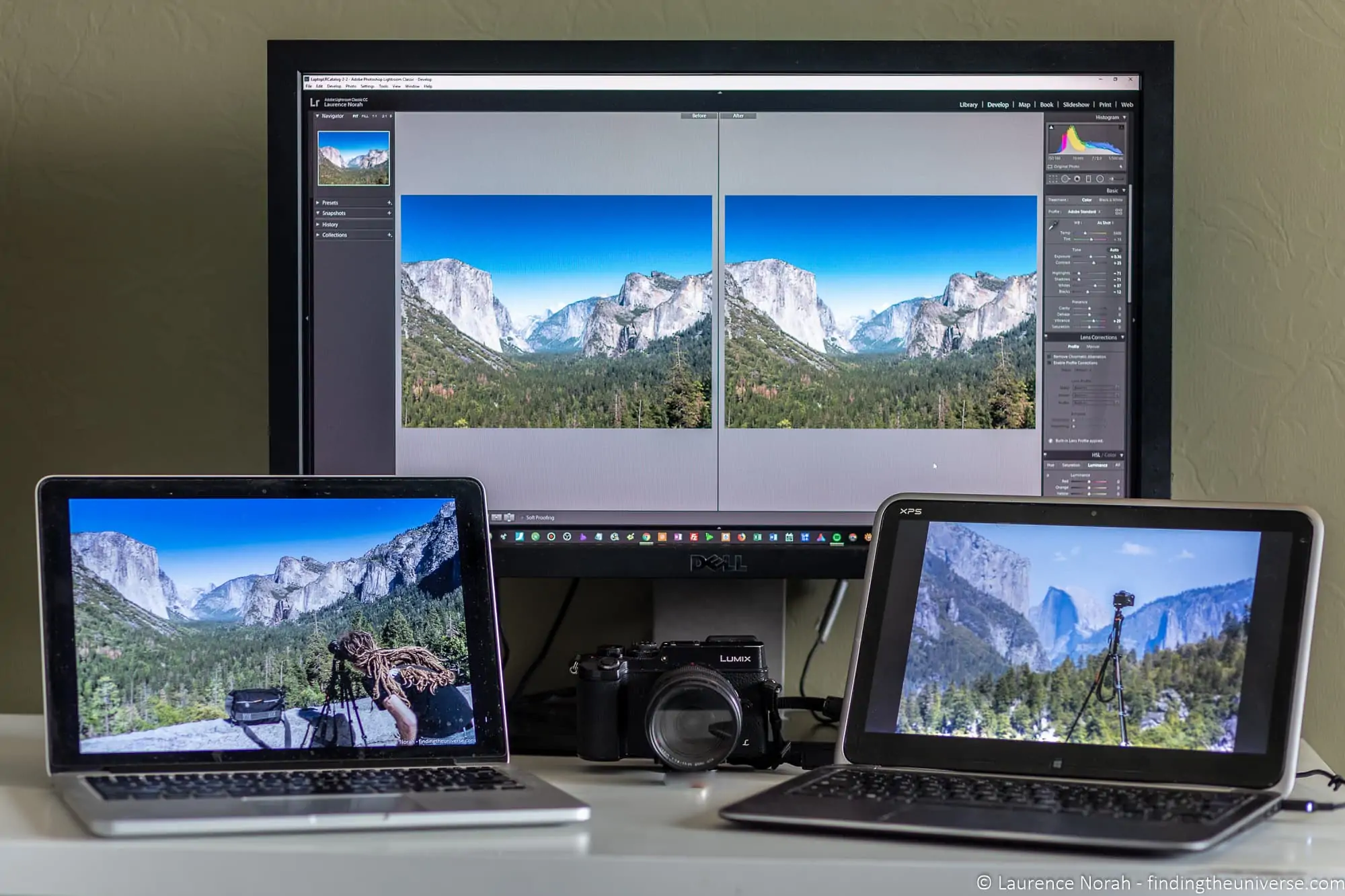
As well as cloud backup, it’s a good idea to keep a copy of your phone photos on your computer. The simplest way is to plug your phone in with a cable and copy the files across. You can also set up a sync service like OneDrive or use a tool like SyncThing to do this wirelessly.
Best for Computer Photo Backup
If you shoot with a dedicated camera, your computer is probably where your main photo library lives. This is where getting your backup right really matters.
Backblaze (My Top Pick)
This is what I use personally, and it’s been my primary cloud backup for years. I have over 10TB backed up with them, and the service has been rock solid.
The concept is simple: you install the software, and it backs up pretty much everything on your computer automatically. You can configure it to exclude specific folders or file types, and adjust how much bandwidth it uses, but the default settings work well for most people.
Backblaze offers unlimited backup for one computer, including connected external hard drives (but not NAS devices). The default retention period is 30 days after file deletion, with one year of extended version history now included free on all plans. You definitely want to enable that 1 year retention as it’s free. You can also upgrade to unlimited (“forever”) retention if you want, though one year is plenty for most people.
For recovery, you can download files from their website or have them mail you a hard drive with your data anywhere in the world. The hard drive option has a deposit which is refunded when you return it.
If you have multiple computers to back up, Backblaze also has a business offering. The price is the same per computer, with the advantage that you can manage multiple computers from one account.
Pricing is $9 per month, $99 per year, or $189 for two years per computer. For unlimited backup of all file types, that’s very competitive. You can try Backblaze free for a month through our referral link, which is twice the standard 15 day trial. No credit card is needed to start.
Carbonite
Carbonite offers three personal backup tiers: Basic, Plus, and Prime. All three include unlimited cloud storage for one computer, but the features vary quite a bit between them.
The Basic plan covers one internal hard drive and includes photos and files, but excludes video and external drives. The Plus plan adds external hard drive support and automatic video backup. The Prime plan includes everything in Plus, along with courier delivery of your recovered files on a physical drive.
You can check the current pricing and plan details on the Carbonite FAQ page.
For photographers, you’d likely need at least the Plus plan to get external drive support, which pushes the cost to $131.99/year. At that price, Backblaze is better value since it includes external drives and all file types at $99/year. Carbonite runs promotions regularly though, so it’s worth comparing current offers.
CrashPlan
I used CrashPlan as my primary backup for years and was very happy with it. However, their relationship with personal users has been rocky. They dropped their home user plan in 2018, and while they later reintroduced plans that individual users could sign up for, the service is now focused entirely on business customers.
As of 2026, CrashPlan only offers business plans (Essential, Professional, and Enterprise). There’s no personal plan. You can technically sign up as a sole trader or small business owner, and the Professional plan does offer unlimited backup on up to two devices with external drive support. But the pricing and interface are aimed at business users, and the experience isn’t as streamlined as Backblaze for someone who just wants to back up their home computer.
I’m not recommending CrashPlan any more. Backblaze does the same job better for $99 a year, without the business sign-up. Being dropped as a home user wasn’t much fun either (I had to scramble to find a new backup service and upload 8TB of data to it!), and I’d rather point you at a service that actually wants your custom.
They no longer publish a price either. The pricing page asks you to request a quote, which tells you who the product is for these days.
pCloud
If you’d prefer a one-off payment, pCloud offers lifetime plans with up to 10TB of storage. This is particularly appealing if you don’t have an enormous photo library and want to avoid recurring fees.
Annual plans start at around $50/year for 500GB, or around $100/year for 2TB. The lifetime 2TB plan is around $400. pCloud almost always has a discount running, so the higher list prices you’ll see crossed out on their site aren’t what you’d actually pay.
The desktop app lets you select folders for automatic backup on Windows, macOS, and Linux. The default retention period is 30 days, extendable to a year on both lifetime and annual plans.
The one downside is that pCloud recommends against using their desktop app with external drives and NAS devices, as the desktop service is primarily sync-based rather than backup-based. The retention period does mitigate this somewhat, but it’s something to keep in mind if your photos are spread across multiple drives.
SmugMug
SmugMug includes unlimited photo backup with all plans. There’s a desktop app for Windows and macOS that lets you select folders for automatic upload, and it supports external hard drives and mapped NAS devices.
The upload is one-way, so deleting local files after upload won’t affect the cloud copies. Third-party uploading tools are also available if you want a more polished experience. You can see the options on the SmugMug help page.
The catch is that unlimited backup doesn’t include RAW files. If you want to back up RAW, you need a separate subscription to SmugMug Source, which is billed based on storage. This makes SmugMug a good option if you’re already using it for portfolio and print sales (you can read my full SmugMug review), but a relatively expensive one as a pure backup solution.
Plans start at around $240/year. RAW storage is charged separately on top, at $10 a month for the first terabyte and $6 a month for each additional one.
Flickr Pro
Flickr (which is owned by SmugMug) offers unlimited photo storage with a Pro subscription. There are desktop clients for Windows and macOS, and mobile apps for automatic backup.
Flickr Pro uses the Flickr Uploadr tool for one-way uploads, so files deleted locally will stay on Flickr’s servers. The big limitation is that Flickr doesn’t support RAW files, which makes it less useful for serious photographers. If you primarily shoot in JPG, it could work well, especially if you also want access to Flickr’s photography community features.
A Pro subscription is $82 a year, or $148 if you pay for two years up front.
Google Drive for Desktop
Google Drive is mainly a sync service, but the desktop app can be configured for one-way photo backup to Google Photos. You select a folder, choose to back it up to Google Photos, and new images added to that folder will be uploaded automatically. It supports external drives and NAS devices, and it handles most photo file types including RAW.
The advantage is that your photos end up in Google Photos with all its search and editing features. The downside is that you need to configure it carefully (it only works for folders containing more than 95% images and videos), and pricing is based on storage rather than unlimited.
The 2TB plan costs $99.99/year (or $9.99/month), and smaller plans start at $19.99/year for 100GB. Google has renamed the 2TB tier to Google AI Plus and bundled Gemini access into it, so that’s the name to look for on their plans page rather than Google One 2TB.
Amazon Photos
For Amazon Prime members, the desktop version of Amazon Photos offers unlimited backup of photos including RAW files. Deleted files sit in the trash for 90 days before they’re gone for good, which is better than the 30-day default most services offer. There is one catch worth knowing about: if you don’t sign in, upload or download anything for two years, Amazon deletes everything in the account, although you do get an email warning at 18 months. You can choose between backup mode (one-way, files stay in the cloud even if deleted locally) and sync mode.
The backup option lets you select folders on external hard drives and NAS devices. You can configure it to run once or to monitor folders for changes. There’s also an AI-powered search tool that works well for finding specific images.
Note that the Amazon Photos terms of service state it can’t be used for commercial purposes, so if you run a photography business, you might want to look elsewhere. For personal photo backup, it’s an excellent add-on if you’re already paying for Prime.
Amazon Photos is included with an Amazon Prime membership. Standalone photo storage plans are also available if you don’t want the full Prime package.
All users get 5GB free, so you can test out the service before committing.
iDrive
iDrive stands out because it lets you back up an unlimited number of devices under one account, including smartphones, computers, external drives, and NAS devices. Plans offer either 5TB or 10TB of storage, with a free 5GB tier for testing.
All file types are supported, including RAW images. iDrive doesn’t delete backed-up files even if you delete them locally (since they charge based on storage used, they can afford to keep everything). You can manually clean up cloud storage with their archive cleanup function, which moves files to trash for 30 days before permanent deletion.
If you need to back up multiple devices and don’t need unlimited storage, iDrive is a strong option.
The 5TB plan is $83.88 for the first year, then $119.88 a year after that. iDrive advertises the first-year price, so budget for the renewal rather than the headline.
Cloud Photo Backup Price Comparison
Here’s a quick comparison of the cloud backup services listed above. Where possible I’ve chosen unlimited plans. For services that don’t offer unlimited storage, I’ve picked the closest tier to 2TB, which should suit most users. Prices are for annual billing.
- Backblaze – $99/year for unlimited backup of all files including external drives (not NAS). One year version history included free. Also available at $9/month or $189/two years.
- Carbonite – Three tiers: Basic ($95.99/year, one internal drive, no video), Plus ($131.99/year, adds external drive and video), Prime ($161.99/year, adds courier recovery). All include unlimited storage for one computer.
- CrashPlan Professional – Business plans only, priced by quote rather than published. Unlimited backup on up to two devices including external drives, but I wouldn’t recommend it for a home photo library.
- pCloud – Around $100/year for 2TB, or a lifetime 2TB plan for around $400. Multiple devices supported. Not recommended for external drives or NAS.
- SmugMug – From around $240/year for unlimited photo backup (excludes RAW, which costs $10 a month for the first TB and $6 a month per additional TB).
- Flickr Pro – $82/year for unlimited photo storage. Does not support RAW files.
- Google Drive – $99.99/year for 2TB, sold as Google AI Plus ($9.99/month). Supports external drives and NAS. Smaller plans from $19.99/year for 100GB.
- Amazon Photos – Unlimited photo storage included with an Amazon Prime membership. A standalone photo storage plan is also available.
- iDrive – $83.88 for the first year for 5TB, then $119.88 a year. Supports unlimited devices, external drives, and NAS.
How to Back Up Photos Locally
Cloud backup is half the equation. For proper 3-2-1 protection, you also need a local backup on a separate device from your computer. Here are your options.
External Hard Drives
The easiest and cheapest local backup option is an external hard drive. You plug it in, set up automatic backup software, and let it run.
There are two types of drive to consider. An SSD (solid state drive) has no moving parts, is fast, and handles being knocked around well. An HDD (traditional hard drive) is cheaper per terabyte, available in enormous sizes (20TB and beyond), and perfectly fine for backup purposes where speed isn’t critical.
For home backup, I’d lean towards an HDD for the storage-to-cost ratio. Popular options include drives from Western Digital and Seagate, both of which usually come with backup scheduling software.
Network Attached Storage (NAS)
A NAS is an external hard drive with a network connection and a small processor. You connect it to your home router, and every computer on your network can back up to it.
I use an Unraid-based NAS at home, and it’s become an important part of my backup workflow. The advantages over a simple external drive are that you can access it from any device on your network, you can add more hard drives as your storage needs grow, and many NAS devices support RAID configurations that protect against individual drive failures.
A NAS costs more than a plain external drive because of the extra hardware. Popular brands include BUFFALO, Synology, and QNAP. You can usually buy the enclosure without drives and add your own at whatever size you need.
Before investing in a NAS, check whether your home WiFi router has a USB port that supports an external hard drive. This can offer similar basic functionality without the extra cost.
Backup Software
Whatever local storage you choose, automate your backups. You don’t want photo backup to be something you have to remember to do.
Windows has a built-in tool called File History, and Mac has Time Machine. Both work, but they’re designed to back up your entire system rather than just your photos, which can mean you need a lot more backup space than you’d expect.
For photo-specific backup, I’d recommend either the software that comes bundled with your external drive, or a free tool like EaseUS Todo Backup or Paragon Backup & Recovery. Both offer free versions for personal use that give you more granular control over what gets backed up and when.
How I Back Up 10TB+ of Photos
I think it helps to see a real-world example, so here’s exactly how I back up my photos. I’ve refined this system over many years, and it covers everything from the moment I take a photo to long-term archival storage.
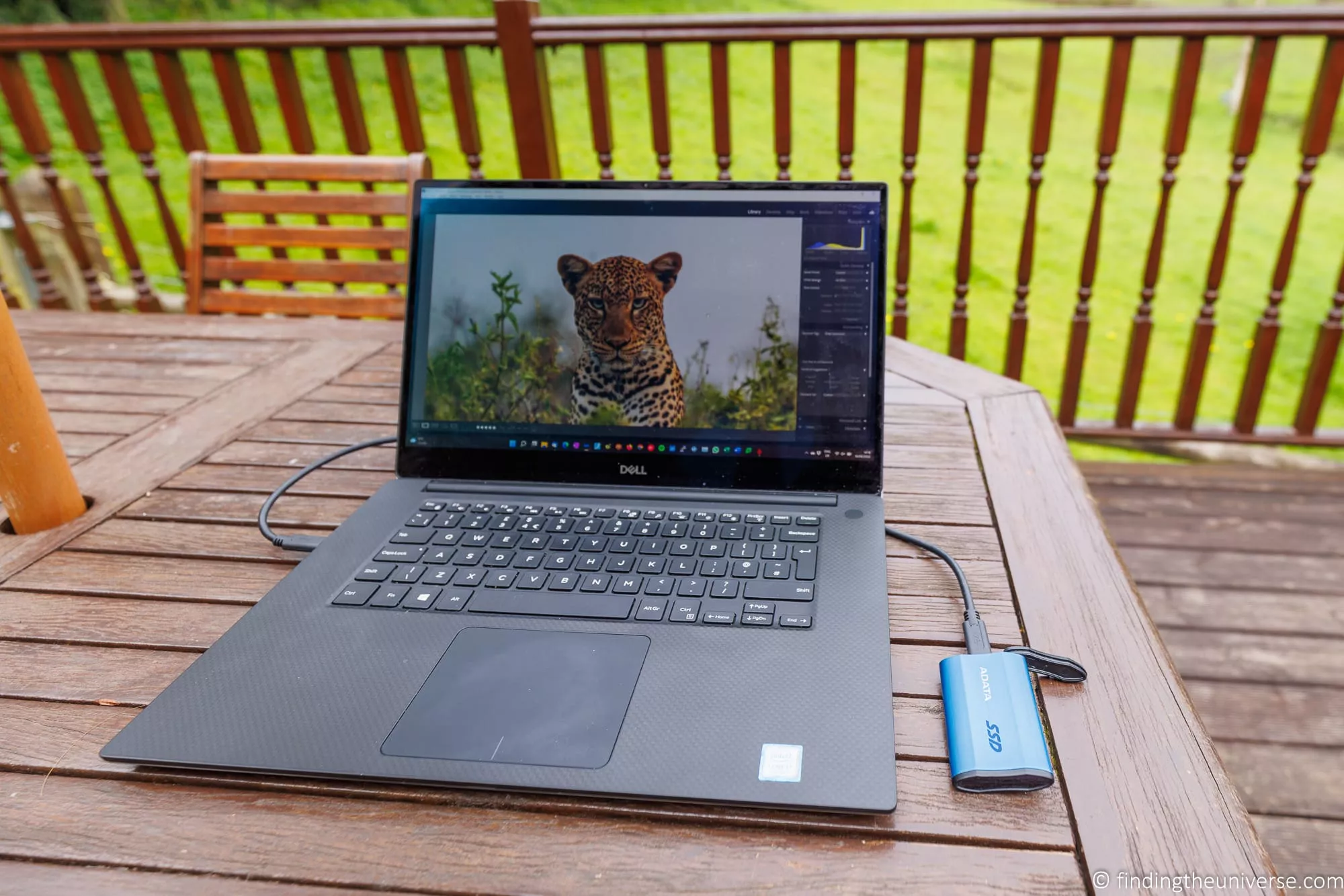
On a shoot: I shoot in RAW on my Canon EOS R5. When I get back to my computer, I transfer the files from my memory card to my main hard drive. If I’m travelling, I also copy the files to a portable SSD as an extra safety net (more on travel backup later).
At home: My primary computer stores my working photo library. From there, two things happen automatically:
First, Backblaze runs in the background and backs up everything to the cloud. This is my off-site backup. It covers all my files, not just photos, and it’s completely hands-off once you’ve set it up.
Second, I have a NAS (Network Attached Storage) running Unraid on my home network. This handles my local backup. The NAS sits on a different device from my computer, so if my computer’s drive fails, the NAS still has everything.
For mobile photos: Both Jess and I use Google Photos to automatically back up photos from our smartphones. It runs in the background whenever we’re on WiFi, and we can delete photos from our phones without losing the cloud copies.
For finished edited photos: I use Dropbox to sync completed, edited images. This lets me access them across devices and share them with others when needed.
This setup gives me well over three copies of everything, stored in multiple locations and on different types of media. It took a bit of time to set up initially, but now it runs without me having to think about it.
Want to Take Better Photos?
I’ve been teaching an online travel photography course since 2016, and over 2,500 students have taken it so far. It covers everything from how your camera works through to composition, light, and editing, with feedback from me as you go. One payment, lifetime access.
How to Back Up Photos When Travelling
When I’m travelling, my usual home backup workflow obviously isn’t available. Internet connections abroad are often too slow or unreliable for cloud backup of large RAW files, so I focus on creating local copies instead.
My travel backup workflow is simple: I travel with my laptop and at least one portable SSD, ideally two. At the end of each day (or whenever I get a chance), I transfer photos from my camera’s memory card to my laptop’s drive, and then copy them to the portable SSD as well. I keep the laptop and the SSD in separate bags where possible, so if one bag gets lost or stolen, the other still has a copy.
For portable SSDs, I’d recommend the SanDisk Extreme range. The current generation (V3, announced February 2026) is compact, rugged, and fast enough for transferring large batches of RAW files. A quick note of caution: in 2023 SanDisk issued advisories covering the 4TB and 8TB Extreme Portable and the 1TB, 2TB and 4TB Extreme PRO Portable. SanDisk’s own wording was that affected drives could “unexpectedly disconnect”, though users reported losing files outright, and a class action lawsuit followed. The current generation is a different product with no advisory against it, but make sure you’re buying the latest model, and as always, never rely on a single copy of anything.
Once I get home from a trip, I transfer everything to my main computer, where Backblaze and my NAS take over for proper 3-2-1 backup.

Which Cloud Photo Backup is Best?
With all these options, here’s my quick guide to which one might be best for you.
If you want a simple, unlimited, set-and-forget backup for your computer, Backblaze is my top recommendation. It’s what I use, it’s easy, and it’s good value. Our referral link gets you a free month to try it rather than the standard 15 days. The hard drive restore option is also a lifesaver if you ever need to recover a large library. Note that Backblaze doesn’t include mobile backup, so you’d pair it with Google Photos or similar for your phone.
If you’re an Amazon Prime member, Amazon Photos is a great bonus. Unlimited photo storage including RAW files, and it works across both mobile and desktop.
If you don’t need unlimited storage and would prefer a one-off payment, pCloud is worth a look. The lifetime plans offer good value if 2-10TB is enough for you.
If you need to back up multiple devices, iDrive is the standout option. One account covers all your devices, and it supports external drives and NAS.
If you want backup combined with a photography portfolio and print selling platform, SmugMug is the only option that does both well. Just be aware of the extra cost for RAW storage.
If you’re still undecided, Backblaze is where I’d start. The main thing is to start backing up your photos. Whatever service you choose, you’ll be in a much better position than having no backup at all.
Frequently Asked Questions
What is the best way to back up photos to the cloud?
Phone photos and a desktop photo library want different services. For phone photos, Google Photos is the simplest option. It backs up automatically over WiFi, gives you 15GB free, and keeps your cloud copies even when you delete photos from your phone.
For your computer’s photo library, I’d recommend Backblaze. It backs up everything automatically for $99/year with unlimited storage, and I’ve used it for years to protect my own 10TB+ library.
Whatever you choose, pair cloud backup with a local backup (external hard drive or NAS) for proper 3-2-1 protection.
What is the 3-2-1 backup rule?
The 3-2-1 rule means keeping three copies of every file, on two different types of storage media, with one copy stored off-site. For photographers, this typically means your original files on your computer, a local backup on an external hard drive or NAS, and a cloud backup with a service like Backblaze or iDrive.
Following this rule protects you against almost every data loss scenario, from hard drive failure to theft to house fires. It’s the standard approach used by data storage professionals and it’s what I use for my own 10TB photo library.
What is the best free photo backup option?
Google Photos gives you 15GB of free storage shared across Google services, which is enough for several thousand phone photos. Amazon Photos offers 5GB free (or unlimited photos with Amazon Prime). pCloud gives you 10GB free. iDrive offers 5GB free.
For most people, Google Photos is the best free option because of its automatic backup, good search features, and the ability to delete local photos without losing the cloud copies. But 15GB won’t last forever if you take a lot of photos, so plan to upgrade eventually.
Do I need cloud backup if I have a NAS or external hard drive?
Yes. A NAS or external drive covers you against your computer’s hard drive failing, but it doesn’t protect you if something happens to your home. A fire, flood, or burglary could take out both your computer and your local backup at the same time.
Cloud backup is your off-site protection. It’s the “1” in the 3-2-1 rule. Even a basic cloud backup service is better than no off-site copy at all.
How much storage do I need for photo backup?
This depends on how many photos you have and what format they’re in. As a rough guide, 1TB of storage holds around 150,000 to 250,000 JPG photos, or around 20,000 to 50,000 RAW photos. My own library is over 10TB after 15 years of professional photography, but most hobbyist photographers will need far less.
If you’re not sure, start with a service that offers a free tier and see how quickly you fill it. That will give you a good sense of what you’ll need long-term.
Should I use Adobe Creative Cloud for photo backup?
Adobe’s Photography plan includes some cloud storage (20GB with the basic plan, 1TB with the higher tier), and it integrates with Lightroom. However, I wouldn’t recommend it as your primary backup solution. The storage amounts are small compared to what most photographers need, and you’re tying yourself into an ongoing subscription that could increase in price.
I use Lightroom Classic for editing but keep my backup separate. A dedicated backup service like Backblaze gives you unlimited storage at a fraction of what Adobe charges for equivalent cloud space.
Further Reading
If you found this guide useful, here are some of my other photography resources that might help.
- I have a guide to the best photo editing software, as well as the best alternatives to Lightroom.
- We have guides to how to use a mirrorless camera and how to use a DSLR.
- See our guide to composition in photography for tips on improving your shots.
- We are big fans of shooting in RAW. See our guide to RAW in photography to understand why.
- You’re going to need something to edit on. See our guide to the best laptops for photo editing, and our guide to monitor calibration to make sure your screen is set up correctly.
- If you’re looking for a camera, we have guides to the best travel cameras, the best cameras for hiking, and the best camera lenses.
- We have a guide to why you need a tripod and a round-up of the best travel tripods.
- For specific shooting tips, see our guides to Northern Lights photography, long exposure photography, and astrophotography.
Looking to Improve Your Photography?
If you found this post helpful, and you want to improve your photography overall, you might want to check out my online travel photography course.
Since launching the course in 2016, I’ve already helped over 2,500 students learn how to take better photos. The course covers pretty much everything you need to know, from the basics of how a camera works, through to composition, light, and photo editing.
It also covers more advanced topics, including astrophotography, long exposure photography, flash photography, and HDR photography.
You get feedback from me as you progress, access to webinars, interviews and videos, as well as exclusive membership of a Facebook group where you can get feedback on your work and take part in regular challenges.
It’s available for an amazing one-off price for lifetime access, and I think you should check it out. Which you can do by clicking here.
And that’s it for my guide to the best ways to back up your photos! If you have any questions about photo backup, just pop them in the comments below and I’ll get back to you as soon as I can.
Lily says
Hi. Thx for this indepth amzing article. .y queation is on storage & hope you can hp. I have 2 external harddrives that I save my pictures in. The first is WD . It just doesn’t connect one day. I believe it’s the removable plug that plugs into some lower. I don’t know what ks a compagible new cord. So I bought another HDrive also a WD called My Book and a few years later, it doesn’t power up or connect to any of my desktop or laptop. I believe it’s the same proble..a powercord (?). The plug is a big & bulky ( smaller than a deck of cards but thick. Definitely not like the smartphone plugs. Let me know how I can get it up and running again . Thanks so much.
Laurence Norah says
Hi Lily,
So it sounds like the power adaptor for the hard drive has failed if it is not powering up. You can tell if it’s powered up because when you plug the power in it should make some sort of noise, even a gentle hum.
If this is the case then it is just a question of finding an adaptor to replace your existing adaptor. Most external hard drives use a fairly standard 12v adaptor, so you should be able to find a replacement. If you visit a site like Amazon and put in the model of the hard drive and “replacement power adaptor”, you should find some options, for example like these.
Hopefully this helps!
Best
Laurence
ANUKRATI DOSI says
Thank you so so much for such a helpful post.
Laurence Norah says
my pleasure, glad you found it useful!
Kath Crooks says
Hi Laurence
Very interesting article, I have an android phone and using drobox, and saving the photos on one drive.
I would get the message that the onedrive was full so transferred the photos to an external hard drive I was really bad at clearing out my memory so no have lots of duplicates all over the place.
Can you recommend software that can search through my laptops hard drive and the external had drive and highlight duplications.
I have got better and now once I transfer the photos from my phone via dropbox, I put them in a file and clear dropbox and my phone so they don’t get transferred again.
Love reading about you and Jessica’s adventures.
Kath
Laurence Norah says
Hi Kath,
It’s great to hear from you! It sounds like you are doing the most important thing, in that you are backing up your photos and have a system in place, which is awesome.
There are a few free options for finding duplicate files. AllDup is highly recommended and free, you can get that here: https://www.alldup.de/alldup_help/alldup.php
There are others but AllDup is one of the faster options which doesn’t try to convince you to upgrade to a paid product 🙂
Hope this helps, let me know if I can be of any further assistance!
Laurence