
I’ve been shooting travel photography professionally since 2010, and in that time I’ve bought into the tablet-as-editing-machine idea twice. Both times I ended up back at my desktop. Things have moved on a lot since then, and the tablets in this guide are far better machines than either of mine were, but my position hasn’t changed much. A tablet is a great second machine for editing photos. It’s a bad choice for your only one.
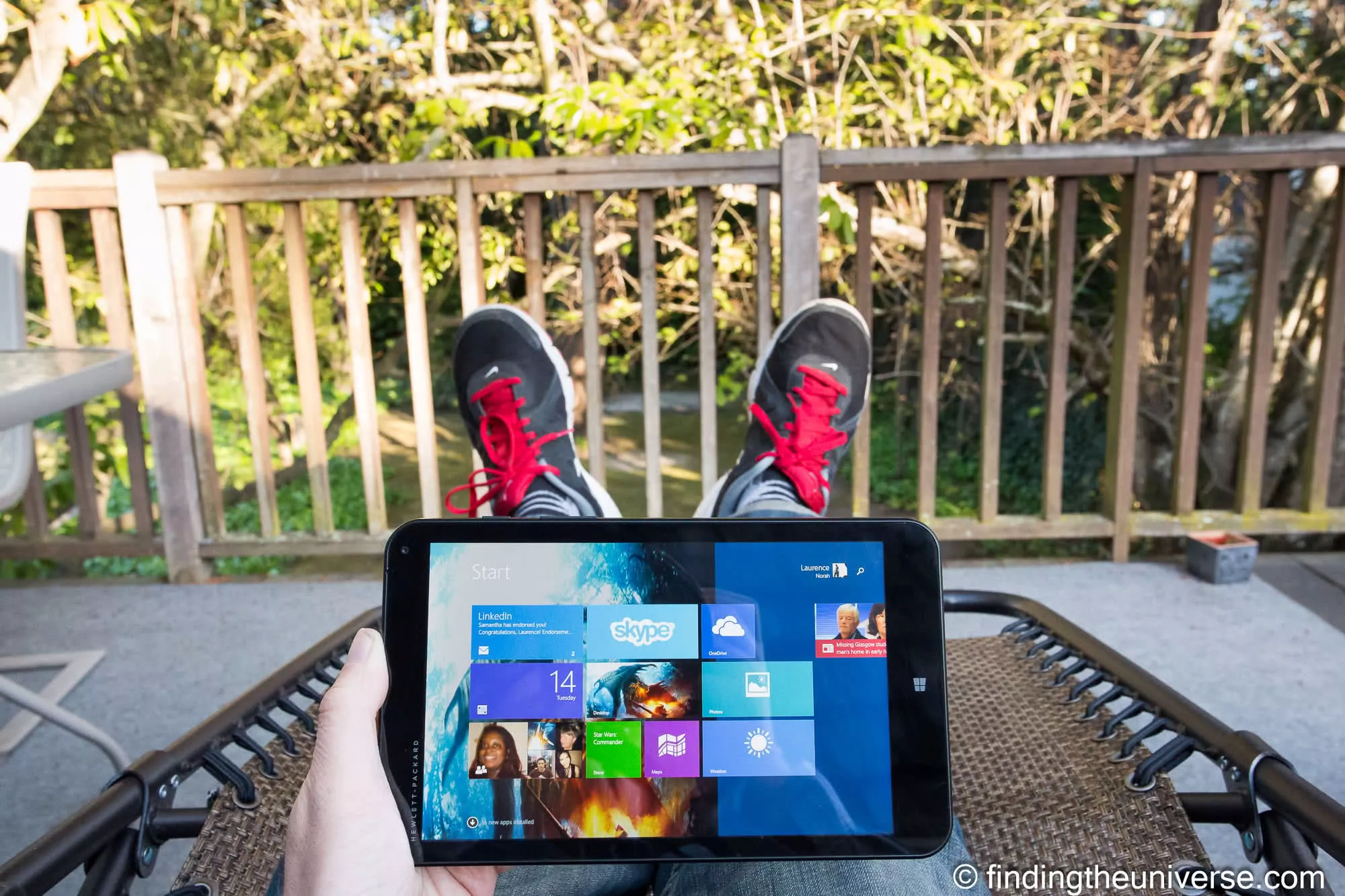
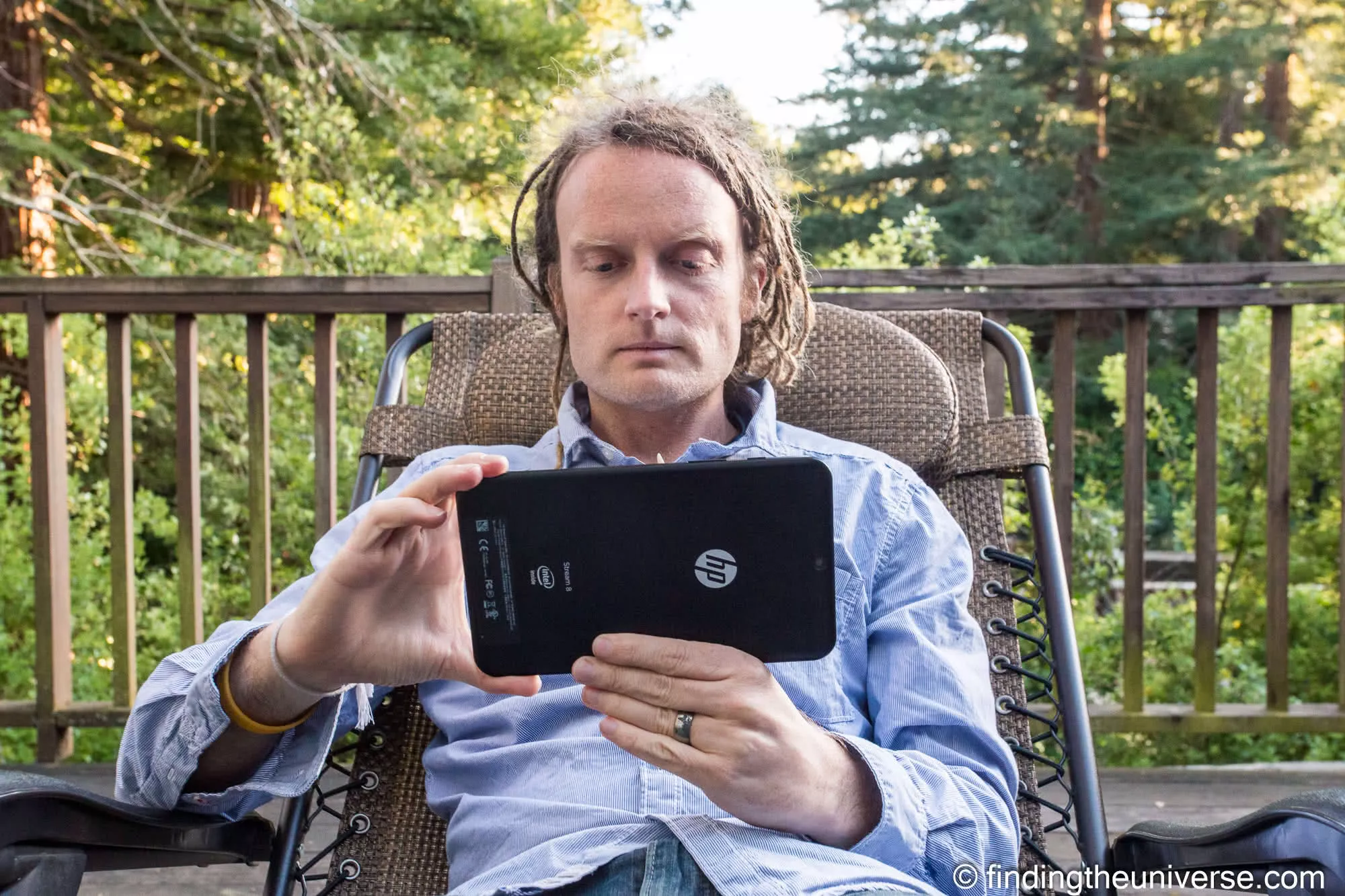
My first tablet experience was an original Dell XPS 12 in 2013. This was a very funky device, a laptop with a convertible flippable screen. It ran Windows, on which I ran Lightroom. The second tablet experience I had was an HP tablet in the spring of 2015, which I edited on with whatever I could get to run on it, which was not a lot.
Neither stuck. The HP was underpowered enough that I didn’t keep it long. And with both of them, the business of getting photos onto the thing and then back off again was never worth the trouble when a far more capable machine was sitting at home waiting for me.
I’ve written guides to the best laptops for photo editing and the best desktop computers for photo editing off the back of actually using them for work.
So I want to be useful about this one rather than enthusiastic about it. The hardware stopped being the problem a while ago. The problem is what a tablet does to your workflow once the day’s shooting is over, and whether that’s a problem for you comes down to where these photos are supposed to end up.
Table of Contents:
The Short Answer
A tablet is a good machine for culling and for editing individual photos. It’s a poor machine for running a photo library. The screen is big and bright, the interface is nice to use, and performance stopped being the limit years ago. Storage is limited, a large catalogue file is out of the question, and working out a backup strategy while you’re away is its own challenge. Those three are what decide whether a tablet works for you.
Use the phone you already own if the editing you want to do while travelling ends at the post. A few frames tidied up and shared, with the proper work waiting until you’re home. That covers most people, it costs nothing extra, and a tablet does the same job only a little better for around a thousand dollars.
Buy a tablet if you want to do the picking, and some of the developing, while you’re still away, on a screen big enough to judge a photo on, and you’re content for the files to come home to a proper machine afterwards. Culling a day’s shooting on a 13-inch screen beats doing it on a phone, and it beats doing it on nothing at all at the end of a long day.
Buy a laptop if the photos have to be finished while you’re away. Catalogued, backed up, worked through in volume, or edited in Lightroom Classic specifically. That’s the answer for more people than want to hear it, and it’s the one I’d give a friend.
Two things sit outside those three. If it’s Lightroom Classic you want on something tablet-shaped, exactly one device on this list runs it, and that’s the Windows Surface Pro. Even then it runs under emulation rather than as a native app, which I’ll come back to. And if you’re travelling with a tablet anyway, for reading or for the kids or for anything else, then the buying decision is already made and the only question is which one is capable enough to be worth editing on. That’s what the lineup further down is for.
Just don’t expect it to take over the whole job. A tablet is an addition to your photo workflow, not a replacement for one.
What a Tablet Is Actually Good At
Most guides in this category compare screens and chips. I think the more useful question is which jobs a tablet does well, because the hardware has been good enough for years and the software is where you’ll actually hit the wall.
| The job | Tablet? | Why |
|---|---|---|
| Culling on the road | Yes | A big bright screen and a touch interface are really nice for picking keepers from a day’s shooting. This is the job tablets are best at. |
| Editing individual RAW files | Yes | Lightroom, Capture One and Affinity Photo all have real iPad apps that will develop a RAW file the way you’d want. |
| Showing work to a client or to family | Yes | Hand someone a tablet and they’ll look at the photo. Hand them a laptop and they’ll look at the laptop. |
| Light retouching and masking with a pen | Yes | A pressure-sensitive stylus directly on the image is better than a mouse for this, and it’s the one place a tablet beats my desktop outright. |
| Managing a large catalogue | No | The iPad apps are built around either cloud libraries or single sessions. Neither is a catalogue in the Lightroom Classic sense. |
| Working from an external SSD | No | You can copy files off a drive, but you can’t point the app at the drive and leave the photos there. More on this below. |
| Heavy layered composite work | No | The mobile apps are separate products from the desktop applications, on separate plans, and Adobe doesn’t market them as equivalent. |
| Colour-critical work for print | No | None of these makers publishes a factory calibration figure you could rely on for print work. See the spec table. |
Read that list and the pattern is clear enough. A tablet is a strong companion device and a weak primary one. If you already have somewhere to do the heavy lifting, a tablet adds something. If the tablet is the plan, you’re going to run into the bottom of it fairly quickly.
The Software Problem Nobody Puts on the Box
This is the part I’d want to know before spending a thousand dollars, and it’s the part the spec sheets can’t tell you.
iPadOS: There Is No Lightroom Classic
Adobe sells two different products with confusingly similar names. Lightroom is the cloud-based one, and it has desktop, mobile and web versions. Lightroom Classic is the separate desktop application, the one with the folder tree and the catalogue file, and the one most working photographers I know actually use.
Lightroom Classic runs on Windows and macOS. There’s no iPadOS build of it, and there never has been. You can check that yourself on Adobe’s own system requirements page. Adobe publishes a Lightroom app for iPhone and iPad, and it’s a good app, but it’s the cloud product.
That’s an architectural difference rather than a feature gap. Lightroom on the iPad is a client for a cloud library. Your photos live in Adobe’s storage and the iPad holds a working subset. Lightroom Classic is the opposite idea: your photos live on your disks, and the catalogue is an index of where they are.
Which brings me to the thing that caught me out, and still catches people out today. On the iPad, photos have to be imported into the app. You can’t link them in place on an external drive the way Classic does.
Adobe has a standing feature request to allow external SSD access from Lightroom on the iPad. It was opened in December 2023, and it’s still sitting at “Open for Voting” on Adobe’s own community site, which is Adobe’s way of saying it hasn’t been built.
At the operating-system level, iPadOS handles external drives fine. Plug in a USB SSD and the Files app will read and write to it quite happily.
The limitation is at the app level, and the practical consequence is this: on an iPad, an SSD is a transfer and backup device rather than a place your library lives. Your iPad’s internal storage becomes the real constraint, because every photo you want to work on has to land there first. That’s the single best argument for buying more storage than you think you need.
Capture One does sell an iPad app, bought either as a standalone Mobile Subscription or bundled into their All in One Subscription. Check this before you commit to it: their own comparison matrix lists file management on mobile as Sessions only, with no Catalogs. Sessions are fine for a shoot. They’re not a library.
On the free side, Affinity Photo 2 for iPad is still on the App Store, it’s published by Serif Labs, and it now costs nothing at all. It’s a full desktop-grade editor and it’s the best value thing on this entire page.
(The newer unified Affinity app is a separate thing, currently Mac and Windows only, with an iPad version listed as coming soon on Affinity’s own site. Two apps, one name, which is a bit confusing until you know.) If you want more on this, we have a full guide to Lightroom alternatives.
Android: A Lovely Screen, a Shorter Software List
Adobe’s Lightroom supports Android 8.0 and later, so the cloud product works here just as it does on iPad, with the same cloud-library model and the same import-first behaviour. Snapseed is on Android too, and it’s free and very good.
Where Android narrows is the desktop-grade tier. Capture One sells its mobile subscription for iPad and iPhone. Affinity Photo 2’s tablet version is an iPad app. So if a specific one of those is the reason you’re buying a tablet, check it runs on the tablet you’re buying before you order it, because the Android software story in this category is a fair bit shorter than the iPad one.
That’s not a reason to write Android off. The Galaxy Tab S11 Ultra has the best screen here and includes its pen in the box, which is not nothing when Apple charges separately for theirs.
Windows on ARM: The Only One That Runs the Real Thing
The Surface Pro is the interesting one, because Windows runs Windows software, so Lightroom Classic will install and run on it. If your whole objection to tablets is “it won’t run my actual editor”, this is the answer to that objection.
There’s an asterisk, though, and I’d be doing you a disservice to leave it off. The current 12-inch Surface Pro runs on Qualcomm’s Snapdragon X Plus, which is ARM silicon rather than Intel. Lightroom Classic is not a native ARM64 application. It runs under x64 emulation. Adobe’s own status on the request for native ARM support has read “In Development” since March 2023, which is Adobe telling you it hasn’t shipped.
Now, the bit that trips up almost every article I’ve read on this. Full desktop Photoshop really is native ARM64 on Windows, and Microsoft lists it as such in its own Copilot+ announcement. That same list includes “Adobe Lightroom”, and that’s the cloud product, not Classic. Photoshop and Lightroom Classic sit on opposite sides of this line, and treating them as one answer is how you end up believing something that isn’t true.
So: yes, the Surface Pro runs the real Lightroom Classic. No, it doesn’t run it natively yet. Whether emulation is fast enough for you is a question I can’t answer without having run your catalogue on one, and I haven’t, so I won’t pretend otherwise.
I’d weigh that carefully rather than wave it away, because I’ve already bought one tablet that couldn’t keep up with what I wanted from it. “It runs the software” and “it runs the software well enough to work on” are two different promises, and the spec sheet only answers the first one.
Also note that Microsoft sells Intel Surface Pro models alongside the ARM ones. The emulation caveat doesn’t apply to those. If you’re buying specifically to run Lightroom Classic, check which chip is in the box.
The Real Competitor Is the Phone in Your Pocket
Every comparison in this category pits tablets against each other, or against laptops. I think that misses the device most people would actually be replacing.
Here’s my own workflow, for whatever it’s worth. If I shoot something on the Canon R5 that I want to share while I’m still travelling, I pull it across to my phone using Canon’s app and edit it in Snapseed. That takes a couple of minutes and the result is good enough for social. Anything destined for the blog waits until I’m home, where it gets edited properly.
I’ve never once wished there was a tablet in the middle of that. The phone job and the desktop job are different jobs, and a tablet does a slightly better version of the first one while still falling short on the second.
So before you spend a thousand dollars, ask yourself which of those two jobs you’re actually trying to solve.
If it’s “I want my holiday photos to look good on Instagram before I get home”, then you’re done. You already own the device, and Snapseed is free! If it’s “I want to do real work while I’m away”, skip to the laptop guide. The tablet sits in the gap between those two, and the gap is quite a bit narrower than it looks.
If You’re Buying One Anyway: Five Tablets Worth the Money
Everything above still leaves plenty of good reasons to buy one. Maybe you want the pen. Maybe you want to cull on the plane. Maybe you want a tablet regardless and editing is a bonus.
A note on how I’ve written this section. I haven’t personally tested this year’s tablets, and I’m not going to write as though I have. What follows is a lineup built from the manufacturers’ own published specifications, checked against my own experience of what actually matters when you’re editing photos. Where a figure is missing from a spec sheet, I’ve said so rather than filling the gap.
Apple iPad Pro 13-inch (M5): The Best Screen Here

The tandem OLED display is the reason to buy this one. Apple quotes 1000 nits full-screen and 1600 nits peak for HDR content, with adaptive refresh from 10Hz to 120Hz, and it’s the best screen on this page by a comfortable margin.
It’s also the only tablet here with a Thunderbolt and USB4 port, which means real transfer speeds when you’re pulling a card’s worth of RAW files across. On the 256GB model you get an M5 with a 9-core CPU and 12GB of memory. Step up to 1TB and Apple gives you a 10-core CPU and 16GB, which matters if you were assuming the chip is the same across the range.
The Apple Pencil Pro is sold separately, as Apple’s pens always are. Factor that in.
Buy it if: you want the best screen and the fastest port, and you’ll use the pen enough to justify the jump from the Air.
Check price on Amazon
Apple iPad Air 13-inch (M4): The Sensible One
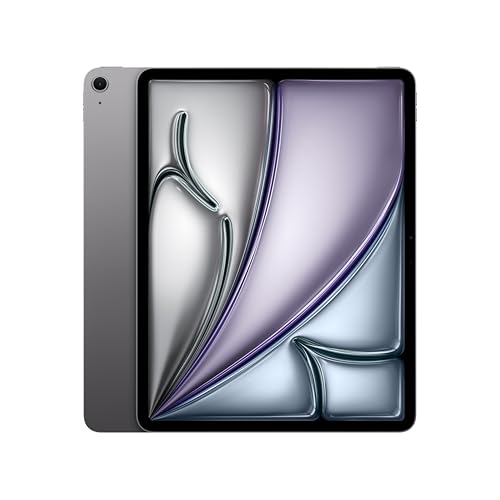
This is the one I’d buy. You get the same 13-inch canvas and the same 12GB of memory as the 256GB Pro, on an M4 rather than an M5, and Apple gives it the same Wide color (P3) rating as the Pro.
What you give up is the display technology and the port. It’s an IPS panel rated at 600 nits rather than tandem OLED at 1000, and the USB-C port runs at USB 3 speeds rather than Thunderbolt. For culling and editing, neither of those will slow you down much. For the money saved, they’re easy compromises.
One useful detail: the Air’s 12GB of memory is flat across every storage tier, so you can buy the smaller capacity without also downgrading the chip.
Buy it if: you want a large, capable editing tablet and you’d rather put the difference towards storage or the pen.
Check price on Amazon
Apple iPad 11-inch (A16): Where It Stops Being Enough

I’ve included the base iPad because it’s the one people ask about, and because this is where I’d stop recommending a tablet for RAW work.
Three things make it a harder sell for photo editing specifically. The screen is 500 nits, the lowest here. The USB-C port runs at USB 2.0 speeds, which is 480Mb/s against the Air’s 10Gb/s, and you’ll feel that every single time you import from a card. And Apple’s spec page for this model publishes neither a memory figure nor a colour gamut, where the Air and Pro both publish Wide color (P3).
It’s a lovely tablet. It’s a fine device for Snapseed and social edits. I just wouldn’t build a RAW workflow on it.
Buy it if: you want an iPad and photo editing is a nice-to-have rather than the reason.
Check price on Amazon
Samsung Galaxy Tab S11 Ultra: The Android Flagship
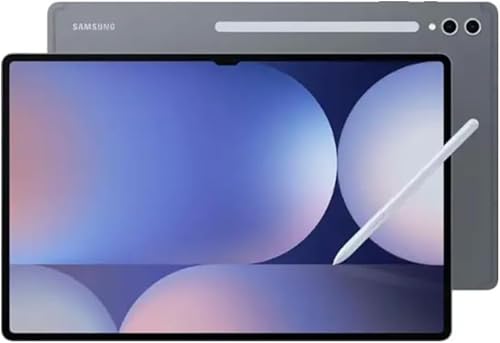
The Tab S11 Ultra is the biggest thing here by some distance, at 14.6 inches, and Samsung uses a Dynamic AMOLED 2X panel running at 120Hz. Samsung quotes peak brightness at 1600 nits with a sustained 1000 nits in High Brightness Mode.
Two practical wins over the iPads. The S Pen is included in the box rather than sold separately, which saves you the best part of a hundred dollars. And it’s the only tablet on this page with a microSD slot, taking cards up to 2TB, which given everything I said above about internal storage being the real constraint is a serious advantage.
At 692g it’s heavy for a tablet, and the port is USB 3.2 Gen 1 rather than Thunderbolt. The software story is the thinner one, as covered above.
Worth flagging on the buying side: this one comes through Amazon’s marketplace rather than from Amazon itself. The main offer is fulfilled by Amazon, so you get Prime delivery and the standard 30-day returns, but there are cheaper used offers on the same page that ship from their own sellers on their own terms. Check who you’re buying from before you order.
Buy it if: you’re in the Android world, you want the pen included, and the card slot solves your storage problem.
Check price on Amazon
Microsoft Surface Pro 12-inch (2025): The One That Runs Lightroom Classic

The specific model I’m pointing at is the 16GB memory, 512GB storage version with the Snapdragon X Plus X1P-42-100, which is the tier the link above goes to. Microsoft sells several configurations of this machine and they are not interchangeable, so check the chip and the memory on whatever you’re actually adding to your basket. You can read the full technical specifications from Microsoft before you commit.
This is a real Windows PC in a tablet body, so it runs desktop software, including Lightroom Classic, with the emulation caveat I covered above. It has two USB-C ports with USB4 and Thunderbolt 4, which is serious transfer speed. And it’s the only device here where Microsoft makes an explicit factory-calibration claim, describing the display as individually colour-calibrated, though no numeric figure is published to go with that.
The screen is the weak point. It’s a 12-inch LCD at 400 nits, which is the dimmest panel in this lineup, and it’s noticeably behind the iPad Pro’s OLED. The Surface Slim Pen is sold separately.
If Amazon’s stock is thin when you look, it’s also listed at B&H Photo.
Buy it if: running your existing desktop editor matters more to you than having the best screen.
Check price on Amazon
How They Compare
Every figure in this table comes from the manufacturer’s own current specification page. Where a spec sheet is silent, the cell says so rather than guessing, and that’s useful information in itself: colour gamut is missing from three of these five spec sheets, which tells you something about how seriously any of them are pitched at colour-critical work.
| iPad Pro 13in (M5) | iPad Air 13in (M4) | iPad 11in (A16) | Galaxy Tab S11 Ultra | Microsoft Surface Pro (2025) | |
|---|---|---|---|---|---|
| Screen | 13in Tandem OLED, 2752 x 2064 | 13in Liquid Retina IPS, 2732 x 2048 | 11in Liquid Retina IPS, 2360 x 1640 | 14.6in Dynamic AMOLED 2X, 2960 x 1848 | 12in PixelSense LCD, 2196 x 1464 |
| Refresh | 10Hz to 120Hz adaptive | Not published | Not published | 120Hz adaptive | Up to 90Hz (60Hz default) |
| Brightness | 1000 nits SDR, 1600 nits peak HDR | 600 nits | 500 nits | 1600 nits peak, 1000 nits HBM | 400 nits max (typical) |
| Colour gamut | Wide color (P3), no figure published | Wide color (P3), no figure published | Not published | Not published | Not published (sRGB and Enhanced profiles; individually colour-calibrated) |
| Chip | Apple M5, 9-core CPU | Apple M4, 8-core CPU | A16, 5-core CPU | MediaTek Dimensity 9400+ | Snapdragon X Plus X1P-42-100 |
| Memory | 12GB (256GB and 512GB tiers) | 12GB (all tiers) | Not published | 12GB with 256GB | 16GB or 24GB LPDDR5x |
| Storage | 256GB to 2TB | 128GB to 1TB | 128GB to 512GB | 256GB to 1TB | 256GB to 1TB |
| microSD | No | No | No | Yes, up to 2TB | No |
| Port speed | Thunderbolt / USB4, 40Gb/s | USB 3, 10Gb/s | USB 2.0, 480Mb/s | USB 3.2 Gen 1 | USB4 / Thunderbolt 4 |
| Weight | 579g (1.28lb) | 616g (1.36lb) | 477g (1.05lb) | 692g (1.53lb) | 686g (1.5lb) |
| Thickness | 5.1mm | 6.1mm | 7mm | 5.1mm | 7.8mm |
| Pen | Pencil Pro, sold separately | Pencil Pro, sold separately | Pencil (USB-C), sold separately, no Pencil Pro support | S Pen included | Slim Pen, sold separately |
| External drive support | Not published as a named claim on any of the five manufacturer pages. See the software section above for what actually works. | ||||
You can compare the three iPads directly on Apple’s own comparison page if you want to go deeper on the hardware.
What I’d Do Instead
If you’ve read this far and you’re wavering, here’s where I’d put the money.
Buy a laptop. This is the answer for most people asking this question. A laptop runs Lightroom Classic natively, addresses an external drive as an external drive, and costs about the same as an iPad Pro with a pen. Our guide to the best laptops for photo editing covers what to look for.
Or spend it on the desk you already have. If you edit mostly at home, a better monitor will improve your photos more than any tablet will, and a desktop gives you far more machine per dollar. I build my own, which is not for everyone, but the price gap is real.
Sort out your backup before your hardware. A full memory card holding the only copy of your photos is a bad place to be, and no amount of screen quality helps with that. I use Backblaze for off-site backup and have done for years. Signing up through that link gets you a free month rather than the standard 15-day trial, and no card is needed either way.
Look at the software rather than the hardware. If the reason you want a tablet is that you’re unhappy with your editor, changing the editor is much cheaper. We have guides to photo editing software and to Lightroom alternatives. For Windows users who want out of a subscription entirely, ACDSee Photo Studio Ultimate is a one-off purchase rather than a monthly one.
Two accessories worth having if you do end up working away from home. A power bank that will actually charge a tablet, which means the INIU P63 rather than something pocket-sized, and a charger that can push 100W or more over USB-C, like the Epicka Pulse Duo 140W, which is what I carry. A 13-inch iPad drinks a lot more power than a phone does.
What I Got Wrong When I Tried This
Four things stand out, looking back.
I assumed the software would catch up. It has, mostly, and the mobile editors are far better than they were in 2013. But the specific thing I wanted, a real catalogue on a portable machine, still isn’t there in 2026. I was waiting for the wrong feature.
I underestimated the file shuffling. Every hour I saved by editing on the sofa, I gave back moving files around. That’s still the bottleneck today. The iPad’s import-first model means the logistics haven’t fundamentally changed, they’ve just got faster.
I thought a convertible would be two devices. The XPS 12 was a laptop that could become a tablet, and it was a mediocre version of each. The flip hinge was a lovely piece of engineering and I still think fondly of it. I just never once used it in tablet mode for anything productive!
I bought at the wrong end of the range. The HP that followed it in 2015 was underpowered for what I was asking of it, and I didn’t keep it long.
That’s the one I’d most warn you about, because it’s the easiest mistake to repeat. A tablet that’s merely adequate at everything else will still be miserable at photo editing, and that’s exactly why the base iPad is where I stop recommending these for RAW work. If you’re buying a convertible because it does both, be aware that the compromise usually shows up in both.
None of that means don’t buy one. It means buy one for the job it’s good at, which is culling and light editing alongside a real machine, and you’ll be happy with it.
Frequently Asked Questions
Should I Buy a Laptop or a Tablet for Photo Editing?
A laptop, for most people. It runs the full desktop version of whatever editor you use, it reads an external drive as an external drive, and at the price of a high-end tablet with a keyboard and pen you’re into pretty capable laptop territory.
Buy the tablet if you specifically want the touchscreen and the pen, or if you’re adding a portable culling machine to a setup you already have.
Can You Run Lightroom Classic on an iPad?
No. Lightroom Classic runs on Windows and macOS only, and Adobe has never released an iPadOS version.
Adobe does publish a Lightroom app for iPad, but it’s the cloud-based Lightroom rather than Classic. It’s a capable RAW editor. It just works on a completely different model, where the library lives in Adobe’s cloud instead of on your own disks.
What Is the Best iPad for Lightroom?
The 13-inch iPad Air. It has the same 12GB of memory as the 256GB iPad Pro and the same large screen, for meaningfully less money.
Go up to the iPad Pro if you want the OLED display or the Thunderbolt port for faster imports. I’d avoid the base iPad for RAW work, mostly because of its USB 2.0 port speed.
Can You Edit Photos From an External SSD on a Tablet?
On an iPad, not the way you might expect. iPadOS itself reads and writes external drives through the Files app, but Lightroom on the iPad has no option to reference photos in place on that drive. Everything has to be imported into the app first.
The practical upshot is that an external SSD is a transfer and backup device on a tablet, not a working library location. Buy more internal storage than you think you’ll need. On the Windows Surface Pro this isn’t an issue, because it’s a normal PC.
Do You Need a Stylus for Photo Editing on a Tablet?
Not for culling or for global adjustments like exposure and white balance. You’ll want one for masking, dodging and burning, and any local retouching, where drawing directly on the image is much more precise than a trackpad.
The Galaxy Tab S11 Ultra includes its S Pen. Apple and Microsoft both sell theirs separately, so add that to your budget if you’re comparing prices.
Is the Amazon Fire Max 11 Good for Photo Editing?
It comes up a lot in this category, but it isn’t currently available from Amazon. All three of the main retail listings show as unavailable, so I’d look elsewhere.
Even setting availability aside, the serious editing apps aren’t there on Fire OS in the way they are on iPadOS or standard Android.
Can a Tablet Replace a Computer for Photography?
For a working photographer with a large archive, no. The tablet apps are built around cloud libraries or single sessions, and neither handles a catalogue of hundreds of thousands of images the way Lightroom Classic does.
As a second device it earns its place. Cull on the plane, edit a few frames, hand it to a client. Then do the real work on a bigger machine when you get home.
Is a Tablet Screen Good Enough for Colour-Accurate Editing?
For web and social, comfortably. For print work, be careful, and the reason is that you can’t verify what you’re getting. Of these five, only Microsoft makes an explicit factory-calibration claim, and none of the five publishes a numeric colour-accuracy figure you could hold them to.
If colour accuracy is central to your work, that’s an argument for a calibrated monitor and a hardware calibrator rather than any tablet.
Which Tablet Has the Best Screen for Photo Editing?
On published figures, the iPad Pro 13-inch and the Galaxy Tab S11 Ultra are the two to consider, and they’re close. The iPad Pro’s tandem OLED does 1000 nits full-screen with 1600 nits peak for HDR; the Galaxy Tab’s Dynamic AMOLED 2X quotes 1600 nits peak with 1000 nits sustained.
The Galaxy is physically much bigger at 14.6 inches. The iPad Pro has the faster port. Neither publishes a colour-gamut number, so on that specific question the spec sheets can’t settle it for you.
Looking to Improve Your Photography?
If you found this post helpful and you want to improve your photography overall, you might want to take a look at my online travel photography course.
Since launching the course in 2016, I’ve helped over 2,000 students learn to take better photos. It covers the basics of how a camera works, through composition, light, and photo editing, as well as more advanced subjects like astrophotography, long exposure and flash photography.
You get feedback from me as you progress, access to webinars and videos, and membership of a Facebook group where you can share your work and take part in regular challenges. It’s a one-off price for lifetime access, and you can take a look here.
Further Reading
That’s my take on tablets for photo editing. Before you go, some of our other guides you might find useful.
- If you’ve decided against a tablet, start with our guide to the best laptops for photo editing or the best desktop computers for photo editing.
- Your screen matters more than your processor for editing. See our guide to the best monitors for photo editing.
- We have a detailed guide to photo editing software, and a specific guide to Lightroom alternatives if you’re looking to move away from a subscription.
- If you share your work online, see our guide to watermarking photos on all your devices, which covers tablets and phones as well as desktops.
And that’s it. As always, we’d love to hear your thoughts, comments and questions on this guide. Just pop them in the comments below and we’ll get back to you as soon as we can.
Leave a Reply