
I'm Laurence, a professional travel photographer since 2010. Jess and I write this site from our own travels.
I’ve been a professional travel photographer since 2010, I’ve been taking photos since 1993, and I have a degree in computer science and a background as a software developer. That combination is why I wanted to write this guide. It’s also one of the questions that comes up most from students on my online photography course. I understand what’s actually going on inside these machines, and I also know what photo editing demands of one, because I edit on my own laptop almost every day, including out on the road between shoots.
If you just want the short version, my pick for most photographers in 2026 is the Lenovo Yoga Pro 9i 16. It’s the best balance of power, screen and portability I can find right now, and its OLED screen is colour accurate. If you’re a Mac user, get the MacBook Pro 16 with the M5 Pro. And if you’re on a tighter budget, the Asus Vivobook S14 OLED (Windows) or the MacBook Air M5 (Mac) both punch well above their price.
The rest of this guide explains why I picked each of these, gives you a full set of “best for your situation” picks, and walks through the specs that actually matter for editing on a laptop (which are not always the ones the spec sheets shout about). A high-powered desktop computer for photo editing is still the tool of choice if you mostly work from a home photography office, but that doesn’t work for those of us who travel, or who just want to edit from the sofa or a coffee shop.
Table of Contents:
Quick Comparison: The Best Photo Editing Laptops at a Glance
Here are my seven picks side by side, each chosen for a particular kind of photographer. Prices update live from Amazon where available, and configurations and sales move them around, so treat them as a guide and check the current price on each product page.
| Laptop | Best for | Processor | Graphics | RAM | Screen | Weight | Price (USD) |
|---|---|---|---|---|---|---|---|
| Lenovo Yoga Pro 9i 16 (Gen 11) | Best overall | Core Ultra 9 386H | RTX 5050 (up to 5070) | 32GB | 16″ 2880×1800 OLED 120Hz, 100% DCI-P3 | 4.19 lb / 1.90 kg | Check price on Amazon |
| MacBook Pro 16 (M5 Pro) | Best Mac | Apple M5 Pro | 20-core (integrated) | 24GB | 16.2″ Liquid Retina XDR, 100% P3 | 4.7 lb / 2.14 kg | Check price on Amazon |
| Asus ProArt PX13 | Best for colour work | Ryzen AI Max+ 388 | Radeon (integrated) | 32GB | 13.3″ 2880×1800 3K OLED touch, 100% DCI-P3 (Asus figure) | 3.06 lb / 1.39 kg | Check price on Amazon |
| Samsung Galaxy Book5 Pro 360 16 | Best 2-in-1 / touch | Core Ultra 7 | Intel Arc (integrated) | up to 32GB | 16″ 2880×1800 AMOLED touch | 3.72 lb / 1.69 kg | Check price on Amazon |
| Lenovo ThinkPad X1 Carbon Gen 14 | Best ultralight for travel | Core Ultra 5 / Ultra 7 | Intel (integrated) | Up to 64GB | 14″ 2880×1800 OLED 120Hz, 100% DCI-P3 | 2.15 lb / 977 g | Check price on Amazon |
| Asus Vivobook S14 OLED | Best budget (Windows) | Ryzen AI 9 365 | Radeon (integrated) | 24GB | 14″ 2880×1800 OLED 120Hz, 100% DCI-P3 (Asus figure) | 2.86 lb / 1.30 kg | Check price on Amazon |
| MacBook Air M5 | Best budget (Mac) | Apple M5 | 10-core (integrated) | 16GB | 13.6″ or 15.3″ Liquid Retina, 100% P3 | 2.7 to 3.3 lb | Check price on Amazon |
A note on the gamut figures. Some rows say Display P3 and others DCI-P3, because each one is labelled the way its own source measured it. The two share the same primaries, so the percentages are comparable.
What Actually Matters in a Laptop for Photo Editing
Photo editing software is resource hungry, especially when you’re shooting in RAW or running noise reduction. But you don’t really need to understand every line of a spec sheet to buy well. A handful of things make almost all the difference, and a few things the marketing pushes hardly matter at all. Here’s where I’d spend your money.
Processor: Single-Core Speed Matters More Than You’d Think
The processor (the CPU) does most of the heavy lifting when you edit. Here’s the part people get wrong: for Lightroom in particular, fast single-core performance matters more than a huge core count. A lot of Lightroom’s day-to-day work, moving between images, painting masks, adjusting sliders, leans on one or two cores rather than spreading across all of them. So a chip with strong single-core speed feels snappier in Lightroom than a chip with more cores but slower individual ones.
Where lots of cores do help is batch work: exporting a few hundred images, running noise reduction across a shoot, stitching panoramas. If that’s your workflow, you want both, which is why my main picks pair a fast modern chip with a decent core count.
For 2026, pretty much any current chip is plenty: Intel’s Core Ultra Series 1, 2 or 3, AMD’s Ryzen AI 300 series, Apple’s M5 family, or Qualcomm’s Snapdragon X2 Elite for Arm-based Windows laptops. The simplest way to check you’re buying a current model is the processor name, since that’s the part manufacturers change most from year to year.
RAM: 24GB Is the 2026 Sweet Spot
RAM is the fast, temporary memory your computer uses for whatever it’s working on right now. Run out of it and the machine has to shuffle data back and forth to the much slower SSD, which is exactly when editing starts to feel sluggish.
For a long time I told people 16GB was enough. It isn’t really, not any more. 16GB still works, but you’ll feel it slow down once you’ve got Lightroom and Photoshop open together, or you’re editing large panoramas. I’d treat 24GB as the sweet spot for 2026, and 32GB or more if you regularly work with very large files or run several editing apps at once.
If you can, buy a laptop where the RAM is user-upgradeable, and add it yourself later. I upgraded my own editing laptop from 16GB to 64GB for around $100 a couple of years ago, and Lightroom has run noticeably better ever since. That upgrade would cost a lot more today, because RAM prices have more than doubled since the 2026 memory shortage began, so price it up before you build a plan around it. The other snag is that many thin-and-light laptops, and all Apple MacBooks, have the RAM soldered on, so you have to buy what you need up front. Check before you commit.
Storage: Get an SSD, 1TB if You Can
You want a solid state drive (SSD), not an old-style mechanical hard drive. SSDs are far faster and far less likely to fail, and the speed difference is obvious every time you open a catalogue or load a big file. I’d go for 1TB if you can stretch to it, and 512GB as the practical minimum. An average RAW file runs 20 to 50MB, so storage fills up faster than you’d expect.
When the internal drive starts getting full, an external SSD is the easy fix. SSD prices climbed steeply in the 2026 memory shortage, so it costs more than it used to, but it’s still far cheaper than paying the manufacturer for a bigger internal drive up front. The one I use is a Crucial portable SSD, though Crucial has since left the consumer market, so the SanDisk Extreme is what I’d buy in its place today. Either works with both Mac and PC.
Graphics and the NPU: Useful, Not Essential
A discrete graphics card (a separate GPU, almost always an NVIDIA RTX chip on Windows) speeds up the GPU-accelerated parts of modern editing, especially AI tools like noise reduction, masking and generative fill. If your budget allows it and you do a lot of that work, a mid-range card like an RTX 4050, 5050 or 5060 is well worth having. You don’t need a flagship RTX 5090 for photo editing. That’s money better spent on RAM or a better screen.
If portability and battery life matter more, integrated graphics are fine. Apple’s M-series chips use shared (unified) memory and handle editing beautifully without a separate GPU, and recent integrated Intel Arc and AMD Radeon graphics are perfectly capable for everyday stills work. The newer wrinkle is the NPU, a chip dedicated to AI tasks. Lightroom and Photoshop increasingly lean on it for AI features, and most current laptops now include one, so it’s rarely something you need to shop for specifically.
Screen: Colour Accuracy Beats Resolution
This is the one I’d pay closest attention to. For photo editing, the colour your screen can show matters far more than how many pixels it packs in. You want a panel that covers as close to 100% of the sRGB colour space as possible, and ideally the wider DCI-P3 gamut too, so that what you see is what your camera captured and what other people will see.
IPS and OLED panels are the ones to look for. OLED in particular is the panel I’d choose for editing. The blacks are inky black, the contrast is outstanding, and the better OLED laptops cover almost all of DCI-P3 straight out of the box. Most of my picks use one. Resolution matters less. Anything from 2.8K upwards is sharp enough, and chasing the very highest-resolution panel mostly just costs you battery life.
If colour accuracy is critical to your work, it’s also worth reading my guide to monitor calibration, and if you mostly edit at a desk, a dedicated monitor for photo editing is a worthwhile addition.
Weight, Battery and Heat: The Laptop-Only Trade-offs
These three rarely make the headline specs, but they’re where a laptop differs most from a desktop, and they’re easy to overlook until you’re living with the machine.
Weight and size track power. A bigger chassis has room for bigger fans, so it can run more powerful components without overheating. A thin ultraportable has to use lower-power parts, and it can also throttle, meaning it slows itself down to manage heat during a long export. I’ve felt this on the road: a slim laptop that’s quick for a single edit can run hot and ease off when you ask it to process a whole shoot.
Battery is the other reality of editing away from a desk. AI noise reduction and big exports drain a battery fast, so if you edit on trains and in cafés, factor that in. Arm-based and Apple silicon laptops are the standouts here, often lasting hours longer than a comparable Intel or AMD machine.
Ports: Don’t Forget the SD Card Reader
Ports are easy to overlook until the one you need isn’t there. For photo editing I care most about two: a built-in SD or microSD card reader, so you can pull images straight off a camera card without carrying a dongle, and at least one USB-C or Thunderbolt port quick enough for a fast external SSD and a second screen.
An HDMI port is handy for plugging into a monitor or TV, and a USB-A port saves you an adapter for older mice and drives. The trade-off with the thinnest laptops is that they drop ports to save space, so check the port list on any ultralight before you buy, and be ready to travel with a small USB-C hub if a card reader or HDMI matters to how you work.
The Best Laptops for Photo Editing
These are my seven picks, each chosen for a particular photographer. I’ve recommended a specific configuration for each one that I think hits the right balance for editing, though most are available in other configurations if you want to spend more or less. My recommendations are based on US models. Other regions sometimes get slightly different components under the same name, so check the specs locally.
Lenovo Yoga Pro 9i 16 (Gen 11): Best Overall
The laptop I recommend to most photographers has changed over the years. It started as a Dell XPS 12, became an XPS 14, then an Asus ROG Zephyrus G14, and today it’s the Lenovo Yoga Pro 9i. Each was the best balance of power, screen and portability I could find at the time, and the Yoga Pro 9i is the machine that hits that balance now. This is the Gen 11 model, which Lenovo’s US store now sells as the Lenovo Pro 9i, so don’t be thrown if you see that name.

It’s a creator-focused machine that gets nearly everything right for editing. Its Intel Core Ultra 9 386H has the strong single-core performance that keeps Lightroom feeling responsive, while the discrete NVIDIA graphics handle GPU-accelerated and AI tools like noise reduction without complaint, so it’s as happy batch-exporting a shoot as it is nudging sliders. The version on Amazon has an RTX 5050, which is plenty for photo editing, and Lenovo also makes it with an RTX 5060 or 5070 if you lean heavily on AI denoise or edit video too. The 16-inch 2880×1800 OLED covers 100% of sRGB and DCI-P3 with excellent colour accuracy and a 120Hz refresh rate, and you can step up to a brighter 3.2K Tandem OLED if you do HDR work.
It’s a touchscreen too, handy for tapping through images as you cull or using a stylus for detailed retouching, and the keyboard is one of the best on any Windows laptop, which you feel over long editing sessions. The one real downside is battery life, which has always been a bit of a weak point of this line, so it’s happiest within reach of a plug. Lenovo offers it with up to 64GB of RAM.
Check the latest price on Amazon here, or configure one directly with Lenovo here.
Key specifications: Intel Core Ultra 9 386H, NVIDIA RTX 5050 (RTX 5060 and 5070 versions also made), 32GB RAM, 1TB SSD
Screen: 16″ 2880×1800 OLED touchscreen, 120Hz, 100% sRGB and DCI-P3 (3.2K Tandem OLED upgrade available)
Weight: 4.19 lb / 1.90 kg
Apple MacBook Pro 16 (M5 Pro): Best Mac
If you’re an Apple user, this is the one to get. There’s only one Apple laptop high on this list and lots of Windows machines, but that’s of course because many companies make Windows laptops and only Apple makes Macs. For the record, Jess edits on a MacBook Pro, so I’m not against them at all.

As of March 2026 the 16-inch MacBook Pro comes with Apple’s M5 Pro or M5 Max chips, both a real step up from the M4 generation, especially for the AI-accelerated editing tools. I’d go for the M5 Pro with 24GB of memory and 1TB of storage, which now comes as standard (it used to be 512GB). The 16.2-inch Liquid Retina XDR display is superb for editing: very bright, and with full P3 wide colour. You also get an SDXC card slot, Thunderbolt 5, and battery life that comfortably lasts a working day.
The 16-inch starts at the M5 Pro, and there’s no cheaper base-M5 16-inch model. If you want Apple silicon for less, the 14-inch MacBook Pro with the base M5 is a more affordable way in and still very capable. And if you manage very large Lightroom libraries or do AI-heavy work, the M5 Max version (with a 32 or 40-core GPU and 2TB of storage) is the no-compromise step up. Apple’s own figures show it pulling well ahead of the M4 generation on exactly the AI workloads Lightroom’s masking and noise reduction use.
Check the latest price on Amazon here.
Key specifications: Apple M5 Pro (18-core CPU, 20-core GPU), 24GB unified memory, 1TB SSD
Screen: 16.2″ 3456×2234 Liquid Retina XDR, 100% P3 wide colour
Weight: 4.7 lb / 2.14 kg
Asus ProArt PX13: Best for Colour-Critical Work
Asus designs the ProArt range specifically for creatives, with high-performance parts and colour-accurate screens, and the PX13 is the one I’d choose if colour accuracy is the thing you care about most. It puts a properly colour-accurate OLED into an unusually compact 13.3-inch convertible body.

The model I’d buy runs the AMD Ryzen AI Max+ 388 with 32GB of memory and a 1TB SSD. The screen is the headline: a 13.3-inch 2880×1800 3K OLED touchscreen at 500 nits, PANTONE Validated and rated by Asus at 100% of the DCI-P3 gamut. It’s the rare laptop that’s small enough to carry everywhere and still good enough to grade on.
If you’ve read about the PX13 before, note that it has changed. It used to come with a discrete NVIDIA RTX 4050, and the version I originally recommended here, the HN7306WU, has largely gone from stock. The current model uses the integrated Radeon graphics in the Ryzen AI Max+ chip instead. For Lightroom and Photoshop that’s fine, and the panel is the reason to buy this machine anyway, but if you specifically want a discrete GPU in a 13-inch body, this is no longer that laptop.
Check the latest price on Amazon here. Best Buy stocks the 512GB version if you don’t need the extra space.
Key specifications: AMD Ryzen AI Max+ 388, integrated AMD Radeon graphics, 32GB RAM, 1TB SSD
Screen: 13.3″ 2880×1800 3K OLED touchscreen, 500 nits, 100% DCI-P3 (Asus figure)
Weight: 3.06 lb / 1.39 kg
Samsung Galaxy Book5 Pro 360 16: Best 2-in-1 and Touchscreen
If you want a laptop that flips into a tablet, the Galaxy Book5 Pro 360 is my pick. If you’re tempted to drop the laptop entirely, it’s worth reading what you give up by going tablet-shaped first. It’s a full convertible, so you can fold it flat and edit directly on the screen, and Samsung includes an S Pen in the box, which some photographers much prefer for detailed retouching and local adjustments.

The draw here is the screen. The 16-inch 2880×1800 Dynamic AMOLED runs at 120Hz, and Samsung rates it at 120% DCI-P3 colour volume (a measure taken across brightness levels, so it isn’t directly comparable with the gamut coverage figures for the other laptops here). It’s good enough to grade on, and the big canvas gives you room to spread your tools out. It runs an efficient Intel Core Ultra 7 processor with Arc integrated graphics and up to 32GB of RAM, which is plenty for editing single images.
There’s no discrete GPU, so it isn’t the machine for heavy GPU-accelerated batch work, but battery life is a real strength at up to around 25 hours, and at 3.72 lb it’s lighter than most 16-inch laptops despite the big screen.
Check the latest price on Amazon here.
Key specifications: Intel Core Ultra 7, Intel Arc integrated graphics, up to 32GB RAM, 1TB SSD
Screen: 16″ 2880×1800 Dynamic AMOLED, 120Hz, touch, 120% DCI-P3 colour volume, S Pen included
Weight: 3.72 lb / 1.69 kg
Lenovo ThinkPad X1 Carbon Gen 14: Best Ultralight for Travel
When weight is your top priority, this is the one. The current ThinkPad X1 Carbon (the Gen 14 Aura Edition) weighs from just 2.15 lb (977 g), which you really notice when it’s been in your bag all day, and yet it still has a 14-inch screen and a real OLED panel.

It runs Intel’s efficient Core Ultra 5 or Ultra 7 processors with integrated Intel graphics, and Lenovo offers it with up to 64GB of RAM. There’s no discrete GPU, so it isn’t the machine for heavy GPU-accelerated batch work, but for editing on the move it’s a brilliant choice: the 14-inch 2880×1800 OLED runs at 120Hz and covers 100% of DCI-P3, the battery lasts, the keyboard is the famous ThinkPad one, and it charges over USB-C so you can travel with a single charger.
The catch is the price, since this is a premium business ultralight rather than a budget option. The RAM is soldered, so buy the 32GB version up front, though the SSD can be swapped later. If you’d rather stick with Dell, the XPS 13 (9350 model) is the closest equivalent, and its OLED configuration is also rated at 100% of DCI-P3, though it’s a touch heavier at 2.6 lb.
Check the latest price on Amazon here and on Newegg here. You can also configure one directly with Lenovo here.
Key specifications: Intel Core Ultra 5 or Ultra 7, Intel integrated graphics, 32GB RAM, 512GB SSD (Amazon version)
Screen: 14″ 2880×1800 OLED, 120Hz, 100% DCI-P3
Weight: from 2.15 lb / 977 g
Asus Vivobook S14 OLED: Best Budget Windows Laptop
This is the Windows laptop I’d recommend if you want a current-generation chip and a colour-accurate screen without paying main-pick money. It’s quite remarkable value for the specification.

The headline is the screen: a 14-inch 2880×1800 120Hz OLED covering up to 100% of DCI-P3, which is the kind of panel you normally find on laptops costing twice as much, and a real upgrade over the sRGB-only screens common at this price.
Inside is AMD’s Ryzen AI 9 365, enough for AI editing features in Lightroom and Photoshop, with 24GB of RAM and a 512GB SSD in the configuration linked here. The trade-off is the integrated Radeon graphics: fine for editing single images, but a bit slower than a discrete card if you batch-process AI noise reduction across hundreds of files. If that’s not your workflow, you won’t feel the limit.
Check the latest price on Amazon here.
Key specifications: AMD Ryzen AI 9 365 (50-TOPS NPU), 24GB RAM, 512GB SSD, integrated AMD Radeon graphics
Screen: 14″ 2880×1800 OLED, 120Hz, 100% DCI-P3 (Asus figure)
Weight: 2.86 lb / 1.30 kg
MacBook Air M5: Best Budget Mac
If you’d rather stay on macOS and keep costs down, the MacBook Air M5 is excellent value and very capable for editing. The latest model, launched in March 2026, now starts with 16GB of RAM and 512GB of storage, double the storage of the previous M4 version.

Apple tuned the M5 for content creation, and Adobe has long optimised its apps for Apple hardware, so the Air punches above its weight for Lightroom and Photoshop work. The Liquid Retina display supports the P3 wide colour gamut for accurate colours, you get up to 18 hours of battery, and the whole thing weighs next to nothing.
It comes in 13-inch and 15-inch sizes, and you can configure up to 32GB of RAM and 4TB of storage. If you spot the previous M4 Air heavily discounted, that’s also a smart buy, since the editing performance gap is modest and the saving is real.
Check the latest price on Amazon here.
Key specifications: Apple M5 (10-core CPU, up to 10-core GPU), 16GB RAM, 512GB SSD
Screen: 13.6″ 2560×1664 or 15.3″ 2880×1864 Liquid Retina, 100% P3 wide colour
Weight: 2.7 lb / 1.24 kg (13″) or 3.3 lb / 1.51 kg (15″)
A Note on the MacBook Neo
Apple’s new MacBook Neo, launched in March 2026, is going to tempt a lot of people after a cheap photo editing laptop. It’s the cheapest Apple laptop you can buy, it looks like a MacBook Air, and Apple’s marketing mentions photo editing. I understand the appeal, but I’d think carefully before buying one specifically to edit on.

There are two real limitations. First, it runs the A18 Pro, the chip from the iPhone 16 Pro, paired with 8GB of RAM and no option to upgrade. For light editing of a handful of photos that’s manageable, but with large RAW files, Photoshop layers or noise reduction you’ll hit that ceiling fast. As I said above, I’d treat 24GB as the modern baseline, so 8GB is going to feel cramped. Second, the display uses the narrower sRGB gamut rather than the wider P3 found on the Air and Pro, which matters if colour accuracy is part of your work.
For very light, casual editing the Neo would do the job. But if editing is a real reason you’re buying a laptop, I’d spend the extra on the MacBook Air M5 instead. You get double the RAM, a wider colour gamut, a faster chip and a machine that won’t feel limited in a year or two. On a strict budget, even a discounted previous-generation MacBook Air would be the better editing buy.
A Few Other Laptops Worth Knowing About
A few machines didn’t make my main slots but are still worth a mention.
The Asus ROG Zephyrus G14 held my top spot for a long time, and it’s still the laptop I edit on every day. It remains a superb 14-inch machine, with a colour-accurate OLED and an RTX 5070 Ti that makes short work of AI editing. The problem is stock: the configuration I’d recommend has become hard to find at a sensible price, which is why it sits here now rather than in my main picks. If you spot the current GA403 (Ryzen AI 9 HX 370, RTX 5070 Ti) in stock at a competitive price, it’s still well worth a look.
The Razer Blade 16 (2026) is a beautifully built big-screen powerhouse with a 16-inch 2.5K OLED that covers 100% of DCI-P3 and comes Calman-verified out of the box. The 2026 model switches back to Intel, with a 16-core Core Ultra 9 386H, in a 14.9mm chassis. It’s superb, but it commands a price premium (the entry RTX 5070 Ti configuration is currently Check price on Amazon), and you can get similar editing performance for less, which is why it sits here rather than in my main picks.
On the Arm-based Windows side, the HP OmniBook Ultra 14 G2 with Qualcomm’s Snapdragon X2 Elite is the standout for battery life, with a large NPU (around 80 TOPS) for AI editing features and a lovely 14-inch OLED. The one caveat for photographers is software: Photoshop runs natively on Arm, but Lightroom Classic still runs through x86 emulation rather than natively, so I’d weigh that against the battery benefits if Lightroom Classic is your main tool.
HP also sells the same chassis with an Intel chip for less money, which gives you full x86 software compatibility if you’d rather avoid the Arm question entirely.
Which Laptop Should You Buy?
If you want one answer for most photographers, get the Lenovo Yoga Pro 9i. It has the processor speed, the colour-accurate screen and the graphics to handle everything from culling to big AI-powered exports.
Beyond that, match the laptop to how you work. If colour accuracy is everything, the Asus ProArt PX13 is built for it. If you edit on the move and weight is your enemy, the ThinkPad X1 Carbon Gen 14 is the lightest serious option here. If you like editing directly on the screen, the Samsung Galaxy Book5 Pro 360 folds flat for it. On a budget, the Asus Vivobook S14 OLED gives you a colour-accurate OLED without the main-pick price. And if you’re a Mac user, the MacBook Pro 16 with M5 Pro is the one to have, with the MacBook Air M5 the value choice. Whatever you choose, prioritise a colour-accurate screen and enough RAM, and you’ll be happy for years.
What I’ve Learned Editing on Laptops
A few things have stuck with me after years of editing on the road, and they’ve shaped the picks above.
The biggest one is that colour accuracy is the spec to protect. I’ve never once wished for more pixels, but I have been caught out by a screen that showed colours that didn’t hold up elsewhere. A wide-gamut OLED has spoiled me for anything less.
The second is that sustained performance matters more than peak performance. A thin laptop that’s quick for one edit can throttle under a long export, so if you process whole shoots, a little more cooling is worth the extra grams.
The third is that RAM is the cheapest meaningful upgrade you can make, and upgrading mine myself saved a lot of money and bought a real jump in Lightroom’s smoothness.
And finally, battery claims and editing reality are different things: AI tools and big exports drain a battery quickly, so if you edit away from a plug, lean towards the more efficient chips. None of this is about buying the most expensive machine. It’s about spending where it actually shows in your editing.
Want to Take Better Photos?
I’ve been teaching an online travel photography course since 2016, and over 2,500 students have taken it so far. It covers everything from how your camera works through to composition, light, and editing, with feedback from me as you go. One payment, lifetime access.
Photo Editing Accessories for Your Laptop
Once you’ve chosen a laptop, a few accessories make editing on it easier and more comfortable.
A Gaming Mouse
A gaming mouse might seem an odd recommendation, but the many programmable buttons are the reason. Photo editing apps are full of keyboard shortcuts, and mapping your most-used ones to mouse buttons speeds up your editing a lot. They’re also very precise, which helps with fine detail work. I use the Logitech G502 X Plus wireless mouse, with the buttons mapped to my regular shortcuts.
An External SSD
Large internal SSDs get expensive fast, so an external SSD is a cheaper way to add storage, even after the 2026 price rises. They’re also much faster and more reliable than mechanical drives. The Crucial drive I use has been discontinued, so I’d get the SanDisk Extreme now. It strikes a similar balance of price and capacity, and works with both Mac and PC.
A Stylus
If your laptop supports a stylus, it’s well worth getting one to make the most of touch editing, especially for masking and detailed retouching. Check which models your laptop supports first. Microsoft makes the Surface Pen for its laptops, and there are cheaper third-party alternatives too.
A Laptop Sleeve
Keep your new laptop protected with a sleeve or padded cover. I like the neoprene laptop sleeves as they cushion well without adding much weight. Just make sure whatever you pick is sized for your specific model. It’s also worth considering accident protection for a laptop this valuable, whether that’s a dedicated plan, separate insurance, or cover through your home insurance.
Photo Editing Software
Your laptop is only half the setup. You also need software to edit with.
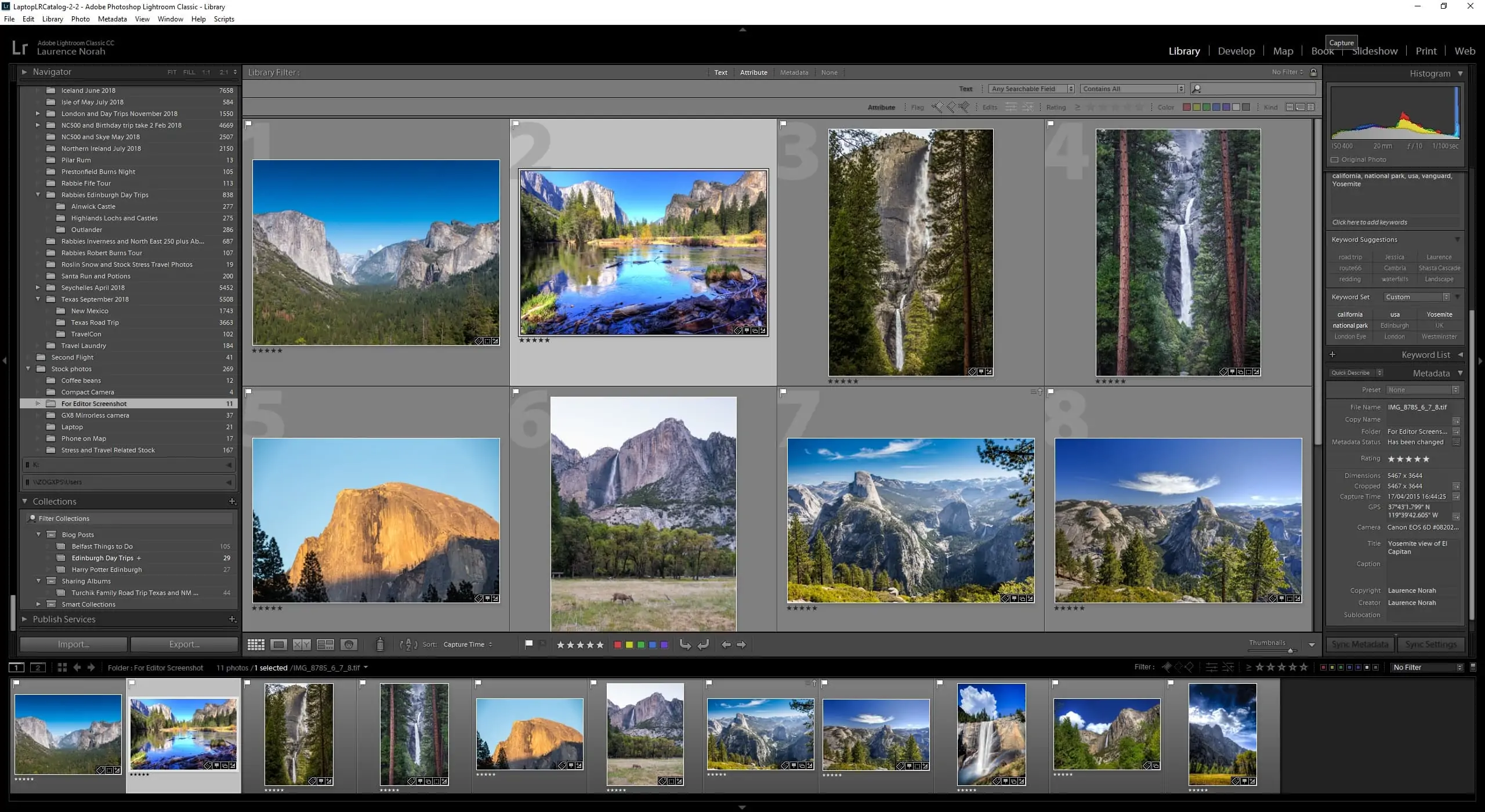
There are paid options like Adobe Lightroom Classic and Photoshop, Skylum Luminar and ON1 Photo RAW, as well as free options like Darktable and Fotor. Choosing between them is a guide in itself, so I’ve put together one on the best photo editing software, covering both paid and free. If Lightroom feels slow on your machine, my guide to improving Lightroom performance has some fixes too.
Backing Up Your Photos
If you aren’t backing up your photos yet, now’s the time. There’s no point having a great laptop to edit on if you lose the photos themselves. I have a full guide to how to back up your photos that covers the options. For an easy hands-off choice with unlimited backups, we use and recommend Backblaze. It’s well priced and in our experience it just works. Our link gets you a free month to try it, rather than the standard 15 day trial.
Where to Buy a Photo Editing Laptop
Prices are usually similar across retailers, but sales happen, so it’s worth checking a few. Buying direct from the manufacturer (Dell, Lenovo, Razer, Apple) is best when you want to configure a machine exactly, and new models usually appear there first. Amazon has huge range including refurbished models, though take care to confirm the exact specification you’re buying. B&H Photo is one of my favourite photography retailers and easy to use, though they focus on the latest models. Newegg has a wide range and frequent sales, and Best Buy (where I bought my most recent laptop) often has good open-box discounts if you’re in the US or Canada.
Frequently Asked Questions
How much RAM do I need for photo editing?
I’d treat 24GB as the sweet spot for photo editing in 2026. 16GB still works, but you’ll notice things slow down once you’re running Lightroom and Photoshop together or editing large files like panoramas.
Step up to 32GB or more if you regularly work with very large images, stitch panoramas, or run several editing apps at once. I upgraded my own laptop from 16GB to 64GB and the jump in Lightroom’s smoothness was immediately obvious. If your laptop has user-upgradeable RAM, doing it yourself is usually much cheaper than paying the manufacturer.
What’s the best laptop for Lightroom?
For Lightroom specifically, I’d look first at the Lenovo Yoga Pro 9i 16, because Lightroom leans on fast single-core processor performance and its Core Ultra 9 chip delivers exactly that. The MacBook Pro is also an excellent Lightroom machine.
The thing that makes the most difference day to day is having enough RAM (24GB or more) and a fast SSD, so Lightroom isn’t constantly waiting on storage. A discrete GPU then speeds up the AI tools like noise reduction and masking.
What’s the best laptop for Photoshop?
Photoshop is happy on any of my main picks. It benefits from a fast processor, plenty of RAM for big layered files, and a GPU for the accelerated and AI-powered filters, so a machine like the Lenovo Yoga Pro 9i or the MacBook Pro 16 handles it comfortably.
If you work with very large, heavily layered files, prioritise RAM (32GB or more) above almost everything else, as that’s what Photoshop will lean on first.
Do I need a dedicated graphics card for photo editing?
Not strictly, but it helps. Modern editing tools, especially AI features like noise reduction and masking in Lightroom and Photoshop, use a discrete GPU to speed things up noticeably.
If your budget allows and you do a lot of AI or batch work, I’d pick a laptop with a discrete NVIDIA RTX card (4050 or newer). If portability and battery life matter more, the integrated graphics in Apple’s M-series chips or recent Intel and AMD processors will still handle editing well.
Should I buy a Mac or Windows laptop for photo editing?
Both work well, and all the major editing software runs on both, so it’s really about which system you already prefer. Apple’s M-series chips offer strong performance with excellent battery life, while Windows gives you more choice, more configuration options, and better value at the high end.
If you’re already comfortable in one ecosystem, I’d stick with it rather than relearn a new operating system. The hardware difference matters less than your familiarity with the software.
What screen size is best for photo editing on a laptop?
For most people a 14 to 16 inch screen is the best balance of usability and portability. I’ve edited on both 13 and 15 inch laptops over the years, and the jump up to 15 made a real difference to how comfortable editing felt.
If you mostly edit at a desk, pairing a smaller laptop with an external monitor gives you the best of both worlds. I have a guide to the best monitors for photo editing if that’s useful.
Is an OLED screen worth it for photo editing?
Yes, if you can get one. I edit on an OLED laptop and the blacks are as deep as they come, the contrast is excellent, and the colours are accurate. It’s spoiled me for other panels.
The main thing to check is that the OLED covers at least 100% of sRGB, and ideally the wider DCI-P3 gamut too. Most current OLED laptops from the major brands meet that bar, and I haven’t had any burn-in after several years of use.
Is a 2-in-1 or touchscreen laptop worth it for photo editing?
It can be, depending on how you work. A convertible like the HP Spectre x360 lets you fold the screen flat and edit directly with a stylus, which many photographers prefer for masking and detailed retouching.
A touchscreen is a nice bonus even if you don’t use it constantly, for tapping through images as you cull. Just don’t choose a 2-in-1 at the expense of a colour-accurate screen, which still matters more than the hinge.
Is the Snapdragon X2 Elite good for photo editing in 2026?
The Snapdragon X2 Elite, launched at CES 2026, is a capable Arm-based Windows chip with a large NPU (around 80 TOPS) for AI editing features, and its standout advantage is battery life well beyond a comparable Intel or AMD laptop.
The catch for photographers is software. Photoshop has a native Arm build, but Lightroom Classic still runs through Microsoft’s x86 emulation rather than natively. It works, but if Lightroom Classic is your main editor, weigh that against the battery benefits, and check the Arm status of any specialist plugins you rely on.
Is the MacBook Neo good for photo editing?
The MacBook Neo can handle very light editing, but I wouldn’t recommend it if photo editing is a main reason for buying a laptop. It runs a phone-class A18 Pro chip with just 8GB of RAM and no upgrade option, and its display uses the narrower sRGB gamut rather than the wider P3 found on the Air and Pro.
For casual editing of a few photos it’s fine. For regular work with large RAW files or noise reduction, you’ll hit the RAM ceiling quickly. I’d point anyone serious about editing to the MacBook Air M5 as the minimum Apple option instead.
Further Reading
I hope this guide has helped you find a laptop to edit your photos on. We’ve got plenty of other photography resources you might find useful:
- If you need software for your new laptop, see our guide to the best photo editing software, and our guide to improving Lightroom performance if it’s running slowly.
- To pair your laptop with an external screen, see our guide to the best monitors for photo editing across a range of budgets.
- If you’d like a more powerful machine that stays put, see my guide to the best desktop computer for photo editing.
- If you’re working from home as a photographer, see my guide to setting up a home photography office.
- No-one wants noisy images, so see our guide to the best noise reduction software.
- Colour accuracy is important, so see our guide to monitor calibration to set your screen up correctly.
- Our range of photography guides, including Northern Lights photography, lens compression, back button focus, fireworks photography, photographing the stars, cold weather photography, long exposure photography, RAW in photography, ND filters, depth of field and composition.
- Our photography gift guide, if you’re shopping for a photography-loving friend or family member.
- A detailed guide to the best travel cameras, plus specific guides to the best compact camera, best action camera, best bridge camera, best mirrorless camera and best DSLR camera. We also have a guide to the best camera lenses.
- Our guide to why you need a tripod, and to choosing a travel tripod.
- Want to replace the sky in an image? See our guide to sky replacement in photography.
Looking to Improve Your Photography?
If you found this guide helpful and you want to improve your photography overall, you might like my online travel photography course.
Since launching the course in 2016, I’ve helped over 2,500 students learn to take better photos. It covers pretty much everything, from how a camera works through to composition, light and photo editing, plus more advanced topics like astrophotography, long exposure, flash and HDR. You get feedback from me as you go, access to webinars and videos, and membership of a Facebook group where you can share your work and join regular challenges. It’s available for a one-off price for lifetime access, and you can take a look by clicking here.
And that’s it for my guide to the best laptop for photo editing. If you have any questions or feedback, or you’ve found a laptop you’d like my thoughts on, let me know in the comments below.
Tonya says
I am about to purchase the Dell XPS 15 thanks to your article. I went from absolutely lost about what to get to start post processing RAW photos to complete clarity and confidence in my purchase.
One question though: I was planning to get the i9-13900H but the i7-13600H is also an option. Is there any reason to get the i7 over the i9?
Laurence Norah says
Hi Tonya,
Glad to be able to help! So the main reason to go for the i7 would be for cost savings. The i9 is going to be slightly faster (although we’re not talking about a hugely noticeable difference to be honest). If there is a huge price gap then I am not sure the i9 is necessarily worth the upgrade. If they are similarly priced, as sometimes happens, then the i9 would make more sense. However, if the i7 is better value, then you would be better of saving money on the processor and instead putting that money towards the GPU. An Nvidia GPU instead of the integrated Intel GPU will make more of a difference to quite a number of image processing tasks compared to the difference between the i7 and i9. It’s a similar story with memory, I’d recommend 32gb over 16gb these days.
I hope this helps, enjoy your new laptop and if you have follow up questions about the spec just let me know!
Laurence
Tonya says
Thank you for your quick reply. It’s “only” $50 difference for the i9. Worth it? Any chance it overheats the machine faster or blows through the battery? My build already has Dell’s highest available Nvidia 4070 and 32GB, with intent to upgrade to 64 later at home.
Primarily photographing birds plows through an excessive volume of storage. But so far I’m sticking with 1TB and plan to use external storage as the jump to 2TB or more really bumps up the price. Does that make sense?
So my current build is:
Dell XPS 15
i9 (unless you say it’s not even $50 value)
NVIDIA 4070
32GB/1TB
OLED touch screen
I would have liked the screen flexibility of the MS Surface Studio but they really jump up in cost for less features. With Dell’s Black Friday sales, there’s no comparison.
As stated, I mostly do bird photography and definitely need denoise capability. To date I haven’t been able to process RAW at all on an older tablet and even older, incapable laptop. I don’t want to cut myself short on capability.
I’m so glad I found your articles! You really spell out the details at a level even us tech challenged can understand. Very grateful!
I assume you get some reward if we buy through a link from your article? I’d like you to be compensated for your great work.
Tonya
Laurence Norah says
Hi Tonya!
It’s my pleasure 🙂
So the i7 and i9 both have the same power consumption (45 watts), so the heating / battery performance should be pretty similar, although you’ll find anecotal evidence to support different viewpoints. All laptops with higher performance processors will at some point get hot and need to slow themselves down if you push them, it’s just the nature of trying to fit a lot of things that produce heat into a smaller frame. If I was you, for the extra $50 I would go with the i9. The rest of the specs look great. If you need denoise you will definitely benefit from the Nvidia 4070, you just want to be sure you use a denoise tool that can take advantage of that like Topaz Denoise, something I cover in my denoise article.
If you buy through a link in my articles I should get compensated yes, the Dell direct links like this one will earn me a commission. But it’s definitely not necessary, I’m always happy to help 🙂
Cheers!
Laurence
Gabor Seregelyes says
Hi Laurence!
I was about to buy the Dell xps 17 laptop when customer service asked me if I wanted a Dell Precision 7780 because I don’t travel much with the laptop and now I can get it for the same price.Dell XPS 17
Intel® Core™ i9-13900H der 13. Generation
NVIDIA® GeForce RTX™ 4070
32 GB DDR5
1-TB-SSD
17.0-Zoll-Bildschirm Ultra HD+ (3840X2400)16.10
VS.
Dell Mobile Precision Workstation 7780 CTO
Intel Core i7-13850HX vPro (30 MB cache, 20 cores, 28 threads, up to 5.3
GHz, 55 W)
NVIDIA RTX 2000 Ada 8GB GDDR6
32GB, 2x16GB 5600MT/s SODIMM, non-ECC
1TB M.2 PCIe NVMe Gen 4 2280 SSD
17.3″ UHD 3840×2160 (16.9)WLED WVA, 120Hz, anti-glare, non-touch, 99% DCIP3,
500 nits, IR Camera, with Mic
FHD/IR Camera, ExpressSign-In, Intelligent privacy, Camera Shutter, Mic
Intel AX211 Wi-Fi 6/6E (up to 6GHz where available) 2×2 with Bluetooth
Wireless Intel AX211 WLAN Driver
Contacted Smartcard only, no NFC reader, no Fingerprint reader
93 Wh, 6 Cell, Lithium Ion Polymer, Long Lifecycle, 3-year warranty
ProSupport and Next Business Day Onsite Service Extension (Emerging
Only), 36 Month(s)
and they also said that anything can be replaced in the precision.
What do you think, which ones are worth it for photo-video-graphics editing?
Thanks in advance!
Laurence Norah says
Hi Gabor,
So honestly both of these laptops would be fine. The XPS has a marginally faster graphics card. The processors are very similar, honestly it would be hard to tell a difference between them in most tasks I’d say. The Precision has more processor cores, but like I said, it’s going to be hard to tell them apart.
They’re both good. A larger laptop does have more room to breathe and so is less likely to overheat and then throttle itself. So if you won’t be traveling with it very much out of the house then the Precision might be a better option. But I don’t think you would be disappointed with either product.
Laurence
Gabor Seregelyes says
I’m grateful thank you!
Gabor says
Hi!
This is a really great and useful blog! I deal with photo editing and graphic work, mainly for web display, sometimes for printing. Later I want to deal with video editing. I am currently working with a lenovo thinkpad p1 gen1 20MD 4k for 4 years, but unfortunately I suffered from color calibration in the first six months.
That’s why I want to switch, and after reading the blog I like the Dell xps 17 97305 the best, but I used a macbook pro for a couple of months, which I really liked the display, but I really didn’t like the mac system. That’s why I looked at the Dell xps 15 95302 or the Razer blade 16, I don’t know their display at all, which is very important for my work, so that the edited images are as close as possible in terms of quality and quality on other laptops and phones.I have not used an oled display yet, but many people recommend it, what do you think? Please help me if you have time, thanks in advance
Laurence Norah says
Hi Gabor!
Thanks very much 🙂 So I have a Dell laptop with an OLED screen and it has been nice for photo editing. The main thing you will want to check is if the screen supports calibration and if the hardware calibration tool you use supports OLED (not all of them do). Honestly, though, I have found my Dell to be pretty accurate without needing to calibrate it, although saying that I tend to do my most color accurate work on a desktop. My wife has a 15″ Macbook Pro which also has a very nice screen but I personally prefer the OLED. I’m also not a huge fan of the Mac interface.
I hope this helps. I definitely like my OLED display and will likely be upgrading my desktop to OLED as well at some point soon.
Laurence
Gabor says
Hi!
Thank you for your quick reply!
So would you rather go for the smaller Dell xps 15 95302 that displays OLED over the larger Dell xps 17 97305 4K?
Laurence Norah says
Hi Gabor,
My pleasure! So I currently have a 15″ Dell which is about the maximum size I’d be comfortable traveling with (I primarily use it for travel, as I have a desktop at home). So it will depend a bit on your use. The 17″ for would would be a little too big to fit into my bag and be comfortable carrying it around for prolonged periods of time.
However, if I was choosing purely from an editing perspective, I’d likely go for the 17″ version as it has a larger screen. Dell screens tend to be good regardless of whether they are IPS or OLED (I used a Dell Ultrasharp monitor for years), so I wouldn’t worry too much. If you plan to watch a lot of movies or TV on the laptop then OLED is definitely a bit nicer, but for photo editing I think you will be happy with either. It’s really up to you if you prefer a larger screen or a smaller laptop.
Laurence
Gabor says
Thank you very much, it helped a lot!
Carolyn says
This was super helpful for a non-techie *hobby* photographer like me who edits in Lightroom. My old laptop crashed and died and I really needed to upgrade. This was a tremendous help in knowing what to look for. Thank you!
Laurence Norah says
It’s my pleasure Carolyn, I’m glad I was able to help! I hope you found what you needed and get many years of editing out of it. If you have any questions, do let me know! Laurence
SALMAN says
Thank you so much for sharing this post. This really helped me a lot in saving time
Laurence Norah says
My pleasure Salman, let me know if you have any questions!
michelle says
What is your advice on a great desktop computer for photo editing? I’d like to stay under $2k if possible but there are just so many brands it’s hard to know what’s best!
Laurence Norah says
Hi Michelle!
So honestly the brand is not *that* important. There are lots to choose from as you say – Dell, HP, Alienware etc. CyberPower is quite a good custom build option. As long as they have been around for a while, have good reviews and a reasonable warranty, that’s the main thing.
The main thing is the specifications. I’d recommend a PC with a 1 or 2 TB M2 SSD, at least 32GB of memory, a good Nvidia RTX graphics card (at least a 3060TI) and a recent Intel processor (something like the 13700KF). A good monitor is also important for photo editing, I’m not sure if that’s included in your budget or not? I have a guide to photo monitors here.
As an example of the kind of machine, something like this from CyberPower has a good set of specs at a reasonable price:
https://www.cyberpowerpc.com/system/Xtreme-3060-Ti-Gaming-PC
Let me know if you have any more questions, I’m happy to help!
Laurence
michelle says
Laurence,
Thank you for your reply! So I ended up getting a Lenovo Legion Tower T7 Intel 12 gen i7 12700k, rtx 3070ti, 32gb ram, 1 tb SSD. I recieved it last night but the fans are SO loud, I specifically looked at this based on it being pretty quiet. Their tech help updated everything remotely and it’s on quiet mode but it’s still around 32db based on the sound app I downloaded. Even when nothing is running it stays consistently loud, loud enough to hear it out of the room. I tried to record it but unfortunately it’s not nearly as loud on the video but hopefully it can give you an idea. For $1800 I feel like they shouldn’t be loud like this. Any advice? Or is this normal for a computer that has nothing running? I did notice two fans are a tiny bit wobbly but even with that it seems that’s not the main cause for the loudness. I have a Dell laptop that when it’s processing a ton and the fans are full blast that’s the equivalent of what this sounds like 24/7. I’m so bummed and stressed.
https://youtube.com/shorts/o9OZYxz5GzU?feature=share
Laurence Norah says
Hey Michelle!
Ok, so this is an interesting one. A desktop PC shouldn’t be *that* loud, although a lot will come down to the fan settings as well as the fans themselves.
The main fans are going to be the CPU fan, the fans on the graphics card, any fans on the motherboard and then any case fans which from your video looks like there are quite a few!
Looking at the Lenovo website it appears there are up to six case fans, which honestly seems a bit excessive! However, if they run at low speed they shouldn’t make that much noise. The issue seems to be that adjusting the fan speeds using the Lenovo tool isn’t having much effect, which is definitely not good. I have a desktop PC (I built it myself) and it’s basically silent except when under heavy load.
Doing some research online this does seem to be an issue with this specific model, see this thread for example. There are some ideas in that thread but honestly I don’t think with a prebuilt PC you should have these issues, nor should you have to poke around inside the PC yourself to resolve it. Most PC’s should let you adjust fan speeds, usually inside the BIOS, but this can definitely be daunting to a new user and really shouldn’t be something you have to do. You could also in theory disconnect some of the case fans, but again, opening up a PC and pulling out jumpers isn’t something you should have to be doing with a pre-built computer.
Are you able to return the unit? I know it might be a hassle, but they advertise the system as being able to run practically silent and it sounds like that isn’t the case 🙁
Sorry I can’t be of more help!
Laurence
Michelle says
I can’t thank you enough for your input! I’m sorry to be such a bother but if I may ask one more question. So they are sending a replacement 7i tower to see if these fans will run as loud.
Today I noticed the 5i tower (90SU000CUS) is $300 plus cheaper for almost the same specs. The 5i has an i7 12700 where mine is 12700k and the graphics in the 5i is 3070 LHR where as mine is 3070 ti.
The cheaper one comes with a three year ultimate warranty where as I had to pay almost $100 to add that to the 7i tower. Also the i5 has windows pro and 1tb SSD PLUS 1tb hhd… Mine has only the 1tb SSD and Windows home (although I suspect for me the pro vs home isn’t that important). My question for you is this, for the over $300 price difference should I just return the replacement and get the 5i? For someone that will mostly be using this for Photoshop and Lightroom what is the better option? Am I really gaining much paying so much more? Or would I be better in the long run to stick with the 7i if it ends up not having the fan issue in the replacement?
Thanks again from a defeated stressed out photo nerd!
Michelle
Laurence Norah says
Hi Michelle!
It’s no problem at all! Your question has actually inspired me to write a desktop version of this guide at some point 🙂
So I would honestly say that there won’t be really any difference in performance between the 5i and 7i as you mentioned. You are not gaining very much by paying more, the difference would not be noticeable to be honest. Perhaps on paper theoretically, but in the real world it will likely be a few milliseconds difference here and there. So if that is still an option I’d definitely seriously consider it 🙂
Feel free to send me any more questions you have I’m happy to help!
Laurence
Michelle says
Laurence,
Thank you! I would definitely love a desktop version, your laptop one was the most in-depth I’ve seen!
I’m nervous to try the t5i tower or any tower really because I’m worried now that they all will be noisy. Many places claim the 5i is super quiet yet I saw the same in reviews about the 7ti being almost silent too. I wish more stores had these on display so you could see and hear in person. I do like levonos ultimate warranty 4 years full coverage for $98 was really a value in my opinion and i haven’t seen anything as good yet in my search as far as warranty goes. Do you have any other companies you’d recommend off hand that do infact have a really quiet tower as well as a great warranty? I’ll keep searching but man I almost feel like it’s better to not even get one at this point.
Thanks again!!
Michelle
Laurence Norah says
Hi Michelle!
So it is very hard to know to be honest. I know desktop PCs can be silent because I have one that runs silently when I’m not pushing it! However, I built mine myself from scratch so I had complete control over all the components, which I appreciate not everyone wants to do! The main brands that come to mind are Dell, Alienware (a branch of Dell), HP and Omen. The previously linked site I shared also has some good options. But I can’t guarantee that any of them will be silent unfortunately 🙁 There are some sites that specialize in silent PC’s, like https://www.quietpc.com/quiet-gaming-pcs which might be worth looking at as well if that is a key criteria!
Good luck, let me know what you decide!
Laurence
Tam says
Thanks for the wonderful information! I’m a photographer and looking for a 2 in 1 laptop that could also be used for business. My best options I’ve come up with so far are the HP Spectre x360 16-f0010ca convertible laptop. Windows 11 Home, intel i7, 16 GB RAM, 512 GB SSD, 16″ 3K+, Intel UHD Graph. And the HP Best Config Envy x360 Convertible Touchscreen Laptop Intel i7-1165G7, 16GB RAM, 1TB SSD, Wi-Fi 6, Windows 10. Would you have any advice on what to choose?
Laurence Norah says
Hi Tam,
It’s my pleasure! So I honestly don’t think there is a big difference between these two. The CPU in one is the i7-11390H and the other one has the i7-1165G7. The latter is a lower power processor but the performance is not that huge to be honest. Personally I would probably pick the Spectre x360 as it has a higher resolution screen. Overall though they are both very similar so if you have no preference I’d go for the less expensive one 😉
Enjoy!
Laurence
Tam says
Thanks a bunch:)..
Faby says
Hi, wonderful article! I was wandering if a 2 in 1 could reach the performances of a traditional laptop, so… since I adore the 2 in 1 technology, do you think a device of this kind might be ok for serious image editing or should I go for a traditional laptop? Thank you!
Laurence Norah says
Hi Faby,
Great question. So you could use one of the more recent 2-in-1s for photo editing. It might not be quite as powerful as a high end gaming laptop like the Razer models I list, as they don’t normally come with dedicated graphics cards or the highest power processors. However, they would still be workable. If you want the highest power though, I would probably recommend a more traditional laptop.
Hope this helps!
Laurence
Pauline says
Sorry clicked post without pasting details of the bundle. Lenovo P50 Ex-Lease Laptop Workstation Intel Core i7 6700HQ 2.6GHz 32GB RAM 1TB SSD Nvidia M1000M 2GB Graphics Card 15.6″ Screen Windows 10 Pro with brand new 34″ Monitor
Laurence Norah says
Hi Pauline,
Good to hear from you and I’m glad my article has helped. So the laptop you share is a bit older, the processor is a 6th generation Intel processor which launched in 2015. However, it is a high-end version of the laptop with lots of RAM and a spacious fast SSD drive. So I would say that if it is available at a reasonable price, and the 34″ monitor is also a good model, then it is definitely worth considering and it should be able to handle photo editing pretty well. Unfortunately I don’t see a price in your comment so I can’t comment on that aspect. Let me know if you have any more questions 🙂
Laurence
Pauline says
Hi, this package is available and seems to have a number of specs in your article refers to. I’m guessing the monitor is included as the Lenovo screen may not cut the mustard. Price is $NZ. What are your thoughts?Thanks for your article. So much easIer to elminate those not suitable to starT with.
Barclay says
Hi, like others thanks for a very informative article.
What are your thoughts on OLED versus IPS monitors? When people state “burn in” is this a major factor to consider and if so typically how long would this take?
I’d be interested to know your thoughts on this laptop please.
ASUS Vivobook Pro 15 M3500QC Content Creater Laptop 15.6″ FHD Glossy OLED AMD Ryzen9 5900HX 16GB 1TB NVMe SSD RTX3050 4GB Graphics Win10Home 1yr warranty – WiFi6 + BT5, Webcam, USB-C, HDMI1.4.
Laurence Norah says
Hi Barclay,
It’s my pleasure – I’m glad you found it useful. So I love OLED, I have the OLED version screen on my Dell XPS 15 and it’s just stunning. I’ve not personally had any issues with burn-in (I’ve had the laptop for a couple of years now). I think if you left the screen on for hours with nothing changing it might be an issue, but that’s not how most of us really use our laptops.
The laptop you’ve specified looks great. I didn’t include AMD processors in my description because they have traditionally been less common than Intel in laptops. However, my desktop has a Ryzen processor and it’s fantastic, and the model you’ve chosen is very high end so it should have no problems with any photo editing tasks.
Enjoy!
Laurence
Levente Csillag says
Hi. Very useful info. Just in time when i plan to buy a laptop for Lightroom Classic. I edit on my pc on a Benq sw270c monitor. Always edit 1by1. I am looking for a laptop to show my photos in Lightroom to family and friends and maybe show how i edit. So, just something not to expensive. All my work will be done on pc. My budget is max 800€. I am looking refurbished laptops too. Any recommendation? thank you
Levente
Laurence Norah says
Hi Levente,
Thanks very much! So it sounds like you don’t need a super high powered laptop, but you do need something that is light and portable and which has a color accurate screen. Good battery life would also be a bonus. I’m assuming you’re not a Mac person, so I’d probably recommend a Dell XPS 13. The main thing I’d suggest is to ensure it has 16gb of RAM, as 8GB can be a bit low, which does make meeting your price point a bit more of a challenge.
I’m not sure exactly where you are in the world, but Amazon UK for example has this Dell XPS 13 available renewed at around €800 equivalent. You get full sRGB coverage and 16gb of RAM. The processor is a bit older, but I’d say for your needs it should be fine. It’s also definitely worth checking the Dell Outlet store or Dell Refurbished store.
I would definitely recommend spending a bit of time perusing the outlet / refurbished warehouse sections of Dell and Amazon for your locality to see what options come up 🙂
Let me know if I can offer any further input!
Laurence
Laurence Norah says
Hi Levente,
So looking at that site I would say the options aren’t great. They are quite old laptops, most of which are likely used business stock for office work where things like color accuracy are not so important. They also have quite old processors. So honestly I’m not sure if they are great options. The exception are the Macbooks, they have a few Macbooks available for under your price point, and most Macs come with color accurate screens. However I’d also recommend checking out Apple on Amazon as there are quite a few 13″ refurbished Macbook Pro options at your price point which I think are a slightly better deal than the site you linked. I’d aim for 16gb of RAM and something from around 2017 or newer ideally, like this one.
Ian Borthwick says
Just wanted to say thanks and congratulate you on an amazing job. One of the most informative and complete articles I have ever read on internet, decoding a lot of the gobbledygook that is associated with the inner workings of computers. I certainly wish I had read it before buying my last laptop ! So again, Bravo!
Laurence Norah says
Hi Ian,
Thank you so much for your kind words – it means a lot! Sorry I wasn’t able to help out with your last purchase, but hopefully you’ll be prepared for any future purchases!
All the best,
Laurence
James Martin says
Thanks for the amazing laptops, I am thinking to get one 🙂
Laurence Norah says
Let me know if you have any questions James!
nikom says
It’s a great list of photo editing laptops you have mentioned reviewed in this article,I love to know about all the great laptops for photo editing…
Thanks
Keep up the good work
Laurence Norah says
My pleasure, thanks Nikom!
Ben says
Hi,
This is one of the best guides to getting a laptop i’ve seen, thank you for putting all this info/details and recommendations together!
I’m currently using a MBP 16 for photo editing my alpha 6000. I was looking at getting something like a 2n1 for more mobile editing and I’m stuck between to possibilities. Both are refurbs at my local computer store and on-sale. I will be using Lightroom Classic.
1) HP Spectre x360 13 4k OLED: i5-1035G4, 8GB Ram (soldered), 256gb SSD (will upgrade to 1tb nvme)
2) HP Spectre x360 15 4k: i7-10510U, 16GB Ram (Upgradable), 32GB Optane (will upgrade to 1tb nvme)
or if you have any other good alternatives, trying to stay <$1000
Thank you!!
Laurence Norah says
Hey Ben!
I’m pleased you found it useful! So of those two options I would go for the 2nd, the i7-10510U will perform better and the 16GB of RAM will let Lightroom breathe. The 8GB on the other might start to restrict you as time goes on, especially as it’s soldered to the motherboard!
It’s hard to provide alternatives as obviously the price point will vary depending on refurbs and offers, but that sounds like a great option to me 🙂
Enjoy!
Laurence
Ben says
Thank You Laurence! Forgot to mention option 2 also has a MX250, should help too.
My local retailer is MicroCenter. They have many options but I don’t know if the sRGB rating for the alternatives are 90%+ or not. Eyed these two because I saw tests that they are being 4K screens 😁.
Thanks again!
Laurence Norah says
Ah yes, the GPU should also help! sRGB coverage is definitely important as well 😀 Delighted to be able to help!
Edward Donnelly says
I’ve been looking to replace my 10 year old Lenovo for several months now. I’ve read many review sites and always leave wondering if the reviews are biased towards a particular product. Your article is the best that I have come across. Your computer science background definitely made a difference in conveying the technical information in a clear manner. As a retired electrical engineer and human hactors engineer, I say kudos.
I’ve made my decision.
Thank you, Ed
Laurence Norah says
Hi Ed,
It’s lovely to hear such nice feedback – it really does make it all worth it 😀 My goal was absolutely to try to help people pick the best option for them! I think bias towards a manufacturer makes little sense in most situations, with the exception of Macs because if you are used to the operating system it can make more sense to stick with those rather than learning Windows.
Enjoy your new laptop, whatever it is!
Laurence
Ricardo says
Great article and very helpful in helping me decide if I should keep or return the 16 inch MacBook Pro I recently got. I believe the 256gb SSD is no longer an option for the 2019 16 inch. It starts at 512gb and 16gb of ram which is nice for the base model. This is the one I have. I was having second thoughts as I saw a few YouTube videos stating that I must get 32gb of ram at the bare minimum for photo editing.
I was surprised by this and it seems this is really only for certain types of photography. I do mostly street photography and use a Sony a7RIII so the raw files are a bit large but I would think the 6 core i7 with 16gb of ram on the base model would still be enough, would it not? I also take it that I’ll be able to continue using this laptop for at least 3-4 years and still be productive. There’s a lot of conflicting info on ideal specs for photo editing on a laptop. Thanks for making sense of a lot of it.
Laurence Norah says
Hi Ricardo,
Thanks very much! I would say that 16gb is more than enough for photo editing, unless you plan on doing a lot of Photoshop work with multiple image layers, or stitching large panoramas together. For “normal” photo editing, 16gb will definitely suffice for a few years to come. I’ve got 16gb in both my laptop and my desktop, and haven’t had any problems 🙂 Often people will recommend something without really understanding why, and there is a misconception that more is better with memory. Memory doesn’t make a computer faster unless it is actually used – otherwise it just sits there taking power and doing very little. This is different to say a processor speed where faster pretty much always means better performance.
So yes, 16gb should be absolutely fine 🙂
Enjoy your new laptop!
Laurence
Janette Dekker says
Hi Lawrence, Thanks for your super article! I’m not a Tech person. This was the best article I have ever read explaining all the various components of laptops, computers etc in a very easy to understand way. Based on this article my husband who is an amateur photographer purchased a new laptop for his photo editing. I did the research based on your recommendations and the laptop he purchased ticked all of the boxes! He ended up getting a gaming machine (even though he is not a gamer) because it had all the right specs (and probably a bit more).
Janette Brisbane, Australia
Laurence Norah says
Hi Janette,
Thanks very much for your feedback! It’s wonderful to hear that my article helped and I hope your husband enjoys his new laptop.
All the best,
Laurence
Sylvain Vauclair says
very good info, thanks for putting it together. question about the i7-1065G7. I have narrowed my searches to two 17in laptops for use mainly with Lightroom classic. one has the i7-1065G7 and a 1TB SSD drive, the other comes with a i7-1075OH but a 1TB HDD drive. the former is on sale and CAD600 less than the second one! if the i7-1065G7 is capable enough the choice seems obvious but I fear it isn’t. Any comments on the suitability of the i7-1065G7 will be greatly appreciated.
Laurence Norah says
Hi Sylvain,
My pleasure. So the i7-10750H is about twice as fast as the i7-1065G7. The latter is a more mobile focused chip which uses less power. That said, it will still be ok for photo editing, if not at the top of the charts. However, I would definitely not suggest using a HDD – the speed difference of the faster processor will definitely be lost because of the much slower hard drive which will be a major bottleneck.
So of the two I would opt for the slower processor and the faster hard drive. Alternatively, you can actually buy an internal 1TB SSD for a laptop for around $150 CAD, so if the laptop you are looking at will let you change hard drives, it’s not too much of challenge to switch the drives yourself. Processors on the other hand are fixed to the motherboard and not changeable in most laptops!
I hope this helps a bit,
Best
Laurence
sylvain vauclair says
thank you Laurence for your prompt reply, I will continue my searches, it was easier 40 years ago when the choice was between a Beseler and a Saunders enlarger, cheers.
Bob Spang says
Great post and super helpful! Armed with what I learned I’ve been comparing the different options for my needs (connect to external monitors, portable (we take lots of family trips, though COVID has put a serious dent in them this year!), something I can easily use while waiting on kids at their activities, and touch screen to help with editing Milky Way images (dodging &burning). I keep coming back to the Dell 13″ XPS 2-in-1.
I have two concerns with it: the processor (i7-1065G7) and the graphics card( Intel Iris Plus). Any thoughts you’d be willing to share?
Bob Spang says
sorry. thought my original comment didn’t get loaded. it didn’t show up.
Laurence Norah says
Hey Bob,
No worries, sometimes the post gets cached in your browser so the latest version didn’t load until you’d posted the new comment. Technology can be tricky sometimes! Let me know if you have any more questions 🙂
Laurence
Bob Spang says
Great review! As others have said, I learned so much about what to look for and what everything means.
I’m looking to replace my four year old laptop (Dell Latitude e5470, 8gb RAM, i5-6200U, integrated graphics). so, anything I get will be a huge performance improvement! I have external monitors, but do a lot of traveling and would like to have something I can cull/sort photos while shuttling the kids to their various activities.
What are your thoughts on the Dell XPS 13″ 2-in-1? I’m considering their touch screen version. My main concerns are the processor (i7-1065G7) and the graphics card (Intel Iris Plus).
Laurence Norah says
Hey Bob,
Thanks very much! My goal was definitely to enable people to get more of an understanding of what to look for so I am delighted to have been able to help 🙂
For your question, the XPS 13 is a great laptop but there is definitely more of an emphasis on portability & battery life over absolute power. The i7-1065G7 is certainly capable enough for many tasks, but photo editing is one of the more demanding use cases. That said, if you are primarily culling and sorting, rather than doing major editing tasks, it would be just fine. As a point of reference, the i7-10750H processor in the more powerful laptops is around 2x faster, although it uses more power so you lose the battery life. However, I’m not aware of a 13 inch laptop that has this processor, at the 13 inch point the i7-1065G7 is one of the fastest processors on the market. I think you’d have to step up to a 15 inch laptop like the XPS 15 if you wanted that speed, which would come at the trade-off of weight and battery life.
For your use case, I would say the XPS 13 would be a great option 🙂
Happy to answer more questions!
Laurence
David A Greenberg says
Correction to previous post: I do NOT have a 42Gp sensor and don’t expect to have one until 2068. My sensor is 42Mp.
Laurence Norah says
Haha, I did wonder what marvellous futuristic equipment you might have 😉
David A Greenberg says
Laurence and Jessica, Thank you VERY much for this wonderful primer. I was aware of 47.2% of the content and 0.00% of the nuance. So grateful to have found your article! Before finding it, I’d spent considerable time learning about all the Lenovo options because I’ve had good luck with their product and service over the years.
My images, gathered on a 42Gp sensor, are often multi-row pans, taking further time and care for focus stacking AND bracketing for each image component. The final image file from up to a thousand or more component images can be 1 to 2GB. So your advice is exActly what I needed.
Here’s my question. I thought I had settled on a souped-up Thinkpad P1 platform. You list the X1 platform and I’m wondering if you feel there’s a discernible difference, given my particular usage. Here’s a quote from another article specifically comparing the two from “Windows Central” that I think exemplifies your jargon admonition. Lots to unpack:
“There are plenty of configuration options to choose from when outfitting an X1 Extreme or P1, and both will deliver exceptional performance considering the form factor. However, the P1 is available with Intel Xeon and NVIDIA Quadro hardware, while the X1 Extreme caps out at Intel Core and NVIDIA GTX hardware. It also has optional ECC RAM for those who need it. Along with plenty of ISV certifications that guarantee compatibility with major software, the P1 is the right choice for professionals who work with specialized design and development software.” The link to that article is here, if you want it. https://www.windowscentral.com/lenovo-thinkpad-p1-vs-thinkpad-x1-extreme
THANK YOU again for your dual expertise and your willingness to respond to my specific question.
Laurence Norah says
Hi David,
Great to hear from you. Sounds like you take some high resolution images! This is the one situation where you will definitely benefit from lots of RAM, the more the better 🙂
In terms of the P1 vs the X1, it comes down to that processor difference. The P1 has the option for the Xeon processor and supports the ECC (error correction) RAM.
Xeon processors and that ECC ram are more designed for server workloads or other tasks where accuracy of information is paramount. Most processors operate within error tolerances, but if you are working on critical tasks where accuracy is paramount (think banking, cryptography, mathematical tasks), then obviously you have lower error tolerances. These come at a definite price premium (almost $1000 for the Xeon CPU alone!), and honestly, for photo editing, aren’t really something you need. They don’t offer any speed increase (the high end Intel Core i9-9880H is actually faster than the Xeon), it’s just down to that higher accuracy for tasks that really need it.
In terms of picking a specific laptop, if you load up the P1 on Lenovo here, and the X1 on Lenovo here, you can see the price differences and configuration options. Based on your workload, I’d probably go for the X1 with the i7 9750H processor and 32gb or 64gb of ram. You might also consider the core i9 9980HK, depending on your budget.
I hope this helps, let me know if I can offer any further advice 🙂 I’d love to hear back regardless of what you choose and how you find it 🙂
Best
Laurence
David A Greenberg says
I did not expect such a quick response! Thank you again, Laurence! In the very short intervening time, I found an “Amazon Refurbished” P1 platform with the UHD touchscreen, 512G SSD, Intel Core i7-9750H, 16GB RAM, NVIDIA Quadro T1000 all for a deep discount. (I suspect it was just an open box since the model came out a month ago.) Given that it has the full year of Lenovo warranty and a 30 day return policy, I didn’t see a downside. I will be upgrading to 64Mb RAM and a 2T SSD drive, swapping that for the 512 on which I’ll house the OS. I will study carefully the pin configurations. Your article and response have been truly invaluable. I’m so happy to subscribe now to your newsletter and look forward to learning even more.
Laurence Norah says
Hi David,
My pleasure, and that sounds like a great deal! Upgrading the RAM and SSD yourself is a good option for saving yourself some money – I left it out of this guide as it’s not something everyone is going to be comfortable doing. Delighted you got a deal though, I hope you enjoy your new laptop and we’ll stay in touch through our newsletter 🙂
Best
Laurence
Daphne says
Great reviews and very helpful. Although I feel more confused on which Dell XPS I want vs needs…
I am also considering the HP Spectra 360 or Asus Zenbook Duo Pro. This is because Dell here in Australia has some terrible reviews of late re customer and tech service and issues with the Dell laptops. BUT… I want one esp cause i like the SD card slot lol.
I am so torn and they are all similar prices really.
Re the Dell however I can get an i7-9750H, 16gb ram, 512gb ssd for $2803 OR the touch for $3314, OR
a i7-10759 touch, all the same specs $4299. Or should I ditch the touch and pay the extra for higher specs instead on one. My budget was up to $4k AU but if I can save money I will as I need a new calibration kit and my gear all needs a good service. I have not been able to shoot anything for a few years but I am keen to get playing again, and do want something that will last me awhile so happy to pay the higher price if needed.
After all that ramble what are your thoughts re the Dells and those price jumps??
THANKS heaps. Daph.
Laurence Norah says
Hey Daphne,
First, thanks very much for your kind words. I can’t comment on Dell service in Australia unfortunately – I have had Dell’s for years and have always had a positive experience in Europe and the USA, but obviously all companies can have good and bad spells 🙂
I can comment on the hardware though! Honestly, if I was you I would skip the touch technology. I had a touch screen Dell for a long time (an XPS 12), and whilst it was a nice gimmick, I never really used it. If I did use it I would just get annoyed with the fingerprints 😉 Of course, if you are going to do actual work on the screen using a touch pen, this might be different, but I would say this is a bit of an awkward angle, and you’d be better off with a dedicated touch tablet.
The XPS 15 I currently have has pretty much the same specs as you the one you list without the touchscreen, and I don’t miss the touch at all. Plus it stays largely fingerprint free, which is a bonus 🙂
I’ve looked at the Dell Australia site for the laptops you’ve sent over. The screens appear to be the same on the two lower priced models in terms of resolution and capability, it’s just the touch element that is different. Personally I would skip that.
The other model with the i7-10750 processor is the more recent XPS 15 model, which only launched this year. Honestly the performance is pretty much the same despite a slightly refreshed processor. The main difference is the screen. If you compare the photos of the two laptops side by side you’ll see that the screen on the new one goes all the way down to the keyboard level, whilst the older model has a little gap where the Dell logo is placed. In addition, the screen on the $4299 version is a higher resolution at 3840×2400 compared to the 1920*1080 on the older model.
I don’t personally think that a 4K screen is necessary on a 15 inch laptop. It lowers battery life, uses up more processing power, and you have to scale everything up so you can even see it. I have the higher resolution screen on the XPS 15 I have, and I really don’t think I need it. With the $1000 left over you could buy an incredible external monitor instead, which is what I would suggest instead 🙂 I really don’t think the 1K price premium is worth it.
Let me know if I can help any further!
Laurence
Daphne says
Hey. Thanks for the quicker than expected reply. Ok so ditch the touch.
I think I’m now down to the 10750 with previously mentioned specs or older version and a higher sprcs.
I like the idea of a 2nd monitor, but I’m going laptop this time around as I can lay in bed if needed to edit (hence haven’t played in many years due to health reasons. And can’t sit at my PC for too long).
I have read your laptop posts many times this week and appreciate how informative and helpful it was. I’m a visual person- not techy and your explanations were nice and clear.
Laurence Norah says
My pleasure 🙂 I see your point about the external screen.
Not to throw a spanner in the works, but have you considered the slightly larger XPS 17?
It has the 10th gen i7-10750H, 16GB Ram and 512GB hard drive as well as a larger 17 inch screen, although it’s the 1920*1080, like the cheaper XPS 15. It’s showing at $3898 on the Dell website. If you compare the XPS 15 and 17, the weight difference is only around 300 – 600 grams, depending on the configuration, and the size isn’t too different either, less than an inch in extra width.
XPS 17:
Height (rear): 19.5 mm (0.77″)
Width: 374.45 mm (14.74″)
Depth: 248.05 mm (9.76″)
XPS 15:
Rear height: 17 mm (0.66 in.)
Width: 357 mm (14.06 in.)
Depth: 235 mm (9.7 in.)
Daphne Birett says
Well now you really have me confused haha. Honestly, if it was your choice which way would you go? The older with 32/1tb. Or newer 15/17 ?
Oh and I def will try and haggle and googled some codes in the hope they work.
Seriously appreciate your time!!
Laurence Norah says
Oops! Well if it was me with a 4K budget I would go with the XPS 17 that I mentioned. I bought my XPS 15 last year before the 17 was announced, and whilst I love it the XPS 15 I got, I always think more screen is better. This is especially the case as it’s barely bigger than the XPS 15 in practical terms.
32gb of RAM won’t make the machine any faster except in very specific situations such as if you are editing large very large image files like panoramas. The 1TB hard drive space might be useful, but honestly if you have a large photo library an external hard drive is going to be inevitable at some point anyway. 512GB is more than enough I think.
Let me know what you decide and if you get it I’d love to hear your thoughts. I’m also happy to answer any more questions 😉
Daphne Birett says
No panoramas. Fine art, Macro and the odd families.
Re the 17″
I can get 15% off so $3390 or $4164 for the better screen.
Time to sleep on it… of course thoughts appreciated. Thanks again. You rock!
Laurence Norah says
That’s a tough one! Good to hear you can get a discount 🙂 Certainly the higher resolution screen will be more impressive, items will seem sharper and you’ll have more screen space. High resolution movies will also be more impressive. But whether or not it’s worth the extra money is really up to you 😉
Daphne says
Hey Laurence just wanted you to know I dropped some big dollars on a laptop today… After taking everything into consideration and opinions from everyone I ended today buying an i9 Macbook Pro 16.
Dell’s bad rep here just scared me too much to risk it.
So I wanted to say thanks again and keep up the great content…despite lack of travel at present I’m sure.
Laurence Norah says
Hey Daphne,
Awesome, the Mac is also a great bit of kit and should last you for years to come. My wife has a Mac and loves it 🙂 Enjoy, and thanks for letting me know!
Laurence
Michael J Hintz says
What wonderful information! Everything was very concise and easy to understand. You are good! Keep up the great work!
Laurence Norah says
Thanks very much Michael – I hope you find the laptop you are looking for 🙂 Let me know if you have any questions!
Donna says
Thank you so much for writing this article! I only wish that I had seen it sooner.
I went with the MacBook Pro/16MB/1TB. I am new to photography and am loving it but hope I didn’t rush into buying a laptop that is “too much” for me. Hoping I can grow into it! It was expensive but I love Apple products.
Thanks so much!
Donna
Laurence Norah says
Hi Donna
It’s my pleasure and I’m pleased you found it useful even if it was after the fact. I honestly don’t think there’s “too much” laptop, especially when it comes to photo editing. You’ll get great performance out of that setup and it should last you for years to come 🙂
Enjoy it!
Laurence
Dorrit says
Great article!! I’ts very usefull reading some “basic” (for me not so basic) things about for example “i7-8550U” (what does “U” mean etc…).
The previous 2 years I was waiting for the right moment when to buy a new laptop for photo editing. Now I feel it’s the moment with the new Dell 15″.
I’ve still got a few questions:
– 4K: do or no do? I can afford the 4K screen, but the question is: is it really necessary to have it? When I will be living in a bigger house (and have some space for a monitor) I will buy a good monitor (this will be in 2 years). So will 4K have an added value on the laptop (or is it just fine to not have a 4K screen on the laptop and later on have it on the monitor)?
I will mainly work at home, so battery life isn’t a great issue for me. But it’s important that the laptop will work fast (and not much slower) if I choose 4K.
– RAM: 16GB or 32GB? If I would choose 4K, is 32GB the better pick for working faster?
– Very confusing: In the USA they sell “10th Generation Intel® Core™ i7-10750H”, but where I live (in Belgium) they sell 10e generatie Intel® Core™ i7-10750U processor. H versus U. Is this a big difference?
– A possible other pick is the Lenovo Thinkpad P1 Gen 2–> Intel Core i7-9850H-processor met vPro (2,60 GHz, tot 4,60 GHz met Turbo Boost, 6 cores, 12 MB cache). It has the 9th Generation Intel Core (instead of 10th), but “850H” sounds better than “750U”. Or is the difference not that big?
But still… I really love the new big screen of the latest version of the Dell 15″.
Best Regards,
Dorrit
Laurence Norah says
Hi Dorrit,
Thanks very much 🙂 I agree, this is a good time to get a great laptop and the new Dell XPS 15 is a great bit of kit. Let me try to answer your points.
1 – honestly, I don’t think 4K makes a lot of difference on a laptop. I have it on my new Dell XPS 15, but my previous Dell was 1080p and to be honest both were fine. When you have a 4K laptop, you have to scale everything up so you can read the text, so it ends up looking pretty similar! Battery life and performance will be better on a lower resolution screen because the cpu and graphics card don’t have to work so hard to fill so many pixels
2 – I recently had this decision to make and I went with 16GB. However, it does depend on what you are editing. If you are editing large image files, like large panoramas or images with lots of layers, then more RAM will help. The same for video. However, if you are just doing normal photo editing, then more RAM won’t make the computer faster for editing. 4K vs 1080p won’t make a difference for RAM usage as far as I know – it’s more about what you’re planning on editing
3- H vs U is a huge difference. H is high performance, closer to desktop. U is low power, designed for long battery life, at the expense of speed. However, I am not actually aware of a i7-10750U, so I think this might be a typo. You should contact them before buying, but I have a feeling it’s an H because I don’t think the XPS 15 has a U option.
4 – The 9850 is a year older than the 10750, so whilst the 9850 was faster than the 9750, a year of progress means that 10750H is slightly faster. Specifically, it can run at higher clock speeds when needed. In real world terms the difference will not be that great.
Finally, as you mention you love the large screen of the XPS 15, have you seen the new XPS 17? It’s definitely more expensive, but the screen is a bit bigger 🙂
I hope my answers help – let me know if you have any more I’m happy to help out!
Best
Laurence
Alex says
Hi, I will be starting photography as a hobby this year and I am looking at the new higher end MacBook Pro. My question is: will 512gb last me for 6-8 years? I will buy a 1tb external ssd like the Samsung T5 to back up all my photos and to store the majority of my photos. On the laptop itself, I will have some of the photos stored and then some of the photos will be edited on Lightroom etc. Apart from the photos and photo editing, I will probably just use the Mac for internet browsing and music streaming. Any help would be greatly appreciated! I want my Mac to last me as long as possible!
Laurence Norah says
Hey Alex,
So based on what you say you plan to use the laptop for, 512GB should be enough. If the price difference is not too great, then 1TB would give you more wiggle room, but I know that these manufacturers charge a lot for these upgrades. One thing to be aware of with the Macbook Pro is that unlike some laptops, you can’t replace the hard drive as I believe it is physically soldered to the motherboard. So you would be stuck with whatever size you choose.
I actually opted for the 1TB hard drive on the laptop I chose, but honestly I’ve not used anywhere near that much, and 512gb would have been enough. Also, for reference, on my main computer I have a 400,000+ image library, almost 10TB of space, and the previews (which is what you want on the main drive for speed), only take up 400GB. So again, unless you have huge numbers of photos you plan to add to your library, you will be fine.
I hope this helps – let me know if you need any more input and I’ll do my best 🙂
Laurence
Alex says
Thanks so much! I think I will opt for the 512gb and have the majority of a external ssd!
Laurence Norah says
Great choice – enjoy your new laptop!
Al says
Dude. You killed it in this article! I knew nothin’ about nothin’. Neither computers nor any aspect of their makeup. You just taught me so much!! Thank you!
Laurence Norah says
My pleasure Al! I hope you are now able to pick the right computer for you 🙂
Viola Haegele says
Very informative and appreciated post, definitely deserving of a complimentary comment. Unanswered questions finally answered with my hair still intact. Step by step clarity of the best of what to look for in a computer and just as important, why.
Many thanks for a job well done!!
PS Signing up for your monthly newsletter was a must 🙂
Laurence Norah says
Thank you very much Viola, and thanks also for your nice e-mail. We look forward to sharing our adventures with you in our newsletter – and enjoy the new laptop!
Cyril CALMES says
Thank you for this great and complete review. I was interesting by a MSI gamer laptop but apprently, the contrast is not that good.
There is just one thing… I really thing that 15,6″ is a bit too small.
I’m looking for a 17″ screen.
Any advice ?
Laurence Norah says
Hi Cyril,
If you are happy with the weight then a 17″ laptop would make a great option for photo editing. My advice would just be to follow my suggestions for the specifications and to find a laptop that has those options available. I am not sure if there is an up to date Dell XPS with a 17 inch screen, but you should hopefully be able to find something that works at a good price point. Just be aware that as I say in my post, and as you discovered, that gaming laptops are often not the best choice for photo editing as the screens are not always suited to it.
Best
Laurence
Cyril CALMES says
Dear Laurence, the weight is not a problem. and the 17″ screen is a real need to me.
I am more looking for a “transportable workstation” that I could use when I spend the weekend out of my home. The DELL XPS 17 doesn’t exist yet. The Razer Blade Pro 17 seems to be truely awesome !!!! but it’s so expensive….
I work with Capture One Pro 12 Fuji and Affinity Photo.
Just one question : Where did you find the sRGB coverage values for this different laptop ?
Best regards…
Laurence Norah says
Hi Cyril,
Yep, unfortunately at the 17″ category you are likely more looking at gaming laptops, and they can carry a price premium if you want good performance. For the screen coverage values, the best place I found was notebookcheck.net, which seems to report fairly accurate numbers. The manufacturers websites often skip this number, unless it’s something they are particularly proud of!
Best
Laurence
Gaurav Verma says
Would you be able to highlight if OLED is better than IPS or vice versa? Because Dell XPS is now comming with OLED display as well. Please advise in regards to photo editing
Laurence Norah says
Hi Guarav,
So I had to make this very decision recently as I bought the Dell XPS 15 that I list in this post, which has the OLED / IPS display. I ended up going with the OLED display, as it has the best color accuracy of all the options. It’s an incredible screen for sure, the blacks in particular are truly fantastic for both watching video and also for photo editing.
I’ve not had any issues with the panel in terms of burn in, and whilst there was a strange flicker when I first got the laptop on bright whites, this was a configuration issue in the Intel control panel that I was able to easily resolve.
That said, it does have some disadvantages. The main one is battery life – both the OLED and IPS 4K panels use significantly more battery life than the 1080p panel. So that is one thing to consider. However, I have not regretted my purchase and have edited many photos very happily on this laptop with this panel 🙂
Laurence
Laura says
I want to thank you for sharing your knowledge, & breaking everything down in such an understandable way.
I recently laid to rest my circa 2007 MacBook Pro. *moment of silence*
Being this is now almost the year 2020, & everything in the design world isn’t based in Apple anymore, I am exploring my options.
I was confused when starting my search, but after reading this article, I feel confident.
It was also refreshing to read something so genuine & authentic sounding.
Gratitude!
Laurence Norah says
Hi Laura!
I feel your pain, I recently had to let my 2012 Dell XPS out to pasture. But the new 2019 XPS 15 has been a pretty amazing replacement 😀 I’m delighted to have been able to help. I confess to being a geek at heart (my degree is in computer science), and when we’re not travelling, geeking out over tech specs is definitely something I enjoy 😉 I’m thrilled to have been able to help you in your quest to find a replacement laptop – do let me know what you go for in the end (I don’t mind if it’s not one of my picks!), and how it works out for you 🙂
Laurence
Jennifer Baker says
First let me start by saying I am not very computer savvy and the the “technical” terms I didn’t really know what they meant nor how they impacted the functionality of my laptop. I love photography, I just do for hobby, and wanted to learn how to edit my photos. Well I tried to put Lightroom on my computer and didn’t have the space. Hence my search for a new laptop. I love apple products, use their phone so I was hoping to finally make the switch to a Mac but I had no idea what to buy. I googled best laptop for photo editing and your article was one that popped up. Your article hands down was THE BEST and I feel so much more confident purchasing a new laptop. I can’t wait to explore your website more and keep learning. I will be pinning your this blog and following your social media, lol, I don’t want to miss anything!!! Thanks for taking the time to thoroughly explain everything so that I can understand and make a much more educated purchase. New Fan!!!
Laurence Norah says
Thank you so much for stopping by and taking the time to comment Jennifer, it really means a lot. I am delighted that I’ve been able to help you out with your search for a new laptop, and I hope you find the one that works for you now that you know what to look for!
I see you’ve also joined our facebook group, so I look forward to connecting in there 🙂
Laurence
Asger Mollerup says
Excellent explanations, now I can make more accurate specifications for buying a new laptop.
Laurence Norah says
Thanks Asger, I hope you find what you want 😀
Quirkus Malurkis says
Excellent descriptions and explanations. Thanks for taking the time to outline everything so thoroughly and honestly.
Laurence Norah says
Thank you very much Quirkus!
Flora Moraitini says
Thank you very very much for the EXCELLENT job you have done. It is such a great help. Everything is so well and simply explained. Step by step. Incredible. On photography and computer searching . I have subscribed and soon will be in touch. Many thanks again
Laurence Norah says
Thanks very much Flora, it means a lot 😀 Do let me know if you have any questions at all, happy to help!