
One of the most common questions I get asked, both by readers and by students on my online photography course, is which desktop computer I’d buy for photo editing. It’s a fair question, because the right machine is the difference between editing being a pleasure and editing being a waiting game. A slow computer turns what should be an enjoyable session into an exercise in patience.
I’ve been building my own desktops for years, and I love doing it. Combined with my computer science degree and a career as a software developer before I went full time as a photographer, it means I’ve spent a long time on both sides of this question: what is actually inside these machines, and what photo editing really demands of them. That’s the part a spec sheet won’t tell you, and it’s what this guide is built around.
My picks first, current as of 2026. For most photographers, I’d buy the Apple Mac Mini with the M5 Pro chip. It’s small, silent, and quick enough to handle Lightroom and Photoshop without complaint, and it costs quite a bit less than people expect.
If you want Windows and the option to upgrade over time, the configurable Alienware Aurora is my pick. Or, for the lowest-cost way into Windows, the CyberPowerPC Gamer Xtreme is the most affordable option. And if you want serious power for large files, step up to the Apple Mac Studio or the compact Corsair ONE i600.
If you want the reasoning behind those picks, read on. Everything below is about what each specification actually does for photo editing, so you can judge any machine for yourself, whatever happens to be on the shelf when you shop.
Here’s how my picks compare at a glance. Prices move around constantly, so treat these as a starting point and always check the current figure before you buy.
| Pick | Best for | CPU | GPU | RAM | Storage | Price from |
|---|---|---|---|---|---|---|
| Apple Mac Mini (M5 Pro) | Best overall for most photographers | Apple M5 Pro | Integrated (16-core) | 24GB | 512GB SSD | Check latest price |
| CyberPowerPC Gamer Xtreme | Best budget Windows desktop | Intel Core i5-14400F | RTX 5060 8GB | 16GB DDR5 | 1TB SSD | Check price on Amazon |
| Alienware Aurora (ACT1250) | Best Windows desktop to grow into | Intel Core Ultra 7 265F | RTX 5060 Ti (up to 5080) | 16GB to 64GB | 1TB to 8TB SSD | Check latest price |
| Apple Mac Studio (M5 Max) | Best for large files and power users | Apple M5 Max | Integrated (32-core) | 36GB | 512GB SSD | Check latest price |
| Corsair ONE i600 | Best premium compact desktop | Intel Core Ultra 7 270K Plus | RTX 5070 | 32GB DDR5 | 1TB SSD | Check price on Amazon |
Table of Contents:
The Best Desktop Computers for Photo Editing in 2026
Here are my recommendations, organised by who each one is for. Many of these are sold as gaming PCs, and that’s no accident: the specifications that run games well are close to the ones that run photo and video editing well. The gaming styling, the RGB lighting and glass side panels, can almost always be toggled off if it’s not to your taste, and I’ve included some understated options too.
A note on how I’ve approached this. Pre-built desktop models change and sell out constantly, so for each pick I’ve led with the spec target you’re aiming for. If the exact machine I name has moved on by the time you read this, match the specification and you’ll be fine.
Best Overall for Most Photographers: Apple Mac Mini (M5 Pro)
I build Windows machines for fun, so it’s telling that the computer I’d point most photographers towards is a Mac. The Mac Mini with the M5 Pro chip is the easiest brilliant choice on this list. It’s about the size of a hardback book, it’s all but silent, and the M5 Pro handles Lightroom and Photoshop with real speed, including the AI tasks that bog down cheaper machines.
The version I’d buy has the M5 Pro processor, 24GB of memory and a 1TB SSD. Apple’s Mac prices have risen through 2026 as a global memory shortage pushed up chip costs, so it’s worth checking the current price before you buy. If money is tight, the standard Mac Mini with the M6 chip is a cheaper way in and still handles most editing well, though it starts at 16GB of memory and I’d pay to take it to 24GB. The M5 Pro replaced the M4 Pro, which is still a capable editing machine if you find one discounted, but the M5 Pro is the one I’d buy now.
One warning before you buy: a Mac Mini can’t be upgraded later. The RAM and storage are fixed, so get the spec right when you buy. You can always hang external drives off the Thunderbolt ports for more space, but you can’t add memory later, so I wouldn’t go below 24GB.

Key specs: Apple M5 Pro processor, 24GB memory, 1TB SSD.
Check price on Amazon here. If you want more memory or storage than the standard model, you can configure one direct from Apple here.
Best Budget Windows Desktop: CyberPowerPC Gamer Xtreme
If you want Windows and you’re keeping costs down, this is the entry point. What counts as a budget machine has shifted in 2026, because PC prices have climbed, and a new Windows desktop with a discrete graphics card now starts higher than it used to. The most affordable option I’d recommend is the CyberPowerPC Gamer Xtreme.
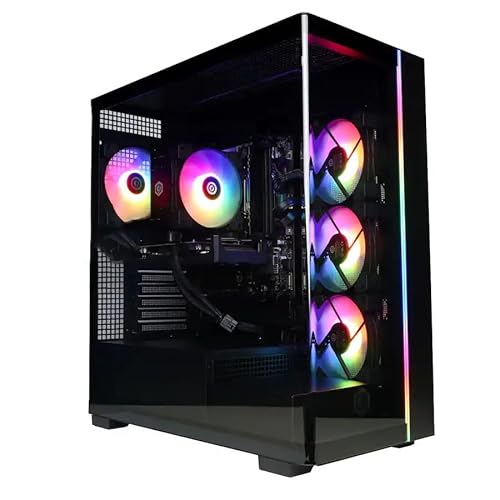
For that you get an Intel Core i5-14400F processor, an NVIDIA RTX 5060 graphics card with 8GB of VRAM, 16GB of DDR5 RAM and a 1TB SSD. The one thing I’d change straight away is the memory. 16GB is the minimum I’d accept for editing, and RAM is the easiest upgrade there is on a Windows desktop, so I’d add a second stick to reach 32GB. Memory has become a lot more expensive through 2026 as the AI-driven chip shortage bites, so that upgrade costs more than it recently did, but it’s still worth doing. After that it comfortably meets the specification I recommend.
One thing to weigh before you buy: the M5 Pro Mac Mini costs a fair bit more but is faster out of the box for editing. I’d only choose this CyberPowerPC over the Mac if you specifically want Windows, or you value being able to upgrade the memory, storage and graphics card yourself later on.
Key specs: Intel Core i5-14400F processor, NVIDIA RTX 5060 8GB GPU, 16GB DDR5 RAM (upgradeable), 1TB SSD.
Check price on Amazon here.
Best Windows Desktop to Grow Into: Alienware Aurora (ACT1250)
Alienware is Dell’s gaming brand, and the Aurora is the model I’d choose if you want a Windows desktop you can configure now and upgrade later. I ran Dell machines as my main editing laptops for years before switching brands, and the build quality has always been there.
The reason I like it for photographers is the configurator. You pick your exact parts, so you’re not stuck with whatever a fixed pre-built happens to bundle. The setup I’d order is an Intel Core Ultra 7 265F processor, 32GB of RAM, a 2TB SSD, and an RTX 5060 Ti graphics card. The Aurora’s entry GPU is now the RTX 5060 Ti, and you can step up through the RTX 5070 to the 5080 if you also game seriously or do heavy video work. The entry price is competitive for a configurable machine, and climbs as you add power.
It’s a full-size tower, so it needs a fair bit more space than something like the Mac Mini, but that size is exactly what gives you room to add storage or a bigger graphics card down the line.
Key specs: Intel Core Ultra 7 265F processor, NVIDIA RTX 5060 Ti GPU (up to 5080), 16GB to 64GB RAM, 1TB to 8TB SSD.

Check price and configure direct from Dell here, or see all the current Alienware models here.
Best for Large Files and Power Users: Apple Mac Studio (M5 Max)
If you liked the sound of the Mac Mini but want considerably more power, the Mac Studio is the next step up. It’s still compact and quiet, but it’s built for photographers working with very large files, deep layer stacks, big panoramas, or a serious amount of video alongside their stills.
Apple has now moved the Studio to the M5 generation, and it comes with two chip options: the M5 Max and the more expensive M5 Ultra. For most people the M5 Max is the right call. The Ultra starts at more than double the price and only makes sense if you really need its enormous memory capacity.
Apple’s mid-2026 price rises pushed the whole Mac range up, so the Studio costs more than figures you may have seen quoted a year ago. The entry model comes with 36GB of memory and a 512GB drive, and if you want more you step up the range and the price with it. The config I’d choose is the 18-core CPU, 40-core GPU and 64GB of memory. As with the Mac Mini, memory is fixed at purchase, so decide before you buy. Storage you can always expand externally over Thunderbolt 5.

Key specs (recommended config): M5 Max 18-core CPU, 40-core GPU, 64GB memory, 1TB SSD.
Check price and configure direct from Apple here, or on Amazon here.
Best Premium Compact Desktop: Corsair ONE i600
Most of the Windows desktops here wear their gaming heritage on the outside. The Corsair ONE i600 is the exception, and it’s the one I’d buy if I wanted real power in something that looks at home on a nice desk. It’s a small, fully enclosed tower with minimal lighting, and there’s even a version with a real walnut wood front panel!
The looks would count for nothing if the hardware fell short, but it doesn’t. The configuration I’d buy pairs an Intel Core Ultra 7 270K Plus processor with an NVIDIA RTX 5070 graphics card, 32GB of DDR5 RAM and a 1TB SSD. That’s comfortably more than enough for any photo editing task, with plenty in hand for video. Corsair built its name on high-end memory and peripherals before it started building whole machines, and that engineering shows in how much performance it fits into such a small, quiet case.
Key specs: Intel Core Ultra 7 270K Plus processor, NVIDIA RTX 5070 GPU, 32GB DDR5 RAM, 1TB SSD.

Check price on Amazon here.
Best if You’d Rather Build It Yourself
Of course, I can’t write this guide without mentioning the option I take myself: building your own. If you enjoy the process and want complete control over every part, building a desktop lets you put your money exactly where it counts for editing, a fast per-core processor, 32GB or 64GB of RAM, a mid-range GPU with plenty of VRAM, and a large SSD.
The trade-offs have changed, though, and they’re worth spelling out. The cost saving over a comparable pre-built is only a couple of hundred dollars these days, not the big discount it once was. You also get no single point of support if something goes wrong, and the first build is a bit fiddly if you’ve never done it.
So I’d only suggest it if the building itself appeals to you. If it does, the specifications I walk through in this guide are your shopping list. If it doesn’t, one of the pre-builts above will serve you just as well.
Want to Take Better Photos?
I’ve been teaching an online travel photography course since 2016, and over 2,500 students have taken it so far. It covers everything from how your camera works through to composition, light, and editing, with feedback from me as you go. One payment, lifetime access.
How Much Should You Spend?
Budgets are personal, but here’s how I’d think about the tiers in 2026. Note that none of these include a monitor, and not every machine ships with a mouse and keyboard, so leave room for those.
- $800 to $1,500: entry options. At the lower end the standard Apple Mac Mini (M6) is the cheapest way in and handles most editing well. For a Windows machine with a discrete graphics card you’re realistically looking at the top of this band, around $1,400, like the CyberPowerPC Gamer Xtreme (you’ll want to add memory to reach 32GB). The M5 Pro Mac Mini sits a little higher and is the stronger buy if you don’t need Windows.
- $1,500 to $2,200: the best-value band, where you can hit every specification I recommend with room to spare. The M5 Pro Mac Mini and a well-configured Alienware Aurora both live here.
- $2,200 and up: high-end territory. Worth it if you work with very large files, edit a lot of video, or want a premium compact machine like the Corsair ONE or a Mac Studio. For most photographers the returns shrink quickly as the price climbs.
So which should you actually buy? If you mostly edit stills and want the least fuss, get the M5 Pro Mac Mini. If you want Windows or the freedom to upgrade, get the Alienware Aurora, or the CyberPowerPC Gamer Xtreme if you want the cheapest way into Windows. If you edit large files or serious video alongside your photos, step up to the Mac Studio or the Corsair ONE i600. And if you enjoy tinkering, build your own.
Desktop or Laptop for Photo Editing?
Before you commit to a desktop, it’s worth asking whether it’s the right form factor for you. I’ve written full guides to the best laptop for photo editing and the best monitors for photo editing if you want to go deeper. I’ve also looked at whether a tablet can replace either of them, which for most photographers it can’t.
The short answer is that a desktop wins on raw power. It can draw more power and dissipate more heat than a laptop, which means faster components and sustained performance during demanding work like AI edits or video. It also pairs naturally with a large, colour-accurate monitor, which matters a great deal for photography.
A laptop wins on portability, which is the whole point if you travel or like to edit away from home. I use both for exactly that reason: the desktop does the heavy lifting at home, and a laptop comes with me on the road. If you can only have one, decide based on where you do most of your editing.
What Actually Matters in a Photo Editing Computer
A spec sheet throws a lot of numbers at you, and most of them don’t matter much for photo editing. Four things do: the processor, the memory, the storage, and the graphics card. Here’s what each one does, what to look for, and where you can save your money.
Processor
The processor (or CPU) is the part of the computer that does the actual work, and photo editing asks a lot of it. Every adjustment you make in Lightroom or Photoshop is millions of pixels being recalculated, so a slow processor shows up as lag every time you move a slider.
For photo editing, the most useful thing a processor can have is high per-core speed. Lightroom’s Develop module, where you spend most of your time, leans heavily on one or two fast cores rather than spreading the work across many. A moderate core count of eight to sixteen helps with batch jobs like exporting and importing, but the returns fall away quickly past about sixteen cores. So a fast eight-core chip will feel snappier day to day than a slower chip with twice the cores.
As of 2026 your choices come from Intel, AMD and Apple. I’ve built editing machines on both Intel and AMD over the years and had good results with each, and Apple’s M-series chips are excellent for this kind of work too. You don’t need the top of any range. The best value usually sits a notch or two below the flagship, where you pay far less for a small drop in performance.
My recommendations:
- Intel: Core Ultra 7 265K (the current Arrow Lake generation) or the previous-generation 14700K. Puget Systems, who build workstations and run proper benchmarks, rank the Core Ultra parts at the top for Lightroom Classic.
- AMD: Ryzen 7 9700X (the current Ryzen 9000 series) or the previous 7700X. If Photoshop is your main application rather than Lightroom, the 9700X is a particularly safe choice.
- Apple: an M-series Pro or Max chip. The Mac Mini has moved to the M6 and M5 Pro and the Mac Studio to the M5 Max and M5 Ultra, while the outgoing M4 Pro and M4 Max machines are still excellent buys wherever retailers still have them. Any of these is more than fast enough for editing.
Memory (RAM)
RAM is your computer’s short-term memory, the space it uses to hold whatever you’re working on right now. Open an application and it loads into RAM. Run out of RAM and your computer starts shuffling data back and forth to the much slower storage drive, which is exactly when editing starts to feel sluggish.
Photo editing applications are hungry. I’ve watched Lightroom use over 25GB of RAM on its own! And that’s before you add Photoshop, a browser, and everything else you keep open.
The absolute minimum I’d recommend is 16GB. Unless you’re on a tight budget, aim for 32GB, which is the point where you stop thinking about it. I run 64GB on my own machines so I can keep Lightroom and Photoshop open together along with a pile of browser tabs and never notice a slowdown. For reference, Adobe’s own performance guidance points to 12GB or more for Lightroom Classic and 8GB or more for Photoshop, so 32GB sits comfortably above both.
The good news is that RAM is one of the easiest upgrades to do yourself on most Windows desktops. If your budget is tight, you can buy a machine with 16GB and add more later. The exception is Apple, where memory is fixed at purchase and can’t be changed, so choose carefully if you’re buying a Mac.

Storage
Storage is where your files actually live, and for photo editing two things matter: how much you have, and what type it is.
On capacity, a RAW file from a modern camera runs somewhere between 20MB and 80MB, so 20,000 images works out at roughly a terabyte once you add your operating system and applications. I’d treat 1TB as the minimum and 2TB as the comfortable choice if you shoot a lot.
On type, always get an SSD (solid state drive) as your main drive. It’s far faster than a traditional mechanical hard drive, and that speed shows up every time you launch an application or load an image. If you have a large archive to store, a cheaper mechanical hard drive alongside your SSD makes sense for cold storage, though be aware that both SSD and hard drive prices have risen sharply through 2026 as the memory shortage pushes up storage costs. For the drive that runs your system and applications, though, an SSD is not negotiable.
Like RAM, storage is easy to add to a Windows desktop later, either inside the case or as an external drive. So you don’t have to buy all the space you’ll ever need up front.

If you want to add storage, a couple of options are this SSD from Western Digital for fast system storage, and this large hard drive from Seagate for archiving.
Graphics Card (GPU)
This is the area where the old advice has dated, so it’s worth being clear. For years the line on photo editing was that the graphics card barely mattered, and you could put your money elsewhere. That’s no longer quite right.
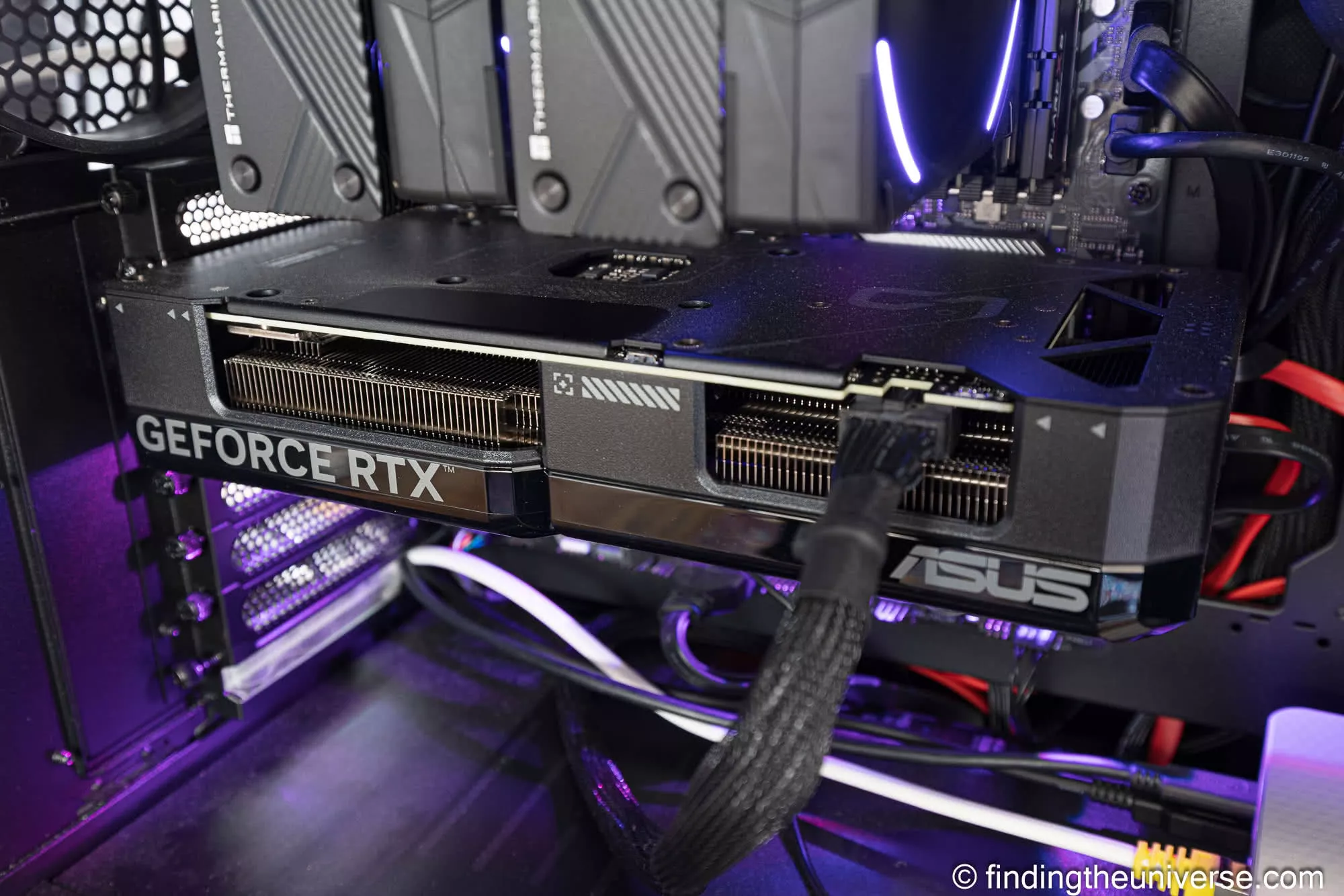
A GPU is a specialist processor that handles certain tasks far faster than the main CPU, and modern editing leans on it more every year. Adobe’s AI-powered features in particular, things like AI Denoise, AI masking, Lens Blur, and Photoshop’s generative tools, run on the graphics card. On a capable GPU these take a few seconds. On a weak or absent one they can take minutes. AI noise reduction is the clearest example: it’s one of the most GPU-dependent things a photographer does today.
So here’s my current position. You still don’t need a flagship card. Spending $2,000 on an RTX 5090 for photo editing is a waste, because the work simply can’t use it. But you do want a capable mid-range card with at least 8GB of VRAM (the memory on the graphics card itself), which is the floor I’d set for smooth GPU acceleration of those AI features, with 16GB giving you headroom for very large RAW files and high-resolution displays.
In practice I’d recommend the NVIDIA RTX 5060 as a starting point, or the RTX 5060 Ti with 16GB of VRAM if you want more room for AI work. The previous-generation RTX 4060 is still a perfectly good card if you find one at a good price. NVIDIA has traditionally been the stronger choice for this kind of work in my experience.
If you’re buying a Mac, of course, none of this applies. Apple’s M-series chips have powerful graphics built in, so you don’t add a separate card.
What About Video Editing?
If you want to edit video as well as photos, the core advice barely changes: a fast processor, plenty of RAM and an SSD all matter just as much. Two things do shift, though.
The first is storage. Video files dwarf photo files, especially at 4K and above, so budget for considerably more space than you would for stills alone.
The second is the graphics card. Where photo editing leans on the GPU mainly for AI tasks, video editing uses it constantly for timeline playback, colour grading and rendering. If you plan to do both, lean towards a stronger card than the photo-editing minimum. An RTX 5060 Ti with 16GB of VRAM or an RTX 5070 will give you noticeably smoother performance in applications like Premiere Pro or DaVinci Resolve.
Upgrading a Computer You Already Own
If you already have a desktop and want it to handle photo editing better, you may not need a new machine at all. A few targeted upgrades can transform an older computer, and most are simple to fit. A quick search for “how to install an SSD”, “how to install a GPU” or “how to install memory” will turn up plenty of clear guides. Memory and SSD prices have climbed steeply through 2026 in a global chip shortage, so upgrades cost more than they did a year ago. They’re still worthwhile if your machine is otherwise sound, but the gap between upgrading and buying new has narrowed.
The upgrades worth considering, in the order I’d do them:
- Move your system drive to a solid-state drive if it’s still on a mechanical hard drive. This single change makes the whole computer feel quicker.
- Add more RAM. Going from 8GB or 16GB up to 32GB or 64GB makes a real difference when you have several applications open.
- Add a dedicated graphics card. If you’re running integrated or older graphics, a current mid-range GPU transforms AI tasks like noise reduction and object removal.
Where to Buy a Desktop PC for Photo Editing
Where you buy depends on where you are. In North America, good options include Best Buy, Newegg, Amazon, Adorama, B&H Photo, and buying direct from the manufacturer. B&H and Adorama are both well known in the photography community and worth checking for competitive pricing.
In the UK, also try Currys and Amazon UK. Amazon is available in most countries now, and big manufacturers like Dell and Asus sell direct in many regions too.
Whatever you choose, check the warranty and support that come with it, so you know where to turn if you run into trouble.
Accessories for a Photo Editing Computer
A desktop on its own isn’t quite the whole setup. A few extras are worth budgeting for alongside the machine itself.
A Mouse
Not every pre-built comes with a mouse, and it’s the thing you’ll touch most. I use and recommend a gaming mouse for editing, for one specific reason: the extra programmable buttons. Photo editing applications are full of keyboard shortcuts, and assigning your most-used ones to mouse buttons noticeably speeds up your workflow. Gaming mice are also very precise, which helps when you’re working on fine detail. I use the Logitech G502 X Plus, which has thirteen programmable buttons.

A Keyboard
As with the mouse, not every desktop includes a keyboard. There are hundreds to choose from, and a lot of it is really about personal preference. I’d suggest a mechanical keyboard, which I find nicer to type on, but your own taste in key feel and layout should lead here. I use a Keychron C3 Pro keyboard, which has served me well.

A Monitor
You’ll need a monitor, and it’s worth getting a good one, because it’s the thing you actually look at while you edit. Choosing one is a big enough subject that I’ve written a separate guide. Have a read of my complete guide to the best monitors for photo editing, which covers what to look for and suggests options across a range of budgets.
A UPS (Uninterruptible Power Supply)
Unlike a laptop, a desktop has no battery, so it relies on a constant mains supply. If you suffer a power cut or a brown-out, the machine shuts down instantly, which can cost you whatever you were working on and, in a worst case, stress the electronics inside.
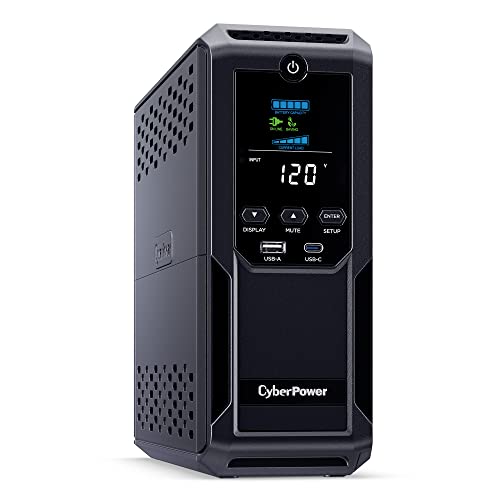
A UPS is essentially a large battery with surge protection built in. If the power drops, it switches to battery and keeps your computer running. It won’t run a power-hungry desktop for hours; the point is to give you enough time to save and shut down cleanly. Most come with software that can do that automatically before the battery runs out. I use a CyberPower UPS, and I’ve used an APC UPS in the past too.
Three Decades of Buying and Building Editing Machines
My first desktop was an Acer, bought over three decades ago, and I’ve owned, built and upgraded a lot of computers since. A few lessons have held up across all of them, and they’re the ones I’d pass on.
Spend on the things you can’t easily change. RAM and storage are simple to add to a Windows desktop later, so they’re poor places to overspend up front, but on a Mac they’re fixed forever, so that’s exactly where to be generous. Put your processor budget into per-core speed rather than chasing the highest core count, because that’s what Lightroom rewards. And give the graphics card more thought than you would have a few years ago, since it now does the heavy lifting on AI edits.
The most common mistake I see is buying too little storage and too much processor. Photo libraries only grow, so I’ve never once regretted buying a bigger drive, and I’ve never felt the benefit of the top-tier chip over the one a notch below it. Get those priorities right and a fairly ordinary machine will serve you happily for years.
Further Reading
Hopefully this guide has given you some options to consider for your next editing computer. We have plenty of other photography resources you might find helpful too.
- My detailed guide to the best laptop for photo editing, if you’d prefer something more portable.
- If you need software for your new machine, see our guide to the best photo editing software. We also have a guide to improving Lightroom performance if that program runs slowly for you.
- You’ll want a good screen to go with it. See our guide to the best monitors for photo editing across a range of budgets.
- Colour accuracy matters for photography, so see our guide to monitor calibration to get your screen set up correctly.
- No one wants noisy images. Our guide to the best noise reduction software will help you get clean results.
- Our range of photography guides, including Northern Lights photography, lens compression, back button focus, fireworks photography, taking photos of stars, cold weather photography, long exposure photography, RAW in photography, ND filters, depth of field and photography composition.
- Our photography gift guide, if you’re looking for a present for a photography-loving friend or family member.
- A detailed guide to the best travel cameras, with specific guides to the best compact camera, best action camera, best bridge camera, best mirrorless camera, and best DSLR camera. We also have a guide to the best camera lenses.
- Our guide to why you need a tripod, and a guide to choosing a travel tripod.
- Our guide to sky replacement in photography walks through an easy process anyone can follow.
Frequently Asked Questions
What specs do I need in a desktop computer for photo editing?
Four specifications matter most: a fast processor, plenty of RAM, an SSD, and a capable graphics card.
For the processor, look at an Intel Core Ultra 7 265K, an AMD Ryzen 7 9700X, or an Apple M4 Pro or better. Aim for 32GB of RAM (16GB is the absolute minimum), and make your main drive an SSD of 1TB or more.
For the graphics card, a mid-range NVIDIA RTX 5060 or RTX 5060 Ti with at least 8GB of VRAM handles photo editing well. The GPU has become more important as editing software relies on it for AI features like noise reduction and object removal.
How much RAM do I need for Lightroom and Photoshop?
I’d treat 32GB as the ideal amount for Lightroom and Photoshop, and 16GB as the absolute minimum.
I’ve seen Lightroom use over 25GB of RAM on its own. Once you add Photoshop, a browser and other applications on top, 16GB starts to feel tight and you notice slowdowns when switching between programs.
If your budget allows, 64GB gives you plenty of headroom, and it’s what I run on my own machines.
Is a desktop or laptop better for photo editing?
For raw power, a desktop wins every time. Its components can draw more power and run cooler, so they sustain higher performance, and you can pair it with a large, colour-accurate monitor.
A laptop gives you portability, which matters if you travel or edit away from home. I use both: the desktop for heavy work at home, a laptop on the road. If you can only have one, choose based on where you do most of your editing.
Is a Mac or PC better for photo editing?
Both run Lightroom, Photoshop and Capture One brilliantly, so neither is wrong. For most photographers I’d pick the M5 Pro Mac Mini for its speed, silence and value with the least fuss.
Choose Windows if you want to upgrade your machine over time, want a specific graphics card, or want the best value at the mid-range, where there’s far more hardware choice. If you’re already comfortable on one platform, stay there.
Do I need a graphics card for photo editing?
Yes, I’d recommend one. Modern editing software uses the graphics card to accelerate tasks, especially AI features like noise reduction, object removal and sky replacement, which can take minutes on the processor alone but run in seconds with a decent GPU.
You don’t need anything top of the line. A mid-range card like the NVIDIA RTX 5060 or RTX 5060 Ti, with at least 8GB of VRAM, is plenty. If you’re buying a Mac, its M-series chip has capable graphics built in, so you don’t add a separate card.
How much should I spend on a desktop computer for photo editing?
For a machine that meets all my recommended specifications, budget around $1,500 to $2,200. PC prices and Apple’s own prices have risen through 2026 as a memory shortage pushes up component costs, so a new Windows desktop with a discrete graphics card now starts at roughly $1,400, and the M5 Pro Mac Mini sits somewhat above that.
Above $2,200 you’re into high-end territory that suits professionals handling very large files or heavy video. For most photographers the benefits shrink quickly as the price rises.
What is the best Windows desktop for photo editing?
For a Windows desktop I’d choose the Alienware Aurora (ACT1250). You can configure it with an Intel Core Ultra 7 processor, 32GB of RAM, an RTX 5060 Ti or better, and a 2TB SSD, and its full-size tower leaves room to upgrade later.
If you want to spend less, the CyberPowerPC Gamer Xtreme is the most affordable Windows option, with an Intel Core i5, an RTX 5060 and 16GB of RAM that I’d upgrade to 32GB.
What is the best computer for photo and video editing?
The specifications overlap heavily with photo editing, but video asks for more storage and a stronger graphics card. Aim for an RTX 5060 Ti with 16GB of VRAM or an RTX 5070, plus a large SSD.
The Alienware Aurora configured with a 5070, the Corsair ONE i600, or an Apple Mac Studio all handle photo and video work comfortably.
Is a gaming PC good for photo editing?
Yes. The specifications that make a good gaming PC, a fast processor, plenty of RAM and a capable graphics card, are close to what photo editing needs, which is why several of my picks are sold as gaming machines.
The main difference is cosmetic. If you’re not keen on RGB lighting and glass side panels, you can turn the lighting off, or choose an understated option like the Corsair ONE.
How much VRAM do I need for photo editing?
Aim for at least 8GB of VRAM, the memory built into the graphics card. That’s the floor I’d set for smooth GPU acceleration of AI features like Denoise and AI masking.
16GB of VRAM, as on the RTX 5060 Ti 16GB, gives you useful headroom for very large RAW files, high-resolution displays, and video editing.
Can a Mac Mini handle professional photo editing?
Yes, comfortably. The Mac Mini with the M5 Pro chip has the speed for professional Lightroom and Photoshop work, including AI tasks, in a tiny, quiet package.
The one thing to watch is that you can’t upgrade a Mac Mini after purchase, so configure enough memory and storage at the outset. I wouldn’t go below 24GB of memory and a 1TB drive.
What is the best processor for Lightroom?
Lightroom rewards high per-core speed more than a high core count, because its Develop module leans on one or two fast cores. Intel’s Core Ultra 7 and 9 parts rank at the top of Puget Systems’ Lightroom Classic benchmarks.
If Photoshop is your main application rather than Lightroom, the AMD Ryzen 7 9700X is a very safe choice. On the Apple side, the M5 Pro and M5 Max are both excellent, as are the outgoing M4 Pro and M4 Max.
Looking to Improve Your Photography?
If you found this guide helpful and you’d like to improve your photography overall, you might want to check out my online travel photography course.
Since launching the course in 2016, I’ve helped over 2,500 students learn to take better photos. It covers pretty much everything you need to know, from the basics of how a camera works through to composition, light, and photo editing.
It also covers more advanced topics, including astrophotography, long exposure photography, flash photography and HDR photography.
You get feedback from me as you progress, access to webinars, interviews and videos, and membership of a Facebook group where you can share your work and take part in regular challenges.
It’s available for a one-off price that gives you lifetime access, and I think you should take a look. You can do that by clicking here.
And that’s our guide to the best desktop computer for photo editing. As always, if you have any questions or feedback on any of the above, let us know in the comments below.
FRANK says
Lots of good info, knew some, learned a lot. Will be back when I got a lot more cash! Thanks
Laurence Norah says
My pleasure Frank, let me know if you have any questions! It’s definitely an expensive time to buy a computer unfortunately 🙁
Dan says
Just wanted to say thank you for this great post, very detailed. Makes it idiot proof because it is an absolute mine field out there when coming to choosing the right PC!
Laurence Norah says
My pleasure Dan, thanks for taking the time to let me know! I hope you find the right PC for you and let me know if you have any questions! Laurence
Jim says
Breaks down what matters in a photo-editing desktop from the CPU, RAM, storage, to the GPU. Laurence makes it super clear why those specs actually affect your workflow. Plus solid pre-built PC suggestions.
Laurence Norah says
Thanks Jim 🙂
Harriet J. Hartley says
This is such a helpful guide! Having a powerful desktop for photo editing makes all the difference, especially when working with high-resolution images and AI-powered tools. Looking forward to your recommendations—any personal favorites for balancing performance and budget?
Laurence Norah says
Hi Harriet,
Thanks very much! So I think in terms of balancing performance and budget the Apple Mac Mini is an amazing option. For Windows, I think the iBUYPOWER Slate 8 Mesh Gaming PC is a great balance of performance and price.
Let me know if you have any more questions, or if you have a specific budget in mind I can offer more advice of course.
Laurence