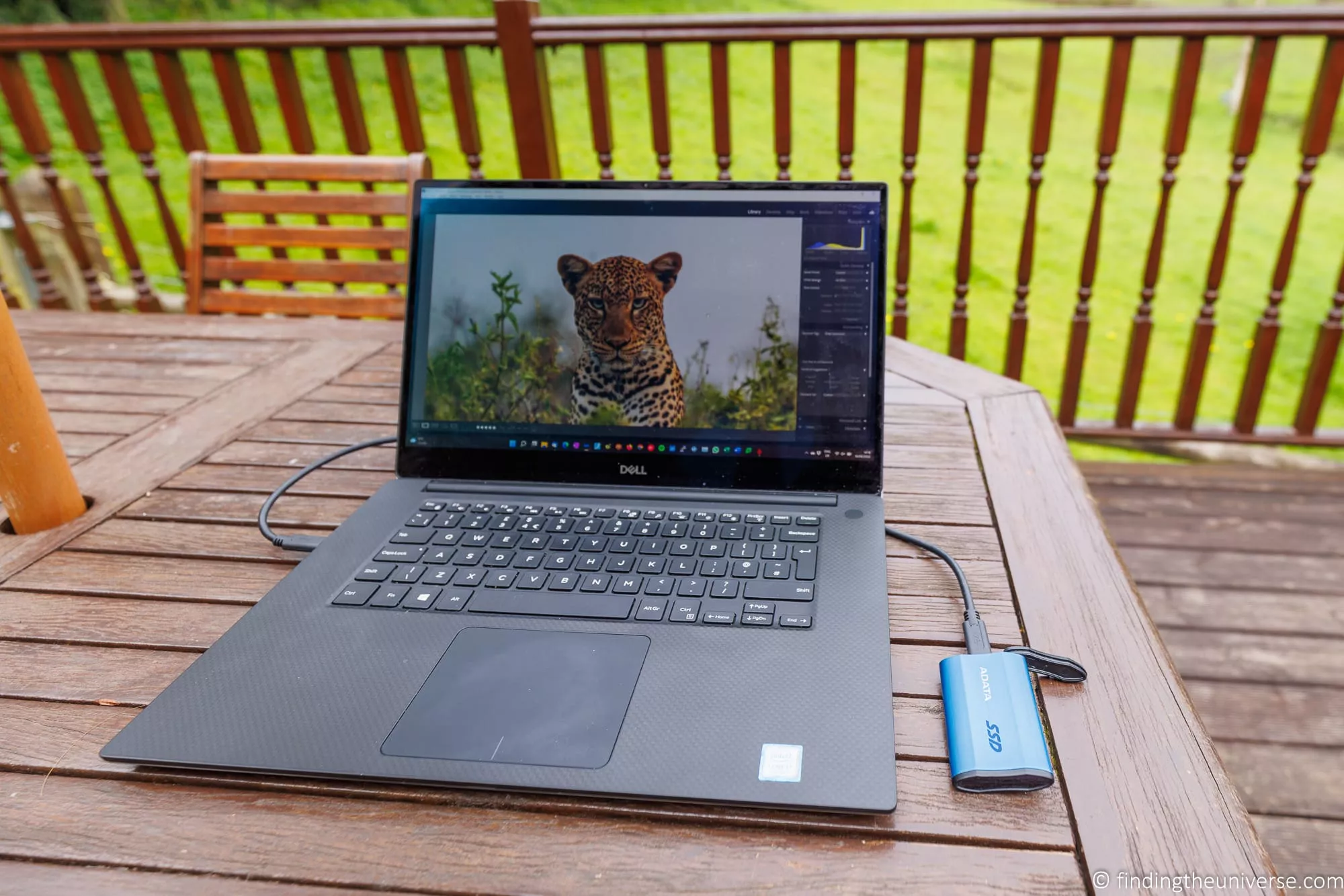

I'm Laurence, a professional travel photographer since 2010. Jess and I write this site from our own travels.
The best portable SSD for most photographers right now is the SanDisk Extreme Portable SSD V3. If you shoot on a Mac, the Samsung T7 Shield is the better buy, for reasons that catch a lot of people out. I have a computer science degree, I’ve been building my own computers since I was 18, and I’ve had enough external drives die on me during trips to have opinions about connectors.
The drive itself is the easy half of the decision, though. What actually keeps your photos safe is the system around it – what goes on the drive each evening, where the second copy lives, and what happens when you get home. At home, my version of that system ends at a NAS in a cupboard with over 10TB mirrored to the cloud. On the road, it starts with a drive small enough to live in a jacket pocket.
A quick note on how I’ve picked these. The specs below are checked against each manufacturer’s own documentation, and for lab benchmarks I’ll point you at PetaPixel and Imaging Resource, who run sustained transfer tests I’m not equipped to do better. What I can add is the part the spec sheets don’t tell you – which of those numbers are real on the computer you actually own, and how to set things up so a dead drive is an annoyance rather than a disaster.
Table of Contents:
The Best Portable SSDs for Photographers at a Glance
Here are my nine picks. Each one links down to a full write-up further on in this guide, and every drive was in stock at the time of writing.
- SanDisk Extreme Portable SSD V3 – best overall for most photographers
- Lexar ES3 – best budget SSD
- Lexar SL500 – best value high-speed drive
- Samsung T9 – fastest over USB (with a big caveat)
- Samsung T7 Shield – best for Mac users
- SanDisk Professional PRO-G40 – best Thunderbolt drive for pro workflows
- LaCie Rugged SSD4 – toughest drive
- OWC Envoy Ultra – the Thunderbolt 5 ceiling
- Seagate One Touch HDD – best hard drive for a cold archive
Portable SSD Comparison Table
The table below compares the key specs side by side. Where a rated speed needs a specific port to be achievable, I’ve said so, because that’s the most misleading number on any SSD box. More on that in the speed and interfaces section.
| Drive | Best For | Interface | Rated Speed (Read) | Capacities | Protection | Warranty |
|---|---|---|---|---|---|---|
| SanDisk Extreme Portable SSD V3 | Best overall | USB-C, 20Gbps class | Up to 2,000MB/s (needs a 20Gbps port) | 1TB to 4TB | IP65 | 5 years |
| Lexar ES3 | Best budget SSD | USB-C, 10Gbps | Up to 1,050MB/s | 1TB, 2TB | Drop rated to 2m | See manufacturer |
| Lexar SL500 | Best value high-speed | USB-C, 20Gbps | Up to 2,000MB/s (needs a 20Gbps port) | 1TB to 4TB | IP54, drop rated to 2m | 5 years |
| Samsung T9 | Fastest over USB | USB-C, 20Gbps | Up to 2,000MB/s (needs a 20Gbps port) | 1TB to 4TB | Drop rated to 3m | 5 years |
| Samsung T7 Shield | Best for Mac users | USB-C, 10Gbps | Up to 1,050MB/s | 1TB to 4TB | IP65, drop rated to 3m | 3 years |
| SanDisk Professional PRO-G40 | Best for pro workflows | Thunderbolt 3 (40Gbps) + USB-C (10Gbps) | Up to 3,000MB/s (Thunderbolt 3 only) | 1TB to 4TB | IP68, drop rated to 3m, crush resistant | 5 years |
| LaCie Rugged SSD4 | Toughest drive | USB 40Gbps | Up to 4,000MB/s (needs a 40Gbps port) | 1TB to 4TB | IP54, drop rated to 3m, crush resistant | 3 years + data recovery service |
| OWC Envoy Ultra | Thunderbolt 5 ceiling | Thunderbolt 5 (80Gbps) | Over 6,000MB/s burst (~1,350MB/s sustained write) | 2TB to 8TB | IP67 | 5 years |
| Seagate One Touch HDD | Cold archive at home | USB 5Gbps (Micro-B) | No published figure (mechanical drive) | 1TB to 5TB | None claimed | 2 years (US) |
The Drive Is Not the Backup
A drive on its own is just a second place for things to go wrong. What protects your photos is the routine you build around it.
The framework is called 3-2-1, and in plain English it means three copies of your photos, on at least two different types of storage, with one copy somewhere physically different from the others. It sounds like overkill until the day it isn’t. I’ve had drives fail on trips more than once, and the only reason those stories are boring is that there was always another copy.
Here’s what that looks like in practice while you’re travelling. Your photos start on the memory card. Each evening, you copy them to your portable SSD. Then, and this is the important bit, you don’t delete them from the card. A card you haven’t wiped is a free second copy, which is also a good argument for carrying more capacity in cards than you think you need. I’ve covered card choice in detail in my guide to the best memory cards for photography. That leaves you at two copies rather than three, which on a short trip I’ll live with until I’m home.
For longer trips, or any trip where the photos really matter, the third copy comes with me. I carry two drives and keep them in different bags. One travels in my camera bag, the other stays in the luggage or with Jess. A thief takes a bag, not a system.
When you get home, the travel copies come off the drives and into wherever your photo library permanently lives. In my case that’s a NAS humming away in a cupboard, holding over 10TB of photos, all of it mirrored to Backblaze cloud backup. The cloud copy is for the day the cupboard itself is the problem. If your cloud copy is currently Google Photos, I’ve written a separate breakdown of what it costs to move off it at real archive scale.
Backblaze is $9 a month per computer for unlimited data, and that link is a referral link that gets you a full free month to try it rather than the standard 15 day trial (I get a free month too if you sign up, so we both win!).
You don’t need my exact setup, of course. A desktop computer, one big archive drive and a cloud subscription does the same job. The principle is the thing, and I’ve written a full guide to photo backup that covers it end to end, plus a piece on keeping your data safe on the road.
How Much Storage Do You Need for Photo Backup?
“Get 2TB” is the standard advice, and it’s not wrong, but you can do better with thirty seconds of arithmetic.
A RAW file from a modern 45 megapixel camera runs around 45MB. On a heavy travel day I might shoot 400 frames. That’s about 18GB a day, so a two week trip of enthusiastic shooting comes out at roughly 250GB. That’s what a single drive needs to hold while your memory cards carry the second copy. If you’d rather have both copies on drives, budget that 250GB twice: 500GB on one drive, or 250GB on each of two.
That makes 1TB the sensible floor for most photographers, and it’s why almost every drive in this guide starts there. Go to 2TB if any of these apply: you shoot video (even modest 4K eats storage at a rate stills never approach), your trips run longer than a couple of weeks, or you’d rather not think about it again for a few years.
Buy the next size up from whatever the arithmetic says. Future you shoots more than present you thinks, and the per terabyte price drops as capacities rise anyway.
All of this costs more than it did. Storage prices roughly doubled through 2026 as AI data centres bought up most of the world’s memory production, and NAND supply isn’t expected to loosen before late 2027. The arithmetic above hasn’t changed, but sizing up is a more expensive habit than it used to be, so if the budget is tight, size to the arithmetic and no further. And if a drive you want is going at a fair price, take it rather than holding out for a better one. I wouldn’t bet on a better one arriving this year.
One trap worth flagging. The OWC Envoy Ultra in this list starts at 2TB, and the SanDisk V3 line lists a 500GB model that, as of August 2026, isn’t actually shipping yet, so 1TB is its real floor. Capacity ranges on boxes and websites are aspirational more often than you’d expect.
SSD or Hard Drive for Photo Backup?
For travel, this one’s easy. An SSD has no moving parts, so a drop that would kill a spinning hard drive is usually a non-event. It’s also several times faster and half the weight. Every drive of mine that died on the road was a mechanical drive, and portable SSDs have removed most of those failure modes. For the drive in your bag, buy an SSD and don’t look back.
The archive shelf at home is a more interesting question, and it’s where the internet’s favourite claim needs correcting. You may have read that SSDs “forget” their data after a year unplugged.
The real picture is a bit subtler. An SSD stores your photos as electrical charge trapped in memory cells, and that charge does leak over time, faster when the drive is warm and faster still as the drive wears out.
But the often quoted one year figure is a certification minimum for a drive at the very end of its rated life, not a prediction for the lightly used drive in your drawer. Nobody publishes an honest number for that drive, because it depends on too many things.
What the manufacturers do publish is telling in its own way. Dell and IBM both advise datacenter customers to power up stored SSDs every couple of months. That’s conservative, enterprise grade caution, but the underlying physics applies to your drive too: an SSD is not a set-and-forget archive medium.
A hard drive stores data as magnetic domains on a platter, which don’t have that particular decay mode, and at archive sizes it costs a fraction of the price per terabyte. That’s the case for the Seagate One Touch at the end of this list. But hard drives have their own ways of dying on a shelf – bearings and motors that object to spinning up after a long sleep – so you’re swapping one set of failure modes for another, not escaping them.
Which brings us back to the real answer. No single drive of any type is an archive. More than one copy is the archive, and ideally one of those copies is in the cloud.
Speed, Interfaces, and What Your Laptop Will Actually Give You
This is the section I most wish someone had written years ago, because the speed on the box is a negotiation, not a promise. A drive and a computer talk over a bus, and the transfer runs at the speed of whichever side is slower.
The USB naming scheme does its best to hide this. The spec name for a 20Gbps port is “USB 3.2 Gen 2×2”, which is, unhelpfully, twice as fast as “USB 3.2 Gen 2”. The USB standards body has largely given up on those names and now just brands ports by speed – USB 10Gbps, USB 20Gbps, USB 40Gbps – so that’s what I’ll use here. As a rule of thumb, a 10Gbps port tops out around 1,000MB/s of real transfer, a 20Gbps port around 2,000MB/s, and a 40Gbps Thunderbolt or USB4 port around 3,000MB/s or more.
Now the trap. Three drives in this guide – the SanDisk V3, the Samsung T9 and the Lexar SL500 – advertise speeds around 2,000MB/s, which requires a 20Gbps port. Almost no computer has one. A handful of desktop motherboards and a small number of Windows laptops do, and that’s about it. Apple’s own port documentation lists no 20Gbps USB mode on any current Mac; the fastest non-Thunderbolt USB mode Apple documents is 10Gbps. Plug a T9 into a MacBook Pro and it negotiates down to 10Gbps, and you get roughly half the advertised speed.
That inverts the usual buying logic. On a Mac, the Samsung T7 Shield, an older and cheaper 10Gbps drive, gives you every megabyte per second you paid for. The newer, more expensive T9 gives you about half of what you paid for, and both end up at the same real speed. That’s why my Mac pick is the T7 Shield, and it’s a caveat you’ll rarely find printed next to the T9’s headline number.
Two more port facts before the picks. “USB4” on a spec sheet doesn’t guarantee 40Gbps, since the USB4 specification allows slower implementations, so trust the Gbps figure, not the name. And on Thunderbolt: versions 3 and 4 both run at 40Gbps, while Thunderbolt 5 runs at 80Gbps for storage (you’ll see 120Gbps quoted, but that’s a display mode, not a file transfer speed).
Finally, all of these drives are bus powered, which mostly works brilliantly. There are two exceptions to plan for. Long transfers generate heat and fast drives will slow down when they get hot, and if you offload direct from a USB-C iPad or phone, the drive is drinking from your device’s battery while it does it. If you’re choosing a computer to pair with a fast drive, port selection is one more reason to read my guide to the best laptops for photo editing.
The Best Portable SSDs and External Drives for Photographers in 2026
On to the drives. For each one you’ll find the key specs, who it suits, and anything the marketing doesn’t mention. Prices shown are live from Amazon.
SanDisk Extreme Portable SSD V3 – Best Overall

This is the drive I’d hand most photographers. It’s fast, it’s small, it has an IP65 rating against dust and splashed water, and the warranty runs five years, which is as good as this category gets.
The V3 is the third generation of SanDisk’s Extreme line, released in February 2026. If that line rings a bell, it’s probably because of the 2023 failures that hit some earlier Extreme and Extreme PRO models. I cover exactly what happened in the drive failure section below, and it’s worth reading before you buy anything. The V3 is a different product generation with no advisory against it, but it’s also only been on sale a few months, so its long term record doesn’t exist yet. Mine wouldn’t be the only copy of anything, and yours shouldn’t be either.
One spec note. The advertised 2,000MB/s is a 20Gbps port figure. On the 10Gbps ports most laptops have, including every current Mac, you’ll see around half that, which is still plenty fast for photo offloads.
- Capacities: 1TB, 2TB, 4TB (a 500GB model is listed but not yet shipping as of August 2026)
- Rated speed: up to 2,000MB/s (20Gbps port required)
- Interface: USB-C
- Protection: IP65 rated, drop tested
- Warranty: 5 year limited
- Check price on Amazon
Check the SanDisk Extreme V3 price on Amazon here.
Lexar ES3 – Best Budget SSD

The cheapest drive in this guide, and a good example of how far the budget end of portable SSDs has come. The ES3 is a 10Gbps drive rated to 1,050MB/s, which as we covered above is the same real world speed most laptops will get from drives costing considerably more. It’s tiny, pretty light at around 42g, and drop rated to 2m.
The compromises are the ones you’d expect at the price. There’s no IP rating, and Lexar doesn’t publish a warranty term for it anywhere I could find, which is a bit odd (their other SSD lines run three to five years). Check what your retailer states before buying. It also ships with a handy 2-in-1 cable that covers both USB-C and USB-A computers.
For a first backup drive, or the second drive in a two drive travel setup, it’s a really easy recommendation.
- Capacities: 1TB, 2TB
- Rated speed: up to 1,050MB/s
- Interface: USB-C (2-in-1 USB-C/USB-A cable included)
- Protection: drop rated to 2m, no IP rating
- Warranty: not published, check with retailer
- Check price on Amazon
Check the Lexar ES3 price on Amazon here.
Lexar SL500 – Best Value High-Speed Drive

The SL500 is the value play in the 2,000MB/s class, usually undercutting the Samsung T9 while matching its headline numbers. It’s remarkably thin at 7.8mm, weighs 43g, carries an IP54 rating and a 2m drop rating, and the warranty runs five years.
The same 20Gbps caveat applies here as to the T9: you need a 20Gbps port to see 2,000MB/s, and most computers, including every current Mac, will run it at around 1,000MB/s instead. If that describes your machine, buy the ES3 or T7 Shield and save the difference. But if you have a 20Gbps port, or want a drive that will outlive your current laptop’s ports, this is the sensible way to buy that speed.
It’s also explicitly marketed for phones and tablets, and its slim shape makes it the least awkward drive here to dangle off an iPad on location.
- Capacities: 1TB, 2TB, 4TB
- Rated speed: up to 2,000MB/s read, 1,800MB/s write (20Gbps port required)
- Interface: USB-C
- Protection: IP54 rated, drop rated to 2m
- Warranty: 5 year limited
- Check price on Amazon
Check the Lexar SL500 price on Amazon here.
Samsung T9 – Fastest Over USB
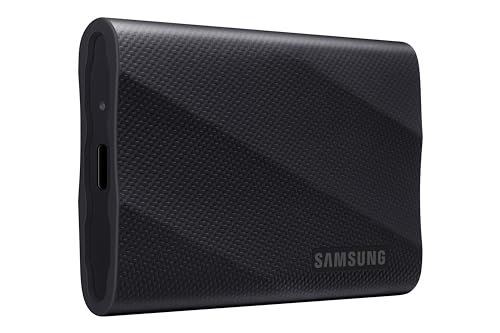
The T9 is the fastest pure USB drive in this guide, with up to 2,000MB/s read and nearly the same write, a body drop rated to 3m, and Samsung’s five year warranty.
You know the caveat by now, and with this drive it matters most because you’re paying a premium specifically for the speed. On a 20Gbps port it’s superb, and sustained write performance holds up well on big video offloads. On the 10Gbps port of a MacBook, it runs at half its rated speed and you’ve paid T9 money for T7 Shield performance.
So the buying rule is simple. If you have a Windows machine with a 20Gbps port, or you’re moving hundreds of gigabytes at a time, the T9 is the drive. On a Mac? Keep reading.
- Capacities: 1TB, 2TB, 4TB
- Rated speed: up to 2,000MB/s read (20Gbps port required)
- Interface: USB-C
- Protection: drop rated to 3m
- Warranty: 5 year limited
- Check price on Amazon
Check the Samsung T9 price on Amazon here.
Samsung T7 Shield – Best for Mac Users

Here’s the pick that looks wrong on paper and right in practice. The T7 Shield is a 10Gbps drive rated to 1,050MB/s, and 10Gbps is the ceiling for an ordinary USB drive on any current Mac. Short of going to Thunderbolt, every megabyte per second you pay for beyond that is wasted. The Shield delivers its entire rated performance, costs less than the T9, and adds things the T9 doesn’t have, including an IP65 rating and a chunky rubber jacket that shrugs off rain and a 3m drop.
That rating means splashes and rain, by the way, not swimming. No drive in this guide short of the PRO-G40 and Envoy Ultra should ever go underwater.
The trade-offs are a 3 year warranty against the T9’s five, and the obvious one: if you later move to a machine with 20Gbps or Thunderbolt ports, the Shield stays a 1,050MB/s drive. For MacBook photographers, that’s a trade I’d make without hesitating.
- Capacities: 1TB, 2TB, 4TB
- Rated speed: up to 1,050MB/s (achievable on any current Mac)
- Interface: USB-C
- Protection: IP65 rated, drop rated to 3m
- Warranty: 3 year limited
- Check price on Amazon
Check the Samsung T7 Shield price on Amazon here.
SanDisk Professional PRO-G40 – Best Thunderbolt Drive for Pro Workflows
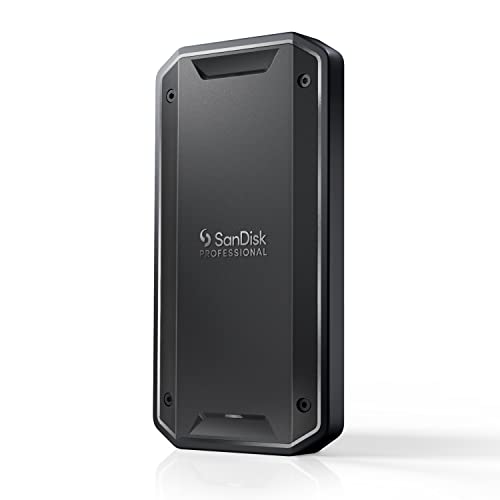
The PRO-G40 is the drive for photographers whose deadlines are shorter than their card offloads. Over Thunderbolt 3 it moves data at up to 3,000MB/s read and 2,500MB/s write, and unlike a lot of two mode drives it degrades gracefully: plug it into a plain USB-C port and it still runs as a normal 1,050MB/s drive.
It’s also built like it expects to be trodden on. The IP68 rating is a real immersion rating, unlike the splash ratings elsewhere in this list, it’s drop rated to 3m, and it’s rated against 4,000lb of crush force, which is roughly the weight of a car.
Two things to check before buying. Full speed requires an actual Thunderbolt port (any Thunderbolt-equipped Mac qualifies, as do many higher end Windows laptops), and it’s priced like the professional tool it is. For a working photographer moving big shoots daily, it repays that quickly.
- Capacities: 1TB, 2TB, 4TB
- Rated speed: up to 3,000MB/s read, 2,500MB/s write via Thunderbolt 3; 1,050MB/s via USB-C
- Interface: Thunderbolt 3 (40Gbps) + USB-C (10Gbps)
- Protection: IP68 rated (immersion rated), drop rated to 3m, 4,000lb crush resistance
- Warranty: 5 year limited
- Check price on Amazon
Check the SanDisk PRO-G40 price on Amazon here.
LaCie Rugged SSD4 – Toughest Drive

LaCie’s orange Rugged drives have been a fixture on film and photo shoots for two decades, and the SSD4 is the current generation. It’s a USB 40Gbps drive rated to a substantial 4,000MB/s read, drop rated to 3m, rated against a full ton of crush force, and IP54 rated against dust and splashes – with the caveat that the rating depends on the port cap actually being seated, which it won’t be while the drive is plugged in and working.
The spec that makes it interesting for this article, though, is the warranty. Three years is the shortest SSD warranty here, but it includes Seagate’s Rescue data recovery service: if the drive dies within that period, they’ll attempt to recover your files once, free. Professional data recovery normally costs serious money, and no other drive in this guide includes it.
Seagate does note that Rescue isn’t available in every country, so check yours if that’s why you’re buying. For a certain kind of traveller, it beats two extra years of hardware warranty comfortably.
The 4,000MB/s needs a 40Gbps port (USB4 or Thunderbolt); on ordinary 10Gbps ports it’s a fast everyday drive like everything else here.
- Capacities: 1TB, 2TB, 4TB
- Rated speed: up to 4,000MB/s read (40Gbps port required)
- Interface: USB 40Gbps (USB-C)
- Protection: IP54 rated (cap seated), drop rated to 3m, 1 ton crush resistance
- Warranty: 3 year limited, including Rescue data recovery
- Check price on Amazon
Check the LaCie Rugged SSD4 price on Amazon here.
OWC Envoy Ultra – The Thunderbolt 5 Ceiling

This is what the top of the market looks like in 2026. The Envoy Ultra is a Thunderbolt 5 drive that bursts past 6,000MB/s, it’s IP67 rated, and it starts at 2TB. It’s the fastest thing here by a distance, and the only drive in this guide that costs more than some cameras.
Two numbers behind the headline deserve daylight. OWC’s own spec sheet puts sustained write on the 2TB model at around 1,350MB/s, and sustained is the number that matters when you’re dumping an entire shoot, not copying one file. Still quick, but a long way from six thousand. And Thunderbolt 5 hosts are rare: as of mid 2026 that mostly means recent M4 Pro and Max class Macs and a small set of PCs, though it falls back happily to Thunderbolt 4 and USB4 at those buses’ speeds.
One design quirk to weigh: the cable is built into the drive. Nothing to forget at the hotel, but also nothing to replace if the cable itself gets damaged, which is a bit of an odd gamble for a drive this ruggedly built. Buy it if you have the host to feed it and a video-heavy workflow; otherwise the PRO-G40 does the pro job for much less.
- Capacities: 2TB, 4TB, 8TB (no 1TB option)
- Rated speed: over 6,000MB/s burst; around 1,350MB/s sustained write (2TB model)
- Interface: Thunderbolt 5 (80Gbps), integrated cable
- Protection: IP67 rated (immersion rated)
- Warranty: 5 year limited
- Check price on Amazon
Check the OWC Envoy Ultra price on Amazon here.
Seagate One Touch HDD – Best Hard Drive for a Cold Archive

The one deliberate hard drive in the list, here for a different job. The One Touch is not the drive for your camera bag – it’s mechanical, so a hard drop can kill it, and it carries no protection ratings at all. It’s the drive for the shelf: the cheap, capacious second or third copy that lives at home while your SSDs travel, and the answer to the charge leakage question from the SSD versus hard drive section.
Per terabyte it costs a fraction of any SSD here, capacities run to 5TB, and this particular variant adds hardware encryption with password protection, which is a sensible feature on a drive that will hold your entire library. It connects over USB 3.0 with the older Micro-B socket, and Seagate publishes no transfer speed figure, because a mechanical drive would embarrass itself next to the numbers above. For a shelf archive, that doesn’t really matter.
One number to note: the US warranty is 2 years, the shortest in this guide, and shorter than the 3 years some international datasheets quote for the same drive.
- Capacities: 1TB, 2TB, 4TB, 5TB
- Rated speed: no published figure (mechanical drive, USB 5Gbps bus)
- Interface: USB 3.0 (Micro-B connector)
- Protection: none claimed; hardware encryption with password protection
- Warranty: 2 year limited (US)
- Check price on Amazon
Check the Seagate One Touch price on Amazon here.
Formatting Your Drive for Mac and PC
A brand new drive usually arrives formatted as exFAT, and for most photographers the right move is to leave it that way. exFAT is the one format that Windows, macOS, iPads and most cameras can all read and write, which matters the moment your backup workflow touches more than one device.
If your drive will only ever meet Macs, APFS is a better citizen there, and it’s required if you want to use the drive for Time Machine. Reformatting takes a minute in Disk Utility (select the drive, Erase, choose the format). Windows-only households can use NTFS via the Format option in File Explorer, though I’d still default to exFAT unless you have a specific reason, since a Mac can only read NTFS, not write to it.
The catch with exFAT is that it has no journaling, which means it’s a bit less forgiving if a drive is yanked mid-write. Eject the drive before you unplug it. Yes, everyone skips this. Do it anyway on the drive that holds the only field copy of your trip.
What Drive Failure Actually Looks Like
Every article like this says “drives fail, back up your photos”. I’d rather show you what that sentence actually means, because I’ve lived it several times.
None of my drives went out with a bang. They fade. In my experience the weak point was nearly always the USB connector rather than the storage itself: a port that got wobbly, then a drive that mounted on the third attempt, then one morning nothing at all. That era’s drives were mechanical with fragile sockets. Today’s USB-C connectors are noticeably sturdier and SSDs remove the moving parts, but sockets still wear, cables still fray, and controllers still die.
The scale of it is measurable. Backblaze, the cloud backup company, publishes failure statistics on its datacenter fleet, and across 344,196 hard drives its 2025 annual failure rate was 1.36%, roughly one drive in 74 per year in climate controlled racks doing nothing but their job. Those figures cover hard drives, not portable SSDs, so treat them as evidence that storage fails routinely at scale rather than as a prediction for the SSD in your bag. Your bag is a harder life than a rack.
SSDs earn their own cautionary tale here, and it’s recent. In 2023, some SanDisk Extreme and Extreme PRO portable SSDs began failing in the field. SanDisk’s advisory described a firmware issue that could cause drives to “unexpectedly disconnect”, named the Extreme Portable 4TB and the Extreme PRO Portable in 1TB, 2TB and 4TB, and shipped a firmware update.
Many affected users reported something worse than disconnection: drives that never came back. Engineers at a data recovery firm, reported via Tom’s Hardware, attributed the failures to physical design issues rather than firmware alone, and a consolidated class action filed in 2023 remains unresolved, with no settlement as of this writing.
The current V3 generation, my top pick above, is a different product family with no advisory against it, but the episode is the clearest recent illustration of why a drive with your only copy on it is a gamble, whoever made it.
So, practical rules. When a drive starts behaving oddly, stop writing to it immediately and copy everything off while it still mounts, starting with whatever exists nowhere else. If a drive with unique photos on it dies outright, don’t reformat it, don’t run repair utilities over it, and don’t keep power cycling it; each attempt can make professional recovery harder, and recovery is a real (if expensive) industry that regularly pulls photos off dead drives. This is also where the LaCie SSD4’s bundled recovery service stops being a spec table footnote and starts being the reason someone chooses it.
Or, better than all of the above: have the second copy, and let a dead drive be a shopping errand instead of a crisis.
Frequently Asked Questions
Some quick answers to the questions photographers most often ask about portable SSDs and photo backup drives.
What is the best portable SSD for photographers?
For most photographers, the SanDisk Extreme Portable SSD V3. It’s fast, small, IP65 rated against dust and splashes, and carries a 5 year warranty.
If you use a Mac, buy the Samsung T7 Shield instead. Current Macs can’t use the faster drives’ full speed, and the Shield delivers its entire rated performance for less money.
What is the best external hard drive for photographers?
For travel, I’d steer you to a portable SSD over a hard drive, since SSDs survive drops and knocks far better. Where a hard drive still wins is the archive copy at home: the Seagate One Touch costs a fraction per terabyte and runs to 5TB, which is why it’s the archive pick in this guide.
Should I back up photos to an SSD or a hard drive?
Both, for different jobs. The SSD travels with you and holds the working copy. The hard drive stays home and holds the big, cheap archive copy.
The real answer is more than one copy on more than one device, with one copy off-site or in the cloud. That’s the 3-2-1 approach covered earlier in this guide.
What size portable SSD do I need for photo backup?
1TB covers most stills photographers. A 45MB RAW file, 400 frames a day and a two week trip comes to roughly 250GB on the drive, with your memory cards holding the second copy. If you’d rather both copies were on drives, that’s 500GB, so 1TB still leaves comfortable headroom.
Go to 2TB if you shoot video, travel for longer stretches, or simply don’t want to do this arithmetic again for a few years.
Are portable SSDs reliable enough for photos?
Modern portable SSDs from the major brands are reliable, and with no moving parts they handle travel far better than hard drives. But no drive is reliable enough to hold the only copy of your photos, as the 2023 SanDisk failures demonstrated even from a major brand.
Treat every drive as something that will eventually fail, and keep a second copy. Reliability is a property of your system, not of any single drive.
Do SSDs lose data if left unplugged?
Eventually, yes. An SSD stores data as electrical charge, which slowly leaks, faster in warm storage and faster as the drive wears. The “SSDs forget after a year” claim overstates it though, as that figure is a certification minimum for a drive at the end of its rated life, not typical behaviour.
Nobody can give you a reliable number for how long a lightly used SSD holds data on a shelf. So don’t use one as your only long term archive; keep an archive copy on a hard drive or in the cloud, and power the SSD up now and then.
Should I format my drive as exFAT for photos?
Yes, if the drive will touch more than one type of device. exFAT is the format Windows, macOS, iPads and most cameras can all read and write, and most portable SSDs ship with it.
Use APFS instead for a Mac-only drive (required for Time Machine), or NTFS for a Windows-only one. Whatever the format, eject the drive before unplugging it.
Can I back up photos to an SSD without a laptop?
Yes. A USB-C iPad or phone can copy files from a card reader to a portable SSD using the built-in files app, and some cameras can offload to a drive directly. I cover what else a tablet can and can’t handle in my guide to editing photos on a tablet.
Two cautions: the drive runs off your device’s battery while it copies, and the drive needs to be exFAT formatted for everything to read it happily.
Why is my portable SSD slower than advertised?
Almost always the port, not the drive. The 2,000MB/s class of drives needs a 20Gbps USB port, which almost no computer has; on a typical 10Gbps port, including every current Mac, they run at about half their rated speed.
Slow cables and heat are the other usual suspects. Use the cable that came with the drive, and expect long transfers to slow down as the drive warms up.
Do I need a Thunderbolt SSD for photography?
Most photographers don’t. A 1,050MB/s USB drive offloads a full day of RAW shooting in a few minutes, and Thunderbolt drives cost substantially more.
They make sense when you move very large volumes on a deadline, shoot lots of high bitrate video, or edit directly off the drive, and only if your computer has a Thunderbolt port to feed one.
Is the Samsung T9 better than the T7 Shield?
On paper, yes: double the rated speed and a 5 year warranty against 3. In practice it depends entirely on your computer’s ports.
On a Mac, or any machine without a 20Gbps USB port, the T9 runs at the same real world speed as the cheaper T7 Shield, and the Shield adds an IP65 rating the T9 lacks. That’s why the Shield is my Mac pick.
Are rugged portable SSDs waterproof?
Mostly no, and the marketing blurs this. IP54 (LaCie Rugged SSD4) means splash resistance and IP65 (SanDisk V3, T7 Shield) means resistance to water jets, both with caps seated. Neither covers being dropped in water.
Actual immersion protection starts at IPX7: in this guide, that’s the SanDisk PRO-G40 (IP68) and OWC Envoy Ultra (IP67). And note an IP rating says nothing about drop protection, which is a separate spec.
How many backup copies of my photos do I need?
Three is the standard answer: the 3-2-1 rule means three copies, on two different types of storage, with one copy somewhere else entirely, such as the cloud.
While travelling, a practical version is photos on your memory cards (don’t wipe them), a copy on your SSD, and ideally a second drive kept in a different bag.
Is cloud backup enough for photos on its own?
Not while you’re travelling. Uploading a couple of hundred gigabytes of RAW files over hotel wifi isn’t realistic, so the local drive copy does the work on the road.
At home, cloud backup is the ideal off-site leg of the system. I use Backblaze, which is $9 a month per computer for unlimited data and runs quietly in the background.
How long do external drives last?
There’s no fixed lifespan, and averages mislead: Backblaze’s datacenter statistics show about 1.36% of hard drives failing per year in ideal conditions, and drives in bags live a rougher life than drives in racks.
Plan for failure rather than against it. Any drive can die on any day, and the photographers who never lose photos are the ones with a second copy, not the ones with lucky drives.
Should I avoid SanDisk SSDs after the 2023 failures?
I don’t think so, but buy with your eyes open. The 2023 advisory covered specific earlier Extreme and Extreme PRO models, and the current Extreme V3 is a different product generation with no advisory against it.
The fair criticism is that the V3 is also young, with no long term track record yet. My view is that the episode changes how you should use every drive, from any brand, rather than which brand you buy: keep a second copy, always.
Further Reading
If this guide was useful, these are the pieces I’d read next. They’re all based on our own experience.
- How to Back Up Your Photos – the full backup system this article’s advice slots into
- Best Memory Cards for Photography – the first link in the backup chain
- Best Laptops for Photo Editing – including the ports that decide your real transfer speeds
- Best Desktop Computers for Photo Editing – what I’d build or buy for the home end of the workflow
- Our Photography Gear – everything Jess and I actually carry
- Best Travel Cameras – the things filling those memory cards in the first place
And that’s it. Pick the drive that fits your ports and your budget, buy a size up, and give your photos a second home. The drive is the easy part.
Leave a Reply