

I'm Laurence, a professional travel photographer since 2010. Jess and I write this site from our own travels.
I’ve run my own WordPress sites for over a decade, I have a computer science degree and used to work as a software developer, and I’ll admit that making our sites load quickly is one of my nerdier hobbies. This site, and a few others I run, sit on a deliberately cheap setup: one small cloud server managed through Cloudways, with Cloudflare in front of it. It costs me a fraction of what you’re often told you need to spend, and it loads faster than plenty of sites paying five times as much.
If you’ve started shopping for WordPress hosting, you’ve probably noticed that most of the “best WordPress host” lists recommend the same handful of expensive managed plans. There’s a reason for that, and it usually isn’t performance. Those lists are often ordered by how much commission each host pays. So rather than steering you towards whatever pays me the most, I’m going to explain how to work out what your site actually needs, and then recommend a few options I’d stand behind.
The short version, if you just want the answer:
- Premium managed hosting isn’t necessary for most blogs. A small managed-cloud server (Cloudways starts at $14/month) with Cloudflare in front of it will be faster than you’d expect, and a lot cheaper than the $30+/month plans.
- Three things really matter: the server type (a VPS rather than shared hosting once you’re past about 10,000 visitors a month), good caching, and a CDN like Cloudflare.
- Shared hosting (Bluehost and the like) is fine when you’re starting out or under roughly 10,000 visitors a month.
- Pay for hardware, not “visitors.” Pricing based on visitor numbers punishes you for traffic you could cache away.
- Whatever you pick, put Cloudflare in front of it. It’s the single biggest speed-per-dollar win available, and the basic tier is free.
If you want the reasoning behind each of those, and a way to match a host to your particular site, here’s how I’d think it through.
Table of Contents:
What Is a WordPress Host?
WordPress is one of the most popular pieces of software for building a website. A big part of its appeal is that it lets you launch and run a site with little to no coding knowledge. It’s what’s known as a content management system: it lets you create a website and then add and update the content on it, handle things like multiple authors, and run interactive features like comments, all without learning how to actually code a website.
That popularity is enormous. As of 2026, WordPress powers around 42% of all websites, and roughly 59% of all sites running on a known content management system, according to W3Techs. It also runs every one of our sites. I like how customisable it is, and the fact that I can drop into the code when I want to without being forced to think about HTML or CSS the rest of the time.
A WordPress host is simply a company that manages the software and hardware where your WordPress installation lives. When you visit any website, what’s really happening is that a computer somewhere sends your browser a copy of the page. That computer is called a server, because its job is to serve you data. In the case of WordPress, the server has a copy of WordPress installed on it, along with everything WordPress needs to run: web server software, a database, and an operating system.
As a site owner, you don’t want to be thinking about server hardware, network connectivity, databases and operating systems. All you want is an interface that lets you create and edit your content. It’s a bit like a webmail service. When you sign up for webmail, you don’t worry about how email actually gets sent. You just want to write messages, add attachments and change the formatting, and the provider handles the rest.
A good WordPress host does the same for your site. It runs the server, keeps it updated, installs the software WordPress depends on, and keeps WordPress itself current. You get on with choosing how your site looks and writing content.

Self-Hosted WordPress.org vs. Managed WordPress.com
If you use WordPress, you’ll quickly run into both WordPress.com and WordPress.org, and you might wonder which one is the real WordPress. Here’s the difference.
WordPress.org is where you’ll find the actual WordPress software. It’s a free product, built and maintained by a huge community of developers. Anyone can download it for free and install it on a server. A self-hosted WordPress site just means you decide where the software lives: you need a server somewhere in the world, connected to the internet, capable of running WordPress.
In practice, most people don’t want to deal with setting up a server and installing and maintaining an operating system, web server software and database. Those are all things WordPress needs, and like any computer, a server needs regular software updates that you’d rather not be babysitting. So instead of running their own server, most people use a WordPress host, which gives you access to a server that already has WordPress installed and handles the technical side for you.
If you’re very technically minded, you could of course set up and run the whole thing yourself. I would still say the time you’d spend on it far outweighs any saving, even for a developer. You’re usually better off paying the small premium for a host that handles it, and spending your time on content instead of server administration.
Cloudways is an example of a WordPress host, and it’s the one we use. Other well-known hosts include Bluehost (a good option if you’re just starting out), Kinsta and LiquidWeb. If you want my full take on the host we run, see my review of Cloudways, and I’ll recommend a few options at the end of this guide too.
WordPress.com
WordPress.com is a managed hosting service for WordPress, run by a company called Automattic. It comes in free and paid versions, and you sign up directly at WordPress.com to create your account and site. It’s an all-in-one solution: your site is hosted for you, all the technical side is handled, and you just create the content.
The free plan gives you free hosting, but it puts ads on your site and won’t let you install plugins to extend what your site can do. There’s a low-cost paid plan that adds storage and a custom domain, but it still shows ads and still blocks plugins. To remove ads, add your own plugins or use your own domain, you need to step up to one of the higher paid plans, and even then there are specific plugins you can’t use.
I’d say the free WordPress.com plan is a decent way to get a feel for WordPress and manage your first site, though for most people it ends up being a stepping stone to a paid host further down the line. The good news is that if you outgrow it, you can export your site and move, so you’re never stuck starting over.
Do You Actually Need Premium Managed Hosting?
Before we get into the detail, I want to tackle the biggest question head on, because getting it right will save you the most money.
There’s a tier of WordPress hosting, the Kinstas and WP Engines of the world, that sells itself as “premium managed hosting” and charges $30 to $35 a month and up for a single site. The pitch is that everything is handled and tuned specifically for WordPress. It’s a real service, and some people are happy paying for it. But for most blogs, it’s more than you need, and I want to explain why before you commit the money.
It comes down mostly to one thing: caching. WordPress builds each page on the fly by default, which takes work, but a well-cached site barely touches the server at all for most visits. Add a CDN like Cloudflare in front, serving your pages from a location near each visitor, and a cheap server will quietly handle a surprising amount of traffic. I get into exactly how this works further down, but the practical upshot is this: once your site is cached well, you’re paying premium hosts for power you mostly aren’t using.
So the setup I’d point most people towards is the middle option: a small managed-cloud server (Cloudways starts at $14 a month) with Cloudflare in front of it. The server is still fully managed for you, you get VPS-level performance and real control, and you’re paying less than half what the premium hosts charge. People waste a lot of money on hosting they don’t need, and edge caching is the single biggest reason it’s unnecessary.
That’s the lens I’d use for everything that follows. Now let’s go through what actually matters when you compare hosts, so you can tell where it’s worth spending and where it isn’t.
How to Choose a WordPress Host: What Actually Matters
Now you know what a host is and why you need one, I’ll go through the features worth comparing. Knowing what matters is what lets you tell two hosts apart, instead of going off marketing copy.
For the most part, these features matter the same no matter what kind of site you run: a travel blog, a food blog, a portfolio or a company site. The exception is sites that put more strain on a server: an ecommerce store handling lots of transactions a day, or a site with a lot of frequently changing content, may need something more powerful. As you go through, keep your own site in mind, what it does and how much traffic it gets, and don’t worry if you’re not sure yet, because I’ll explain it all as we go.
Server Type: Shared, VPS, or Dedicated
There are three main types of WordPress hosting: shared hosting, virtual private servers (VPS), and dedicated servers. The difference comes down to how the server’s resources are divided up. A server is just a computer, so it has resources like memory and a processor, and a host can allocate those to the sites it runs in different ways.
Shared Hosting
With shared hosting, your site sits on the same physical server as a number of other sites, all competing for the same CPU, bandwidth and memory. That’s fine if every site is small and none of them uses much. The downside is that if one site has a traffic spike or runs into an error that drags the server down, every other site on it suffers too. And if the server crashes, you all go down together.
Think of your website as a tenant looking for somewhere to live. Shared hosting is like sharing one big room with lots of other tenants. If one person makes too much noise, everyone is disturbed. If the lights go off, it goes dark for everyone.
The upside is cost. By packing lots of sites onto one server, the host keeps its costs down and passes the saving on to you, which is why most cheap hosting packages are shared. For a normal blog or business site, shared hosting is usually fine up to around 10,000 to 15,000 visitors a month.
We used shared hosting for the first few years of our blogs, until our traffic grew and the sites got too big for it. We also didn’t love the risk of someone else’s site taking ours down with a traffic spike. So if you’re running something business-critical where uptime really matters, an ecommerce site that loses sales when it’s down, for example, I’d move to a VPS sooner rather than later.
Virtual Private Server (VPS)
A virtual private server works differently. There are still multiple sites on one physical machine, but the resources are divided up and walled off using specialist software, creating “virtual” servers. In practice, each site can’t exceed the resources it’s been allocated. If another user maxes out their CPU, it might affect their site, but it won’t touch yours. That isolation is why it’s called a virtual private server.
If the whole physical machine goes down your site still goes down, but the virtualisation makes it much harder for one user to cause that, and it normally only happens when something fails at the host’s end.
Back to the tenant analogy: a VPS is like living in a proper, soundproofed apartment building. Everyone has their own room. Your lights and your noise don’t affect the flat next door. If the power to the whole building fails because the energy company has an issue, the lights still go off for everyone, but day to day you’re insulated from your neighbours.
A VPS is the sweet spot between price and performance, and it’s what I’d recommend for all but the highest-traffic sites. A good VPS scales comfortably past a million visitors a month.
Dedicated Server
A dedicated server is what it sounds like. You have the whole machine to yourself, with all its resources allocated to your site. You’ve moved out of the shared flat and into a detached house with no neighbours.
These days, unless you’re running a huge site with millions of visitors a month, you very likely don’t need one. VPS technology gives you the benefits of a dedicated server without the rigidity, and a VPS can be scaled up or down in minutes. With a dedicated server, if you outgrow it you have to migrate to a bigger machine.
Server Type Summary
For the large majority of WordPress sites, I’d recommend a VPS. Our host, Cloudways, offers a range of WordPress VPS plans starting at $14 a month, which is plenty for a new site.
For a lower-traffic site (under about 10,000 visitors a month), or one where the occasional bit of downtime isn’t a problem, shared hosting from somewhere like Bluehost will usually be the more cost-effective choice.
Server Hardware: CPU, Storage, and RAM
Like any computer, a server is built from components. For hosting a website, the ones that matter are the CPU, the type and amount of storage, and the memory (RAM). If you want to understand these in more depth, my guide to photo editing laptops goes into them in detail, and the components do much the same job in a server as they do in a laptop. Here’s the top-line version.
One thing to note: with shared hosting in particular, you often won’t see these specs at all, because the resources are shared across so many sites that there’s no per-site figure to quote.
CPU
The CPU is the brain of the server. With WordPress hosting, most VPS and dedicated plans talk in terms of CPU cores. More cores means the server can handle more requests at once, so if a lot of people land on your site together, it doesn’t get tied in knots trying to serve them all.
Picture a restaurant with waiter service. More cores is like having more waiters: when a rush of customers arrives, everyone gets served faster. But if the restaurant is quiet, the extra waiters sit idle and you’re still paying them. Picking the right number of cores is the same balancing act. For WordPress, I’d want a plan with access to at least one full CPU core.
Storage and Drive Type
Storage is how much space you get for your files: images, your theme, plugin files and so on. Images usually take up the bulk of it, which is one of many reasons to compress them well (see my guide to optimising images for WordPress).
Storage is measured in gigabytes. As a rough guide, most web-optimised images sit between 0.1MB and 1MB, so a gigabyte holds somewhere between 1,000 and 10,000 of them. Most sites won’t need more than 10GB to 20GB, though a large site with thousands of posts and images will want more.
The thing that really matters with storage is the drive type: a mechanical hard drive (HDD) or a solid-state drive (SSD). An SSD is far faster to read from and write to, so when someone requests an image, the server returns it that much quicker. Always pick SSD-based storage. It’s like putting your restaurant waiters on roller skates.
RAM
Memory, or RAM, is also measured in gigabytes, but it’s a much faster type of memory used for short-term work. For WordPress, you want at least 1GB if you’re running a single site. If you plan to run more than one site on the same server, 2GB or 4GB gives you breathing room.
More memory also lets you speed your site up by holding frequently requested data in memory, which is a form of caching (more on that shortly). As with the CPU, shared hosting won’t usually list a RAM figure, because it’s pooled across many sites.
As a minimum for a WordPress site getting around 10,000 visitors a month, I’d look for:
- One CPU core
- 20GB of SSD storage
- 1GB of RAM
Increase any of those and the price goes up, so size it to your actual needs rather than buying headroom you won’t use.
The Technology Stack (PHP, Database, Web Server)
Read through any host’s marketing and you’ll hit a wall of technical jargon about the versions of the underlying software a site runs on. This is the technology stack, and some of it matters more than the rest. Here’s what’s actually worth checking.
PHP Version
WordPress is written in a programming language called PHP, and the server needs to be able to run it. What matters to you is the version. WordPress recommends PHP 8.3 or newer. It will still run on older releases going back to PHP 7.4, but those have reached end of life and no longer receive security updates, so I wouldn’t build a new site on them. A good host keeps current PHP versions available and lets you choose which one your site uses. Picking a current version makes your site faster and keeps it supported.
Database Version
WordPress stores its settings and all your content in a database. The two options you’ll see are MySQL and MariaDB, and the current recommendation is MySQL 8.0 or newer, or MariaDB 10.6 or newer. WordPress will technically still run on much older versions, but as with PHP, pick a host that offers up-to-date releases.
Web Server
WordPress runs on top of web server software, which receives requests from the internet and passes them to WordPress. Most hosts use either Apache or Nginx, and some, including Cloudways, use a combination of the two.
In my experience Apache is a bit easier to work with as an end user, since things like redirects are simple to set up. Nginx is better at handling very high volumes of requests but is harder to configure. Cloudways runs both, so you get easy configuration from Apache and fast performance from Nginx.
There are also caching technologies that sit alongside the web server, like Varnish, Redis and Memcached. These all help speed the server up, and I cover caching in detail further down.
Technology Summary
The technology stack matters, but most decent hosts have a good one these days. As long as you can choose a current PHP and database version, have some kind of server-side caching available, and know the web server software, you’ve covered the important parts. In short, look for a host that offers:
- A current PHP version (8.3 or newer)
- MySQL 8.0+ or MariaDB 10.6+
- Apache or Nginx
- A server-side caching mechanism like Varnish
Pricing Models: Why I Avoid Visitor-Based Pricing
Price is obviously a big factor. Managed WordPress hosting ranges from a few dollars a month to well over a thousand. As a rough guide for a VPS, you’re looking at $14 to $20 a month for a smaller site (10,000 to 50,000 visitors), $20 to $80 a month for a medium one (50,000 to a million), and $80 and up for much larger sites. Those are ballpark figures, and the exact cost depends on the host and your site.
What’s worth understanding is that hosts charge in different ways, and the model matters as much as the headline price.
Visitor-Based Pricing
A common approach is to charge by visitor volume. Look at the Kinsta plans, for example, and the price is driven mainly by how many visitors your site gets. Flywheel and WP Engine work on a similar principle.
At first glance that seems logical. More visitors means more load and more bandwidth, so you pay more. Right? Personally, I’m not a fan, for two reasons.
First, transparency. Visitor counts are measured by the host, and they can include all sorts of things, bots and spam attacks among them. Those hits do load the server, but they’re not counted by analytics tools like Google Analytics, so there’s often a big gap between how many visitors you think you have and how many your host is billing you for.
The more important reason is that not all WordPress sites are equal. A well-built site with good caching, offloading work to a CDN, uses far fewer server resources than a heavy, dynamic site with no caching. Visitor-based pricing charges them the same, which means you can do everything right to make your site efficient and still get billed as though you hadn’t.
Hardware-Based Pricing
So what do I think is fair? Pricing tied to the hardware you’re using. If your site needs more, you pay for more CPU cores, more RAM and more storage, with bandwidth as another sensible factor. You’re paying for what you actually consume, and you’re rewarded rather than penalised for running an efficient site.
Other Costs to Consider
Your host will include some level of technical support, which is part of the price. Beyond that, watch for extras that add to the cost, like off-site backups and email servers.
Take the Cloudways pricing model as an example. It isn’t based on visitor volume at all, but on server hardware and bandwidth. That means if you tune your site, put a free CDN like Cloudflare in front of it and cache your content well, you can run a site with hundreds of thousands of monthly visits on a $14 to $30 Cloudways server without any trouble.
Security
Security matters for any site. If yours goes down because it’s been hacked or overwhelmed with malicious requests, or if user data is stolen, that hits both your reputation and your revenue.
So pick a host that takes security seriously. Look for the obvious basics like two-factor authentication on your account, and then features like DDoS detection and prevention, a firewall, the ability to limit login attempts, and regular security updates to the software on the server. It’s also worth checking what process is in place to recover your site if the worst happens and it does get hacked.
Backups
Backups are a critical part of running any WordPress site, and I can’t emphasise this enough. You need regular, reliable backups that include both the database and all your files.
Most important of all, store them off-site, not on the same server. That way, if your server’s data is ever corrupted beyond repair, your backup is sitting safely somewhere else, ready to restore.
When you compare hosts, check what backup options they offer. You want to be able to choose how often backups run, from hourly to daily to weekly. For most sites, a daily backup is the right call. Also check the retention period, which is how long backups are kept (two weeks and four weeks are common). That’s how far back you can roll your site if you need to.
How backups are handled matters too. Some hosts run full backups every time, copying everything on every run, which is wasteful given that most files like images rarely change. Incremental backups are better: a full backup first, then only the changed files afterwards. If a host charges separately for backups, you definitely want incremental ones, or the cost adds up fast, especially with longer retention.
And a backup is no use if you can’t easily restore it, so look at how the restore process works. Ideally it’s a matter of picking a restore point, pressing a button, and watching your site come back. Most reputable hosts include some form of backup, but do check whether it’s part of the price, because off-site storage usually carries a per-gigabyte cost and not every host bundles it. There are also backup plugins, nearly all paid, which are a good extra layer if you’d rather not rely solely on your host.
SSL / TLS Certificates
Every site on the internet should be secure these days. That’s the padlock icon in your browser and a web address that starts with “https://” rather than “http://”. It works through a security certificate, which a visitor’s browser downloads to confirm the site is what it says it is.
These certificates were originally based on a protocol called SSL, which is why people still call them SSL certificates, though SSL was replaced by TLS years ago. The terms get used interchangeably. You can get a certificate for free from a service like Let’s Encrypt, but it’s far easier if your host just handles it. You enter your domain, the host issues and renews the certificate, and you don’t think about it again. That automatic renewal matters, because an expired certificate throws an alarming warning at your visitors and can block them from the site entirely.
My recommendation is to pick a host that includes SSL/TLS issuing and management as a free service. It should never be a paid extra.
Uptime Guarantees
If your site is commercial and becomes unreachable, you risk losing money, so you want a host that’s stable. Most hosts offer an uptime guarantee, or service level agreement (SLA), usually expressed as a percentage such as 99.99%. If your site is down because of a hosting issue for longer than the guarantee, you’re typically compensated based on how long it was out.
That won’t cover you if your site goes down because of something at your end, like a failed plugin update. That’s what backups are for. Overall, I’d look for a host with a clearly stated uptime guarantee of at least 99.99%.
Server Location
The physical location of your server makes a real difference to load times. The further it is from your visitors, the longer each request takes to make the round trip. So pick a server location close to most of your audience. If the bulk of your readers are in the USA, a server in the USA will load faster for them. A CDN, which I’ll come to next, softens this, but it’s still worth getting the base location right.
CDN Support
A CDN, or content delivery network, is another way to speed your site up. It works by copying some of your content onto servers around the world. So if a visitor is in Australia but your server is in the USA, the CDN delivers files from a location near Australia instead, which loads faster.
Think of a CDN as a franchise. If you wanted food from a popular chain, you wouldn’t fly halfway round the world for it when there’s a branch in your own town serving the same thing. A CDN also takes load off your server and cuts its bandwidth use, and it’s ideal for files that don’t change much, like images and video.
I run the free Cloudflare tier on all our sites, and it automatically serves most of our images from its worldwide network, which reduces both our server load and our bandwidth. If you want Cloudflare to cache your actual HTML pages at the edge too, their Automatic Platform Optimization (APO) for WordPress does exactly that. It’s $5 a month on the free Cloudflare plan and included at no extra cost on their paid Professional plan and above, and it needs the official Cloudflare for WordPress plugin to work. Many hosts also offer their own CDN, sometimes included and sometimes as a paid, per-gigabyte add-on. For most people, the free Cloudflare tier is all you need.
Caching
Caching is the most important idea in this whole guide, and it’s the thing that lets a cheap server punch well above its weight. So it’s worth understanding.
WordPress is built for dynamic sites, meaning the content can change at any time and every visitor sees the latest version. If I edit this post, the next person to read it sees the edit. If someone leaves a comment, the next visitor sees the comment. That’s great, but it has a cost.
Every time someone visits, WordPress does a pile of work. It checks which post you want, looks it up in the database, pulls the content, then runs all your plugins (each of which can change the page) before assembling the finished page and sending it to you. It does this every single time a new person arrives, even if nothing on the page has changed. That takes time, and as a site gets busier it doesn’t take long before pages slow down or, in the worst case, the server falls over.
The solution is caching. Back to our restaurant. WordPress building a page is like the kitchen receiving an order, and you’re the customer asking for a dish. The first time someone orders it, the kitchen has to find the recipe, gather the ingredients, cook it and plate it up. That takes time. But the kitchen won’t do all that from scratch for every single order. When several orders come in for the same dish, it makes them together, and a really popular dish might be batch-cooked and kept ready.
Caching works the same way. The first time a page is requested, WordPress builds it from scratch. But when the next person asks for the same page a moment later, the server already has it ready to go. It can skip querying the database and running the plugins, and just hand over the finished page, much faster.
There are different levels of cache. You’re probably already familiar with your browser cache, which saves pages so they load faster next time. WordPress servers have their own caching layers. The fastest run on the server, separate from WordPress, like Varnish. There are also caching plugins, such as W3 Total Cache, WP Rocket and FlyingPress, which are far better than no cache at all.
This is the heart of the case I made earlier. A well-cached site, especially one with a CDN like Cloudflare caching pages at the edge, hardly troubles the server for most visits, which is exactly why you don’t need to pay for an expensive one. The main exception is a very dynamic site, a membership site or busy forum where every user gets a different page, because there’s less that can be cached. For a normal blog, caching does the heavy lifting.
Scalability
However good your server and caching are, at some point (hopefully) your needs will outgrow your server. When that happens, you’ll want to add resources: more CPU, memory or storage. One of the nicer things about a VPS over a shared or even a dedicated server is how easy this is. Usually it’s a matter of asking your host, or using their dashboard to bump the resources up.
Ideally you can scale in both directions. If you go through a quiet patch, or you overestimated what you needed, you can scale back down and save money. So look for a host that lets you scale up and down easily, and check the billing policy. Ideally they only bill you for the time spent at the new size, rather than charging a full month.
Reporting and Log Access
I think transparency really matters in a host. If I’m hosting a site and the support team tells me I’m using too many resources, I want to see the graphs and logs and confirm it for myself. Being able to see your resource use also tells you whether your server can handle your traffic, and when it’s time to upgrade.
At a minimum, you should be able to see CPU usage, RAM usage, bandwidth and free storage over time. If any of those keeps running low, you can dig into why, whether it’s a badly coded plugin or simply more visitors. I’d also want access to the server logs. You won’t look at them often, but if your site has a problem (usually a plugin or a WordPress update), they’re invaluable for you or a developer to troubleshoot.
Migration Support
If you already have a site, whether on WordPress or a platform like Blogger, moving to a new host means moving the whole thing. That’s called migration. It isn’t especially difficult, and there are plenty of plugins and guides to help, but it can feel nerve-wracking the first time.
So you might prefer a host that includes migration as part of the package. A quick note here: many hosts that advertise free migration include only one, with additional migrations charged for, so check the terms if you’re moving several sites. Most hosts also only migrate from other WordPress hosts rather than platforms like Blogger. If you’re coming from Blogger, my guide to migrating from Blogger to WordPress walks you through it.
Technical Support
Another reason to use a host rather than build your own server is the technical support. Levels vary a lot, so pick one that suits you.
Start with availability and how you reach them. I’d want a host that offers at least 24/7/365 live chat. The internet doesn’t take weekends off, so if your site has a problem on a Sunday you still want to reach someone. You might prefer email or phone support, so check those are available if they matter to you, and look at the response-time guarantees most hosts publish.
Then there’s what the support will actually do. In my experience, hosting support handles server-related issues: you can’t reach your server, you need help with an SSL certificate, there’s a server error, you want a redirect set up, or you’ve been hacked and need help recovering. What it usually won’t cover is your actual site, things like plugin updates, plugin conflicts, design and site speed. That kind of help normally needs a developer, and where hosts do offer it, it comes at a significant premium.
It’s worth separating hosting support from site maintenance in your head. If you need help with design or plugins, consider hiring a WordPress developer as and when. Most people don’t need that regularly, so paying for it every month as part of a hosting fee is often overkill. That said, if you want a completely hands-off site where you never think about a plugin update, a fully managed solution will do that for you, and you’ll pay a premium for the privilege.
Restrictions
You might assume all hosts let you do the same things with your site, but that isn’t the case. Many impose restrictions, most commonly around plugins. Some plugins are known to be resource-heavy, so hosts block them to protect server performance. Others duplicate something the host already provides; a host with its own caching system, for instance, might ban third-party caching plugins that would conflict with it. Backup plugins are another common one, since some create heavy server or network load. For a sense of what gets blocked, here’s Kinsta’s list of disallowed plugins, and the equivalent at WP Engine.
I understand the reasoning, but for me plugin restrictions are usually a red flag. Often they’re a sign the host is sharing resources between customers and doesn’t want your plugin affecting someone else’s site. My view is that if I want to run a resource-heavy plugin, that should be my call. As long as I’m only affecting my own VPS, the host shouldn’t care, and if my usage gets too high I can always scale up.
Plugins aren’t the only restriction. You might be limited in which software versions you can run, or in what access you have to the server and its directories. Some PHP features, like image-conversion libraries, are occasionally disabled, almost always for performance and sometimes for security. It’s up to you which trade-off you prefer. I like the flexibility to install whatever I want, and if I break my site as a result, well, that’s what the backup is for.
Server Access
Your site lives on a server, and different hosts give you different levels of access to it. You’ll always be able to reach your WordPress admin screen, where you write posts, manage plugins and handle your media. Sometimes, though, you’ll want more direct access.
Technologies like FTP, or preferably secure FTP (SFTP), give you direct access to the files on your server. If something breaks WordPress so badly you can’t even load the admin page (a bad plugin update is the usual culprit), direct file access lets you delete the offending plugin or check the logs to see what went wrong. Some hosts also offer SSH access, which lets you connect to the server through a command-line interface and run commands directly, useful for changing configurations or checking resource use. SSH is more advanced and not something you’ll use daily, if at all, but it’s worth having available.
Number of Websites
Check how many sites you can host on one account. If you only have one, this might not matter much. But you may later decide to launch another, and being able to add it to your existing account without paying more is a real benefit. If you already have several sites to migrate, make sure the account will take all of them.
Some hosts cap the number of sites, with the limit rising as the price does. Others set no limit, so you’re bounded only by your server’s resources. Neither is automatically better, but if you run a lot of small sites, a host that allows unlimited sites on one account will usually work out cheaper than one charging per site.
Staging Support
If you’ve run a WordPress site for a while, you’ve probably had the experience of updating a plugin or WordPress itself and watching everything break. Sometimes that takes your site offline and leaves you scrambling to restore a backup or call support.
A staging site helps you avoid that. It’s a private copy of your real site, usually behind a password, that acts as a testing ground. You try out changes and updates there, and once you’re happy, you push them to your live site. I’d recommend a host that offers staging, ideally one that lets you clone your live site to staging quickly, reset the staging copy if you break it, and push changes back to live when you’re done.
Contract Length
Check the contract length too. Some hosts bill hourly for what you use with no lock-in. Others ask you to commit to a month, a year, or longer. A longer commitment sometimes lowers the total cost, but I’m always wary of services that tie you in for a long stretch. If you outgrow it or simply don’t like it, getting out of a long contract can be expensive or impossible, since you usually pay for the whole term regardless.
So I’d lean towards a service that only commits you to a month or less, ideally with a money-back period in case you change your mind shortly after signing up.
Email and SMTP Support
Email is a very different job to hosting a website, so many WordPress hosts don’t provide it by default. That isn’t a bad thing. If you want to send and receive email at your domain, you’re usually better off with a dedicated service like Gmail, Google Workspace or Rackspace Email. Some hosts do bundle email, so check if that matters to you. Cloudways, for example, offers an email add-on built on Rackspace for a small monthly charge per mailbox, which lets you use your domain for email (you@yourdomain.com).
The other piece of the puzzle is SMTP, the protocol for sending email. Your WordPress site sometimes needs to send messages itself, for example to notify someone of a reply to their comment. Some hosts handle this out of the box. If yours doesn’t, it’s easy to wire up a third-party SMTP service, either through your host or with a plugin like Post SMTP. You connect it to a service like Mailgun, which is what we use for our sites, and your site’s email starts arriving reliably.
What Makes a WordPress Site Fast?
Site speed matters a lot these days, and a few different factors feed into it. Some are down to the host, and some aren’t.
There’s a common myth that a faster host automatically means a faster site. It’s partly true, but plenty of other variables go into how quickly a site loads, and many have nothing to do with the host. The best way to see which is which is to follow what actually happens when a web page loads.
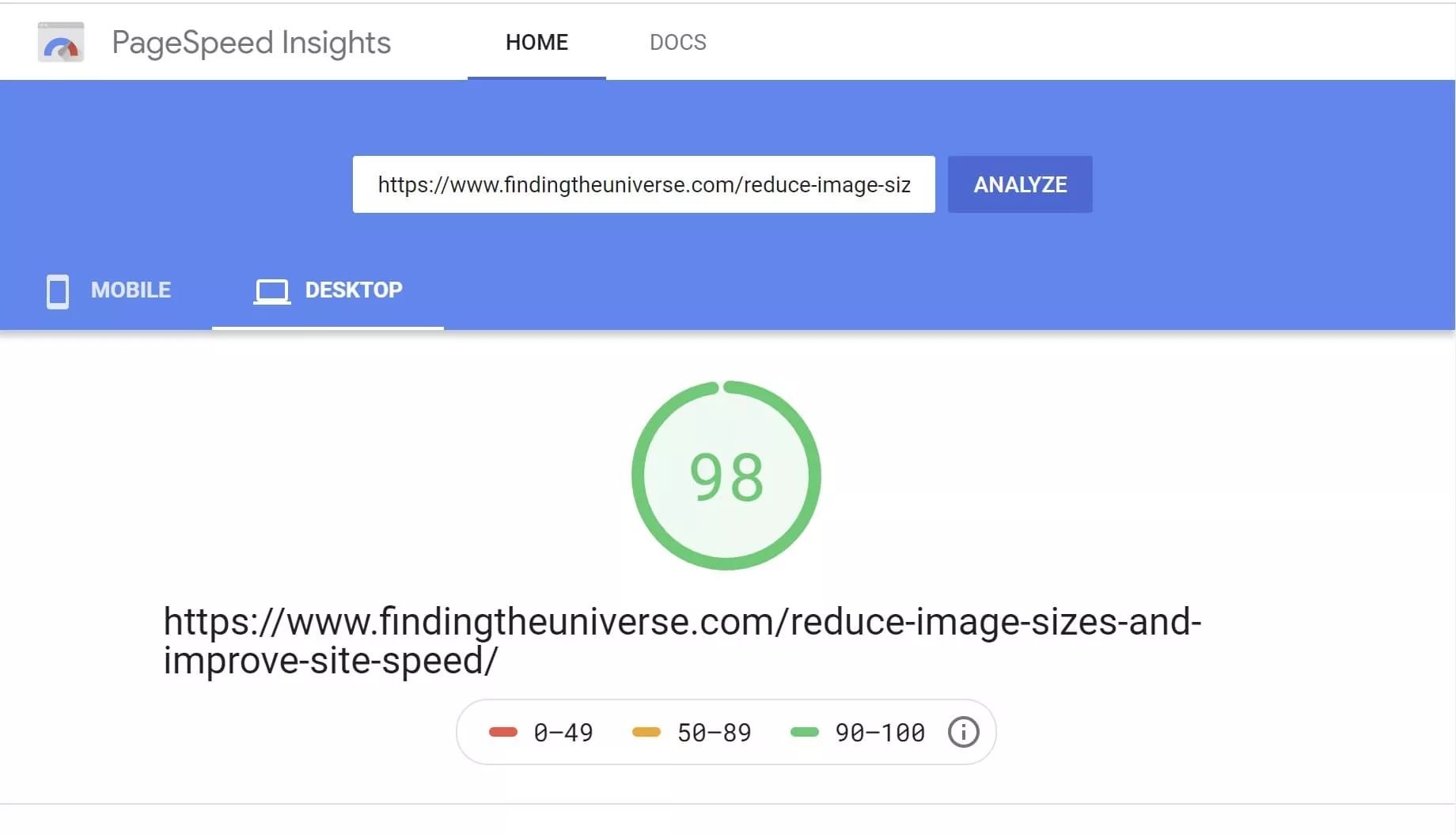
How Loading a Website Works
When you load a page, a series of things happen in order.
1. You Type in the URL or Click a Link
First, your browser looks at the address you’ve requested, say “https://www.findingtheuniverse.com”. It checks its local cache to see whether it has already loaded this page recently, in which case it skips straight to step 7 and loads it from there. More often you’re visiting a new page, so the browser has to find the server the site lives on. That’s a DNS request, and how long it takes has nothing to do with your host.
2. Browser Requests Page from Server
Once the DNS lookup is done, the browser knows where the server is and sends it a request for the page. This is the first point where the host can make a difference.
3. Server Receives Request and Checks Cache
The request arrives at the server. If the server has a caching system like Varnish, it checks whether it already has a finished copy of the page. If it does, it sends that straight back and you jump to step 6.
4. No Server-Level Cache, Send Request to WordPress
If there’s no cache in front of WordPress, the server passes the request to WordPress itself. If WordPress is running a caching plugin, it checks that cache next, and if a copy is there, it returns it and you move to step 6.
5. No Cache Available, Build the Page
If there’s no cached version anywhere, WordPress builds the page from scratch. That means querying the database, running your plugins and executing the WordPress code. Depending on how complex your setup is, how fast the server is and how many plugins you run, this takes a little while. It’s measured in hundreds of milliseconds, but that’s a long time in computing terms. Once the page is built, it’s sent to the browser and you move to step 6.
6. Browser Receives the Data
The browser starts loading the page. How long this takes depends on the page size, how many images it has and the speed of the visitor’s internet connection.
7. Page Loaded
Once everything is loaded, the process is complete. The time from the first request to the moment the browser starts receiving data is called the time to first byte, or TTFB. The Chrome team recommends a TTFB under 600 milliseconds for a good experience.
As you can see, there are several points where steps get skipped, and they all come down to caching. If the server can return a cached page, TTFB is fast regardless of the host, and the main thing affecting it is the physical distance between the visitor and the server. In my experience, with a cache in place, TTFB sits somewhere between 50 and 200 milliseconds. If nothing is cached and WordPress has to build the page, it takes longer, and I’d aim for the 300 to 600 millisecond range there. Some hosts take multiple seconds for that first byte, and if that sounds like your site, it’s time to switch.
TTFB isn’t the whole story, though. Once the data reaches your browser (step 7), the browser downloads and displays it, and starts pulling in other elements like images and scripts. The host plays only a small part here. What matters more is the visitor’s connection and how well optimised the page is: correctly sized images, minified scripts and so on.
Optimising a page is a topic in its own right, but the key point is that you can do a lot regardless of your host. Lazy-loading images, optimising images, and deferring unused CSS and JavaScript will usually make a far bigger difference to perceived speed than shaving a couple of hundred milliseconds off the page-build time. And since you should be serving a cached page to most visitors anyway, the host only makes a real difference on very dynamic sites where caching is less effective, like a membership site or forum.
So yes, a host affects site speed, but not as much as you’d think. Often, just putting a good cache in front of WordPress makes a big difference. If you’re on a shared server fighting other sites for resources, moving to a VPS will be noticeable. If you have millions of visitors a month and content that can’t be cached easily, you’ll need a high-end server to cope. But if you run a normal site you update a few times a day, a good VPS with a solid stack and good caching is all you need. I’d argue that you won’t notice much difference between a $50-a-month VPS and a $500-a-month one until you scale to millions of visitors.
The Lean Stack I Actually Run This Site On
Rather than leave that as theory, let me show you exactly what this site runs on, because it makes the point better than any amount of general advice.
This site, along with two others I run (one of them a WooCommerce store), all live on a single server managed through Cloudways. It’s a 1-CPU, 2GB Vultr High Frequency instance. The base server costs around $30 a month, and once I add the email add-on and off-site backups, the whole thing comes to roughly $37.50 a month, for three sites.
That little server is nowhere near its limits. Because Cloudflare sits in front and serves almost every page from its edge network, my actual server barely does any work, and the CPU sits close to idle most of the time. I also run Object Cache Pro on all of our sites to speed up the database-heavy work, and between that and Cloudflare, three sites share one cheap server comfortably.
If you’re starting a single new blog, the 1GB entry plan at $14 a month plus the free Cloudflare tier would be plenty. I’m on the 2GB tier because I’m running three sites, one of them a shop, and 1GB would be cutting it fine for that. For one site, the entry plan and free Cloudflare really is all you need.
Now compare that to a premium managed host, where the entry plan is $30 to $35 a month for a single site, often with a visitor cap. I’m paying about the same for three sites and a shop, with more control and no traffic ceiling. That’s the case for the lean approach, in one real example.
Is there a catch? A couple, and I’ll be straight about them in the next section, because no setup is perfect and I’d rather you went in with your eyes open.
WordPress Hosts I Recommend
Now that we’ve been through what to look for, here are a few hosts I’d actually recommend. Which one suits you depends on your budget and your needs, but one of these should fit, and if not, you’re now equipped to find one that does.
- WordPress.com (free) is worth a look if you just want to try building a site and getting a feel for WordPress, ads and all.
- Bluehost is a well-known host with good-value starter plans on shared servers, and it’s one of the hosts officially recommended by WordPress.org. We ran one of our sites on a shared Bluehost plan for years before we outgrew it. If you’re under around 10,000 visitors a month or just getting going, it’s a solid, affordable choice.
- Cloudways is what we host with, because it strikes one of the best balances of price to performance I’ve found. You get VPS-based plans with an optimised WordPress install, hardware-based pricing rather than visitor-based, and the flexibility to scale up and down. Plans start at $14 a month. For the full picture, including who it does and doesn’t suit, see my full Cloudways review. Sign up through the link above to get started.
- BigScoots is the one I’d point you to if you’d rather not think about the server side at all and you want responsive, hands-on support. It’s a fully managed option, so it costs more than the lean setup I’ve described (plans start at around $35 a month), but I have several friends who are less technical than me and they love it, the support especially. For the right person, that hand-holding is worth paying for.
- Lyrical Host is a UK-based company with well-priced shared plans (from £13.99 a month) that they tune to feel more like a VPS. You get plenty of benefits, including WordPress-specific technical support, and you can scale up as you grow. You can save 10% on your first month with the code FINDINGTHEUNIVERSE. If you want strong support that covers the WordPress side too, at a good price, it’s a solid option.
There are plenty of other hosts out there, many at much higher prices. I think the ones above are some of the better-value choices, but the real point of this guide is that you can now weigh any host up for yourself.
What I’ve Learned Running My Own Hosting
After more than a decade of hosting our own sites, and plenty of tinkering, a few lessons stand out. These are the things I’d tell a friend setting up their first site.
Start cheaper than you think you need to. It’s tempting to buy headroom for traffic you don’t have yet, but a VPS scales up in minutes when you actually need it, so there’s no reason to pay for it in advance. Put Cloudflare in front of your site from day one, too. It’s free to start, and it’s the biggest speed-per-pound improvement available to you. And don’t get talked into visitor-based pricing if you cache your site well, because you’ll be paying for traffic your setup could handle for free.
Sort your backups out early, and actually test a restore once so you know it works before you ever need it in a panic. Most “I need a faster host” problems turn out to be caching problems, so look there first. Time and again, the answer is a better cache in front of the server you already have, rather than a bigger one.
I’ll also be honest about the trade-offs of the lean, managed-cloud setup I run, because it isn’t perfect for everyone. With a managed-cloud host you give up some control over the underlying stack. We had an issue recently where saving a post was taking over a minute and the CPU was pegged at 100%, which we suspected was an over-zealous firewall on the host’s side that we had no visibility into or control over. It got sorted, but that sort of problem is harder to diagnose when you don’t own the whole stack. The scaling cost isn’t perfectly linear either, so a much larger server can cost more than you’d expect (though very few sites ever get near that point). If you want a true bare-metal experience with full control, something like RunCloud paired with a direct account at a provider like Vultr might suit you better. For me, the convenience of a managed setup is worth those trade-offs, and once it’s set up it’s been reassuringly hands-off. But you should know they exist.
Frequently Asked Questions
How much should I pay for WordPress hosting?
For most blogs, somewhere in the region of $14 to $20 a month is plenty. A small managed-cloud server (Cloudways starts at $14) with the free Cloudflare tier in front will comfortably handle a normal blog.
You don’t need a $30-plus premium managed plan until your site is large, very dynamic, or business-critical in a way that justifies the extra. Shared hosting is cheaper still, and fine when you’re just starting out or under around 10,000 visitors a month.
Do I really need managed WordPress hosting?
The premium managed tier is more than most blogs need. The expensive plans are selling you power that good caching makes largely unnecessary, because a well-cached site with a CDN like Cloudflare barely touches the server for most visits.
Managed hosting earns its price if you want to be completely hands-off and never think about the server, or if you run a heavy, dynamic site that can’t be cached well. For a typical blog, a managed-cloud server plus Cloudflare gets you there for a lot less.
What’s the difference between shared hosting and a VPS?
With shared hosting, your site shares one server’s resources with many other sites, so a spike or a problem on someone else’s site can affect yours. It’s cheap and fine for small sites.
A VPS (virtual private server) walls off your resources so other sites can’t eat into them, which makes it more stable and consistent. I’d move from shared to a VPS once you’re past roughly 10,000 to 15,000 visitors a month, or sooner if your site is business-critical.
Is Bluehost or Cloudways better for a beginner?
For the cheapest possible start when you’re just getting going, I’d pick Bluehost. Its shared plans are hard to beat on price, and it’s officially recommended by WordPress.org.
Once you have some traffic, or you care about speed and the ability to scale, I’d move to Cloudways, which gives you VPS performance for not much more and is what we use. There’s a bit more to set up with Cloudways, but it pays off as you grow.
What PHP version does WordPress need in 2026?
WordPress recommends PHP 8.3 or newer, along with MySQL 8.0+ or MariaDB 10.6+. It will still run on older versions back to PHP 7.4, but those have reached end of life and no longer get security updates, so they’re not a good base for a new site.
A good host keeps current PHP versions available and lets you choose which one your site runs. If a host only offers old PHP versions, treat that as a warning sign.
How many visitors can shared hosting handle?
For a typical blog or business site, shared hosting is usually fine up to around 10,000 to 15,000 visitors a month. Past that, you’ll start to feel the limits, especially if your traffic is spiky.
The bigger risk with shared hosting is the other sites on the same server, since a busy neighbour can drag yours down. If uptime really matters to you, move to a VPS earlier rather than later.
Does a faster host actually make my site faster?
Partly, but less than you’d expect. For most visits you should be serving a cached page, and once a page is cached, the host has little to do with how fast it loads. Caching and a CDN matter more than raw server speed for a normal blog.
The host makes the biggest difference on very dynamic sites that can’t be cached well, like membership sites or busy forums. For everyone else, sorting out caching and image optimisation will do more than paying for a faster server.
Can I move my WordPress site to a new host easily?
Yes. Migration is usually simple, and there are plugins and step-by-step guides to walk you through it. Many hosts also include migration, though it’s often one free migration with extra ones charged for, so check the terms if you’re moving several sites.
Most hosts only migrate from other WordPress hosts rather than from platforms like Blogger. If you’re coming from Blogger, my guide to moving from Blogger to WordPress covers that case.
Do I need a CDN like Cloudflare?
I’d use one, yes. A CDN serves your content from a location near each visitor, which speeds up load times and takes load off your server. Cloudflare’s free tier already does this for most of your images and static files, and it’s the biggest speed-per-pound win available.
If you want it to cache your actual HTML pages at the edge too, Cloudflare’s Automatic Platform Optimization for WordPress does that for $5 a month on the free plan, and it’s included on their paid Pro plan and above.
Further Reading
Hopefully this guide has given you a clear way to think about what to look for when choosing a WordPress host. We have a number of other articles you might find useful, covering both blogging and photography. Here are a few to get you started.
- We have a full review of Cloudways, the host we use, if you want to evaluate it in more detail.
- We have a review of SmugMug, an option if you’re looking to host a photography portfolio and sell your images.
- Our guide to how to become a travel blogger, a good starting point if you’re thinking of starting a blog.
- A step-by-step guide to how to start a travel blog from scratch, covering everything from picking a domain to choosing a host.
- Our guide to reducing image sizes, which is essential for a fast site.
- I started this blog on Blogger, found it too restrictive after a few years, and moved to WordPress. Here’s my guide to moving from Blogger to WordPress.
- Photography is central to most blogs, and I have a whole series of photography guides, on everything from composition and depth of field to improving Lightroom performance and what RAW is.
As always, if you have any questions about choosing a WordPress host, just use the comments below and we’ll get back to you as soon as we can. Thanks for reading!
Mike says
Hi,
Are you still using Cloudways to host this website?
B.R
Mike
Laurence Norah says
Hi Mike,
I am yes, let me know if you have any questions 🙂
Laurence
Mike says
Thanks for your reply!
When I visited your website, it felt quite smooth. I also checked out the website of Cloudway. Their pricing is quite high, and they don’t actually provide their own hosting services. They use platforms like DigitalOcean or Vultr. So, I’m not sure what the advantage of their service is.
B.R
Mike
Laurence Norah says
Hi Mike,
Glad to hear the website ran well for you, it’s a personal hobby of mine to make it as quick as I can 🙂 So a few things to cover here from your comment.
First, pricing. Yes, Cloudways is more expensive than going directly to their backend services. I have actually thought about doing that a few times, but honestly, the overhead of managing the server, setting up backups, dealing with package upgrades etc is something I don’t really want to do to save a few dollars a month. I’ve looked into setting up something like gridpane or serverpilot as well, but the cost difference for my server ended up being fairly low. So for convenience and less headache I decided to stick with Cloudways. But that’s a personal choice of course, and definitely as you move up in the pricing tiers Cloudways makes less sense.
Second, speed. Honestly, I don’t think my choice of server makes a massive difference in speed to the end user. This site is largely static, so the majority of it can be cached. Nearly every page is actually served at the edge by Cloudflare, rather than Cloudways. My server is normally only accessed at the back end by me, or when someone does something that requires a database call, like leaving a comment or doing a search. But nearly everything else ends up being served by Cloudflare from a location closest to the user.
Back when I implemented edge caching with Cloudflare using workers I actually wrote my own solution, but these days you can just pay $5 a month for the Cloudflare APO plugin which does it all for you. So unless you are running a highly dynamic site (woocommerce, membership site or forum for example), you can normally get away with a pretty low powered server if you put Cloudflare APO in front of it. I run this site (and all our other sites) on a 1 cpu 2gb Vultr HF server and the cpu sits at idle most of the time.
Anyway, I hope this helps. If you are technically savvy and don’t mind the overhead of managing a server, for sure, there are cheaper options that Cloudways. There are also far more expensive options, but I’ve yet to see a good explanation for those and their cost structure 😉
Let me know if you have any more questions!
Laurence