
Editing photos is one of the key parts of photography. This has been true since the days of film, when photographers spent hours in darkened rooms coaxing the best from their negatives. Thankfully, those days are behind us, and today we have powerful photo editing software to help us get the most from our digital images.
As a professional photographer and travel blogger, I spend a lot of time editing photos. I’ve been doing this since 2010, and over the years I’ve tested pretty much every major photo editing application on the market. Some have been brilliant. Some have been, well, let’s just say they made me appreciate the ones that work.
In this guide, I’m going to share my hands-on experience with the best photo editing software available right now. I’ll cover paid options, free options, and mobile apps, with honest thoughts on who each one is actually best suited for. I’ll also walk you through what features to look for so you can make the right choice for your needs and budget.
There’s been a lot of change in this space recently. Affinity went completely free in late 2025 after Canva acquired it. Adobe shook up their Photography Plan pricing in January 2025. And pretty much every product now includes AI tools of varying usefulness. So even if you’ve read a guide like this before, it’s worth a fresh look.
Let’s get into it.
Table of Contents:
Why Should You Edit Your Images?
To make our images as good as they can possibly be, it’s essential to edit them. This is particularly the case if you are shooting in RAW. You can read all about what RAW is and why you should shoot in RAW here.
When a camera takes a picture in RAW, it saves the unedited image data to the camera’s memory card. This will have no sharpening, saturation or other adjustments applied, and the image will nearly always look flat and dull straight out of the camera.
A RAW file is basically the digital equivalent of a roll of film. It needs “developing” in order to turn it into a usable image, and that is what photo editing software is for.
If you shoot in JPEG, you can still edit your photos using the tools in this post. The amount of adjustment you can make will be more limited, but it’s often still worth editing a JPEG file, even if just to crop and straighten it, and tweak the colours a bit.
I’m sometimes asked if editing photos is cheating. The answer is no. If you don’t shoot in RAW, all that happens is that the camera applies its own software algorithms to your image data to produce a JPEG file. Basically, the tiny computer inside your camera is acting as a mini photo editor that you have no control over.
As a photographer, you want control over as much of your image creation process as possible, from composing the shot to setting up your camera correctly to editing the final result.
Photo Editing vs “Photoshopping”
When people ask me if editing is cheating, it’s usually because they’re conflating photo editing with what’s become known as “Photoshopping”.
There’s a fairly important distinction here. Photoshop is a very powerful tool for manipulating digital images. It’s excellent for adding and removing elements, and fundamentally changing the look of a scene.
Photo editing, on the other hand, is more about tweaking an image without significantly altering its main components. Adjusting the sharpness, contrast, or colour balance of an image is quite different from, say, removing a person from the frame or swapping out the sky entirely.
That said, there isn’t really such a thing as cheating in photography, unless you’re entering a contest that prohibits certain tools, or trying to portray a scene as something it isn’t. Photography is a form of art, so as long as you’re clear about your process and don’t attempt to mislead, you’re welcome to edit your photos however you see fit.
Features to Look for In Photo Editing Software
There are a lot of photo editors out there, and they all offer slightly different feature sets. Here are the key things to consider when picking the right one for you.
RAW support
If you are shooting in RAW (and I’d recommend you do if your camera supports it), then you need software that supports RAW files. More specifically, you need it to support the RAW files from your particular camera, as each manufacturer uses a slightly different format.
The more popular editing tools all support RAW and regularly update their camera compatibility lists. But it’s always worth checking before you buy, especially if you have a less common camera brand.
Photo management
All photo editing software will provide tools for editing an image. Far fewer offer a photo management system as well.
A photo management tool is what you use to organise and catalogue your images. Think of it as a virtual library that can be sorted by date, location, keywords, star ratings, and so on. It makes finding and working with images much easier, and simplifies the overall workflow considerably.
Personally, I find having management and editing in one place much more efficient, as it saves bouncing between separate programs. But your needs may vary.
Plugin / Preset support
Some of the more established photo editing products support third party plugins and presets. These can add extra features, or let you quickly apply a particular look to your images without having to manually adjust every slider.
For example, Lightroom has a huge ecosystem of presets available, and also supports plugins like LRTimelapse for producing time lapse videos from a sequence of photos.
Advanced features such as layer support
More advanced tools sometimes include features like layer support, HDR merging, focus stacking, and tethered capture. If any of these are important for the type of photography you do, make sure you pick software that includes them.
Layer support in particular can be very useful. It lets you load multiple images on top of each other and blend them together. For example, you could combine different exposures of the same scene to create a more balanced final image, or remove people from a busy location by stacking several shots.
Pricing model
For paid photo editing software, there are two main pricing approaches. The first is the standalone model, where you pay once and own that version of the software forever. The second is a subscription, where you pay monthly or yearly, and lose access if you stop paying.
Each has its trade-offs. With the standalone model, you save on ongoing costs, but you won’t automatically get new features or guaranteed compatibility with newer cameras unless you pay for the next version.
Subscriptions keep you up to date with the latest features and camera support, but the costs add up over time.
Honestly, if you factor in the cost of upgrading a standalone product every couple of years, the long-term costs often work out fairly similar. So I’d generally recommend going with whichever pricing model feels right for your budget and preferences.
The Best Paid Photo Editing Software
This first section covers the paid photo editors I recommend, which range from a one-off price of around $50 up to $300+. I’ve tested every one of these personally.
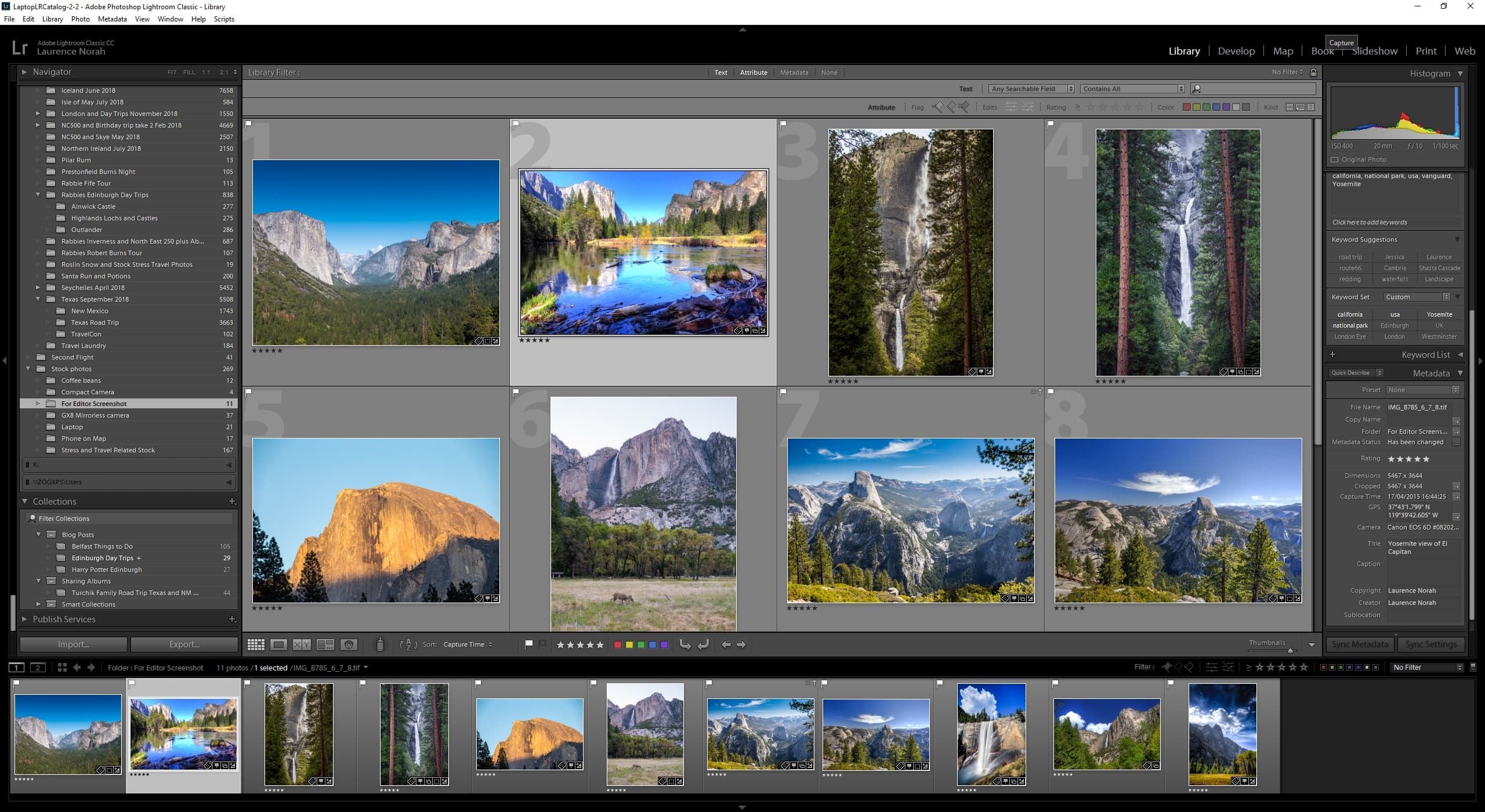
Adobe Photoshop Lightroom Classic CC
Lightroom Classic remains my pick for the best overall photo editing software, and it’s the product I use for the vast majority of my editing work.
It offers pretty much the complete package. The photo management system is still the best in the business for an all-in-one product, and the editing toolkit is comprehensive, with full RAW support and excellent integration with Adobe Photoshop.
Speaking of Photoshop, it comes included with Lightroom as part of Adobe’s Photography subscription plan, which is the way I’d recommend purchasing. That means if you ever need to do something more complex, like working with layers or advanced image manipulation, you can seamlessly move your image into Photoshop and back.
It’s not perfect, though. The learning curve is steep. I’ll freely admit it took me multiple attempts over the course of about a year before I really started using it properly, and that was only after a fellow photographer sat me down and walked me through the key features. It also demands a fairly powerful computer. We’ve written a guide to making Lightroom faster if you’re finding performance to be an issue, but it’s no silver bullet, and Lightroom can struggle even on a high-end computer.
Now, the elephant in the room: pricing. Adobe made some significant changes to their Photography Plan in January 2025. The popular $9.99/month Photography Plan with 20GB of storage is no longer available to new subscribers. If you’re already on that plan, you can keep it (don’t let it lapse!), but new customers will need to look at the 1TB Photography Plan at $19.99/month, or the standalone Lightroom plan at $11.99/month.
For existing subscribers on the 20GB plan, the annual prepaid price remains unchanged at $119.88/year. However, if you’re paying monthly, the price increased to $14.99/month. The way to lock in the lower rate is to switch to annual prepaid billing.
It’s worth noting that Adobe has a confusing array of products. The version I recommend is Adobe Lightroom Classic CC, which is the desktop-focused version with the full feature set. There’s also a cloud-focused version called Adobe Lightroom CC, which has fewer features but more automated tools.
Available for: Windows / Mac. Smartphone app also available for Android and iOS.
Best for: Intermediate to Advanced
Pricing: Subscription only. 1TB Photography Plan (includes Lightroom + Photoshop) at $19.99/month. Existing 20GB plan subscribers grandfathered at $119.88/year prepaid.
ON1 Photo RAW
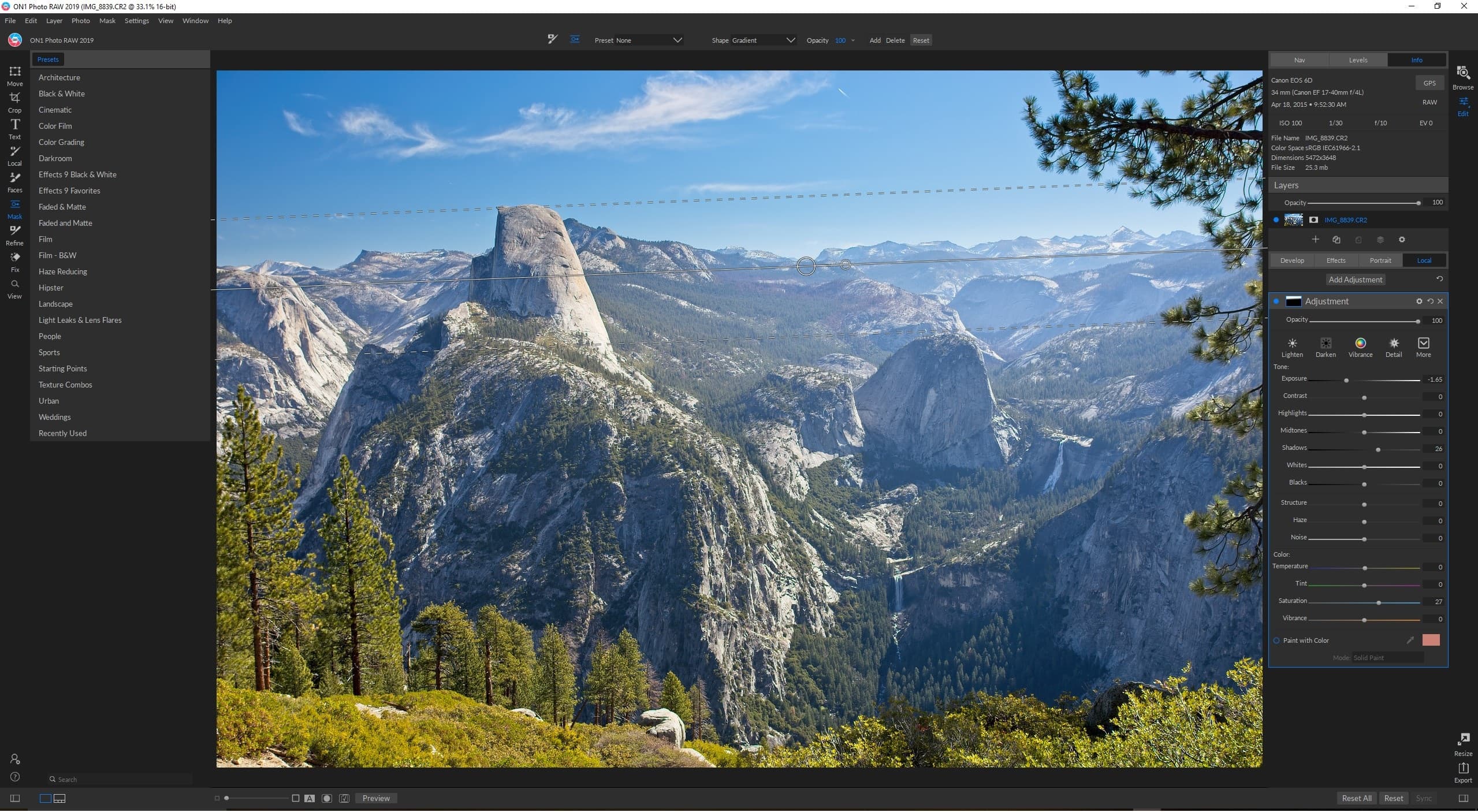
ON1 Photo RAW is a feature-packed photo editor that also includes a solid photo management toolkit. As the name suggests, it comes with full RAW support and all the editing tools you’d expect to find in a serious photography application.
ON1 goes beyond Lightroom in several areas. It supports layers natively, and includes tools for HDR merging, focus stacking, tethered capture, and image resizing with minimal quality loss. The most recent versions (they’re now on Photo RAW 2026) have added a range of AI-powered tools including generative erase, depth-based masking, and automated dust and power line removal.
The interface is fairly complex, and I wouldn’t say it’s ideal for complete beginners. If you’re coming from Lightroom though, you’ll pick it up reasonably quickly. Performance is generally good, though layers can slow things down on older hardware.
ON1 is now available in two editions. Photo RAW is the standalone-only version, while Photo RAW MAX adds plugin capabilities for Lightroom, Photoshop, Affinity, and others. There’s also a subscription option that keeps you on the latest version.
For the price, ON1 represents very good value. It does pretty much everything you’d need in a single application, and if you don’t want to be tied to a subscription model, this is one of the strongest options available.
Available for: Windows / Mac
Best for: Intermediate to Advanced
Pricing: Photo RAW standalone licence from $99.99. Photo RAW MAX with plugin support from $169.99. Subscription plans also available from $7.99/month.
Skylum Luminar NEO
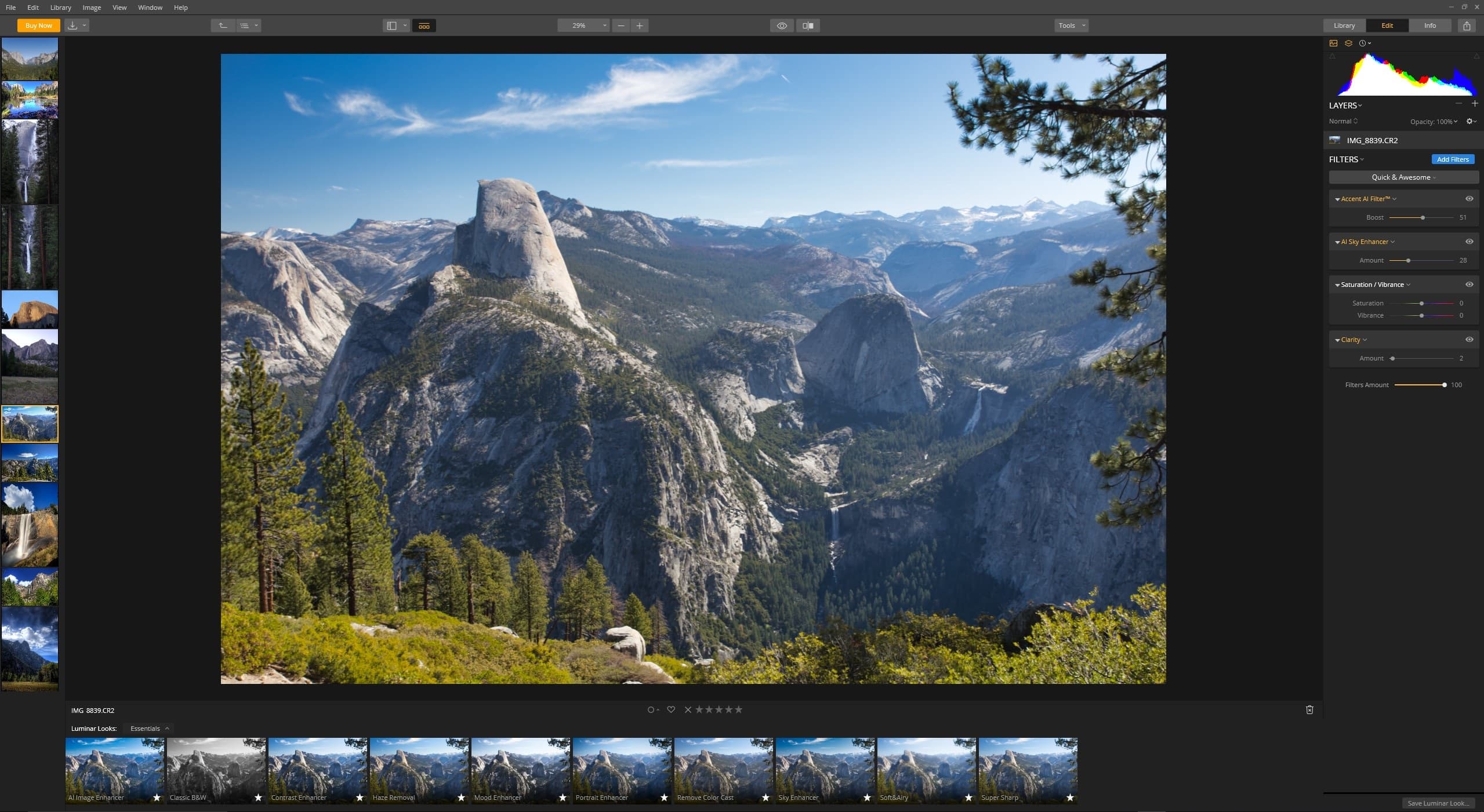
Skylum’s Luminar Neo has come a long way since it first launched in early 2022. The current version includes both photo editing and photo management tools, along with an increasingly impressive set of AI-powered features.
What I like most about Luminar Neo is its approachability. The interface is cleaner and less intimidating than Lightroom or ON1, and for quick edits, it really does shine. The AI tools can do everything from sky replacement to power line removal to skin retouching, often with surprisingly good results.
It supports layers, has full RAW support, and includes features like HDR merge, panorama stitching, and focus stacking. The sky replacement tool in particular is excellent. See our guide to sky replacement in Luminar if you want to see how it works.
The photo management side is more basic than what you’d get in Lightroom. It handles keywording and image rating, and will do the job for most photographers, but power users might find it limited.
Luminar Neo is available as a perpetual licence starting at around $99 for the desktop version, with cross-device and max versions that include mobile apps and extra creative assets at higher price points. They also regularly run sales and promotions, so it’s worth keeping an eye out for deals.
One thing to be aware of: the generative AI features (GenErase, GenExpand, GenSwap) are included for one year from the purchase date. After that, you may need to pay for continued access to those specific tools. The core editing features remain yours indefinitely though.
The software also works as a plugin for Lightroom and Photoshop, which is a nice option if you want to use it alongside your existing workflow.
Available for: Windows / Mac
Best for: Beginner to Advanced
Pricing: Perpetual Desktop Licence from $99. Cross-Device Licence from $139. Perpetual Max Licence from $159.
DxO Photolab
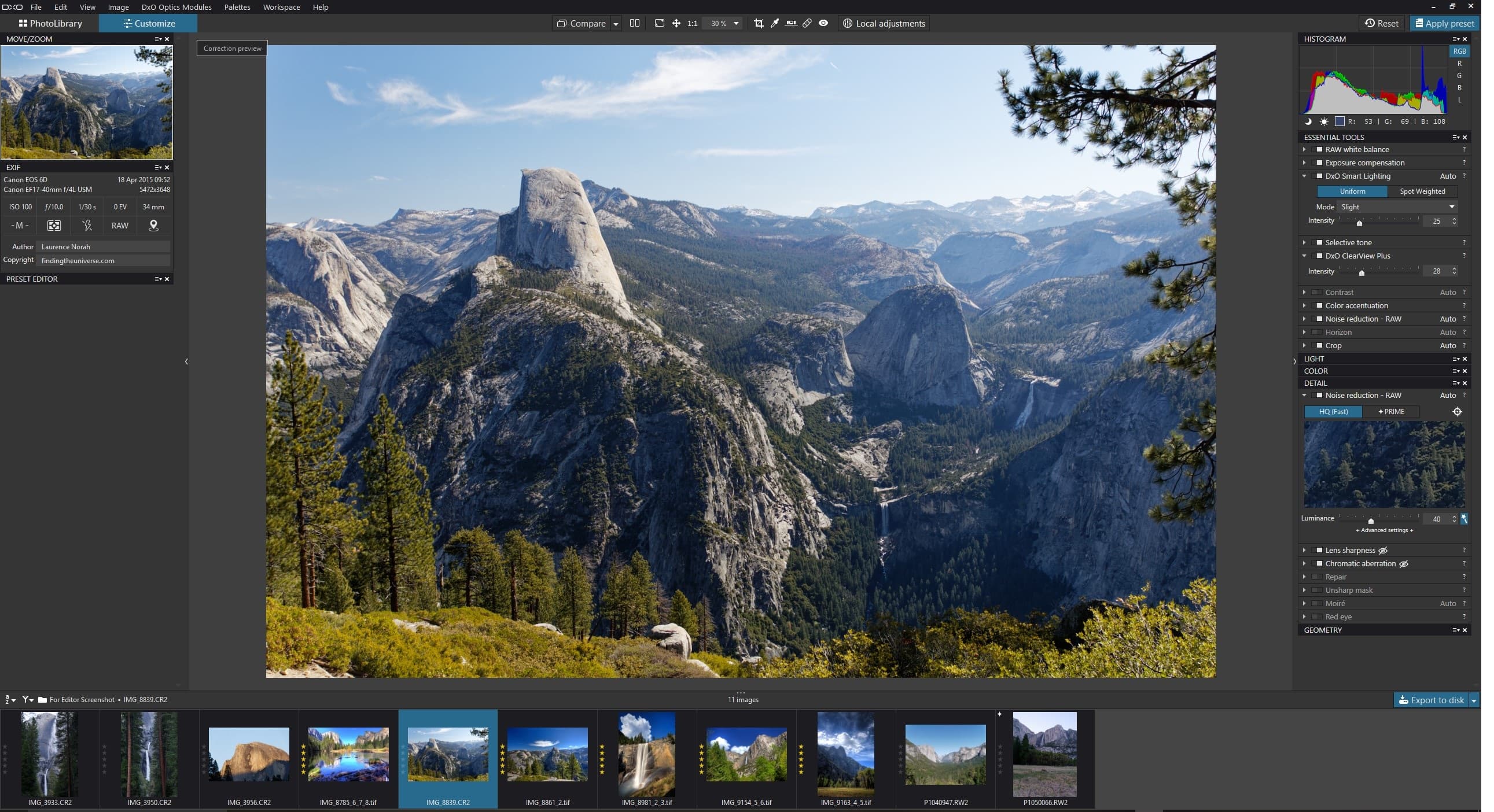
DxO PhotoLab is a powerful photo editor that’s particularly worth considering if you often shoot at high ISO settings. Its DeepPRIME noise reduction technology is, in my opinion, still among the best in the business. If you find yourself regularly shooting in low light at ISO 3200 and above, the difference it makes to cleaning up grain and noise is really quite impressive.
You can read more about noise reduction and see my comparison of the top options in our guide to the best noise reduction software.
Beyond noise reduction, DxO is a capable all-round editor with excellent lens and camera profiles that automatically optimise images based on your specific gear combination. Full RAW support is included, along with all the standard editing tools you’d expect.
The photo management component is fairly basic compared to Lightroom, though it does work as a plugin for Lightroom, which is a good way to take advantage of the noise reduction capabilities within your existing workflow.
DxO doesn’t support layers, and the noise reduction processing can be slow. But the results are worth the wait. I’d recommend the Elite version, as the basic edition doesn’t include the advanced DeepPRIME noise reduction.
Available for: Windows / Mac
Best for: Intermediate to Advanced Pricing: Perpetual licence. Essential and Elite editions available (Elite recommended).
Capture One Pro
Capture One Pro is a serious alternative to Lightroom that’s particularly popular with studio photographers. Its tethered capture functionality is widely regarded as the best available, allowing you to connect your camera directly to your computer and see images appear in the software in real time as you shoot.
It’s also known for excellent RAW processing, producing great colours and sharp output. The interface is highly customisable, and the editing tools are comprehensive, including full layer support and a powerful masking system.
The learning curve is steep, even if you’re coming from another editing tool. The design philosophy is quite different from Lightroom, so expect to spend some time getting oriented.
It’s also one of the pricier options, available both as a perpetual licence and a subscription. But if you do studio work or tethered shooting regularly, it may well be worth the investment.
Available for: Windows / Mac
Best for: Intermediate to Advanced
Pricing: Subscription and perpetual licence options available.
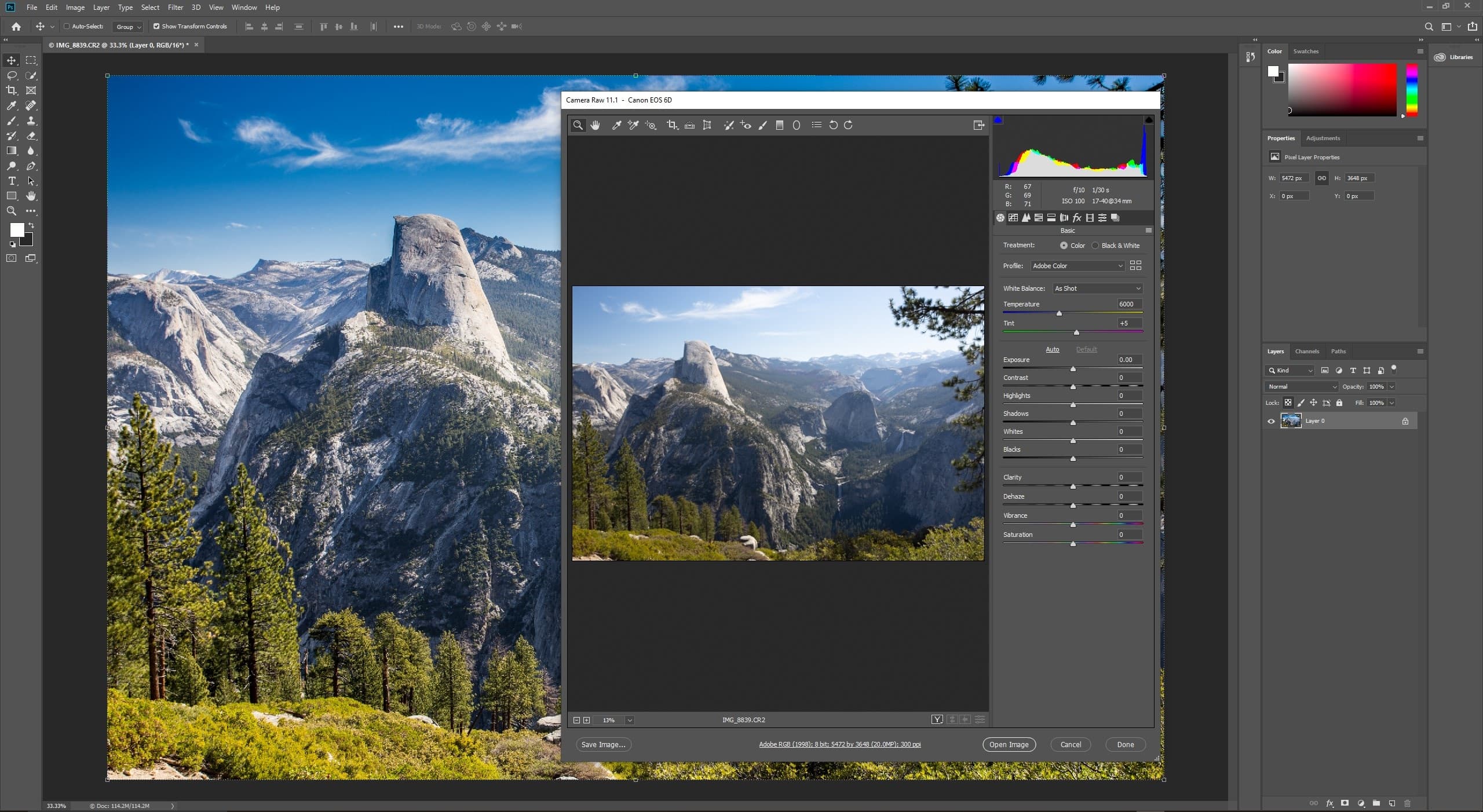
Adobe Photoshop
Photoshop is so well known that its name has become a verb. Despite this, it’s not actually designed primarily as a photo editor. It’s a tool for digital artists to manipulate graphics, which of course includes photographs.
Lightroom actually covers the majority of what most photographers need for day-to-day editing. Photoshop comes into play for more specific and complex tasks like working with layers, advanced compositing, or removing and adding elements to a scene.
For many photographers, Photoshop functions as an occasional add-on to Lightroom rather than a daily driver. The good news is that you don’t need to choose between them, as Adobe’s Photography subscription includes both.
Recent versions have added a range of generative AI features, including Generative Fill and Generative Expand. These are powerful tools that can do some impressive things, though they’re not to everyone’s taste. If you just want to edit photos without the AI features, the traditional tools are all still there.
Available for: Windows / Mac
Best for: Intermediate to Advanced
Pricing: Included with Adobe Photography Plan subscription.
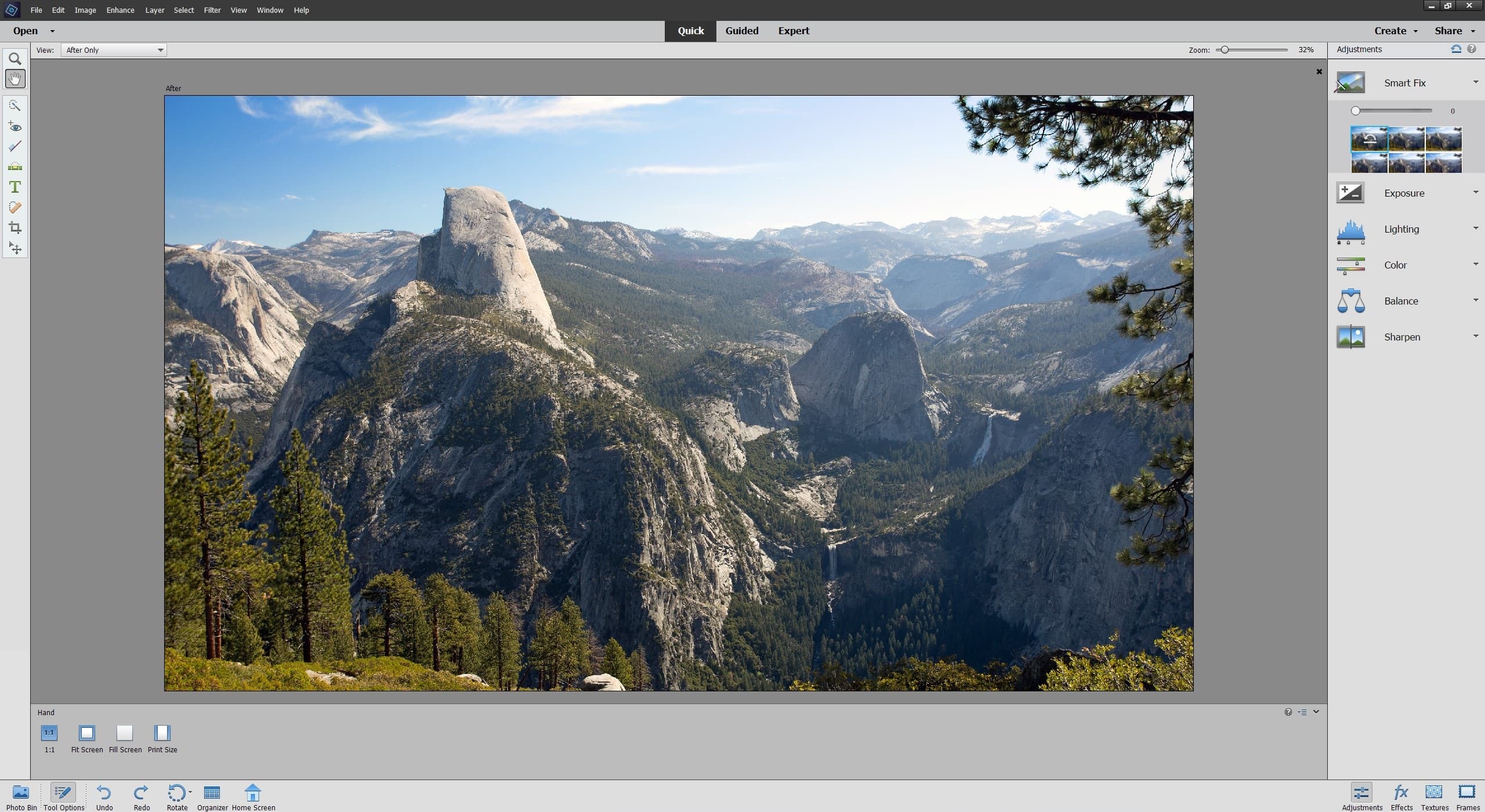
Adobe Photoshop Elements
Photoshop Elements is a simplified version of Photoshop that’s designed to be more accessible. It includes photo editing and management tools, along with the same RAW editing engine found in the full versions of Lightroom and Photoshop.
It’s a completely separate product from Photoshop and Lightroom, and it doesn’t come as part of the Photography subscription. Instead, it’s available for a one-off purchase price, which is appealing if you don’t want an ongoing subscription.
Elements includes an interactive tutorial mode that walks you through common tasks, and it incorporates Adobe’s AI technology for things like finding your best photos, applying automatic edits, and grouping people in your library. It also supports keywording and image rating.
If you want to make your photos better but don’t want the overhead of learning a complex professional tool, Elements is a solid option. And since it’s part of the Adobe ecosystem, if you later decide to upgrade to Lightroom, your keywords and ratings should carry across.
Available for: Windows / Mac Best for: Beginner to Intermediate Pricing: One-off purchase.
The Best Free Photo Editing Software
You don’t necessarily need to spend money to get a good photo editor. Here are the best free options available.
Affinity by Canva (Formerly Affinty Photo)
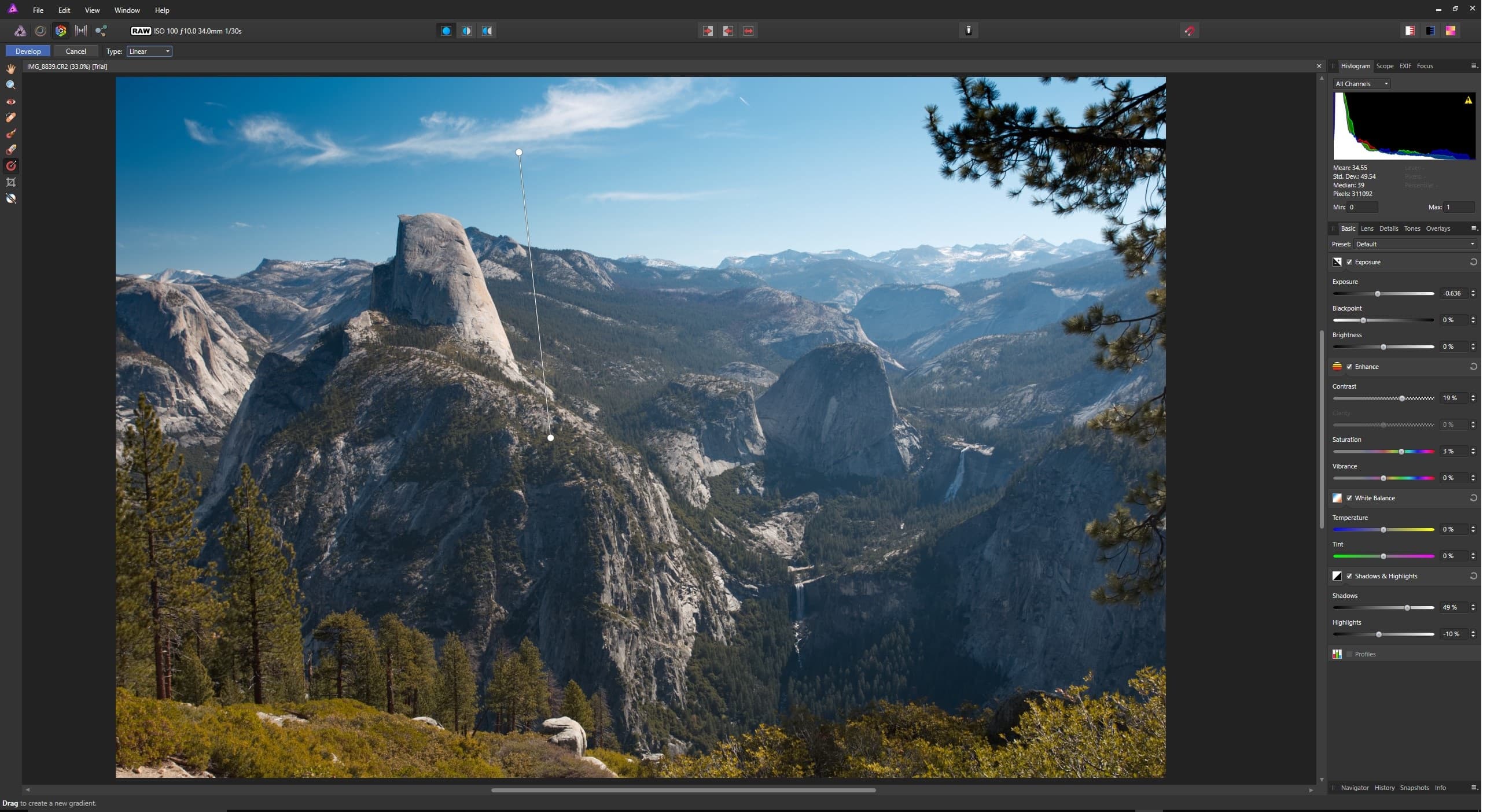
This is the big story in photo editing right now. In October 2025, Canva relaunched the entire Affinity suite as a single, unified application, and made it completely free.
Let me be clear about what “completely free” means here: you get the full professional-grade photo editing tools, the vector design tools (previously Affinity Designer), and the page layout tools (previously Affinity Publisher), all in one application, at no cost. There’s no stripped-back version and no time limit.
From a photo editing perspective, Affinity includes full RAW support, layer editing, HDR capabilities, focus merge, non-destructive editing, and pretty much everything else you’d expect from a professional photo editor. Performance is excellent, and the interface, while different from Lightroom, is well designed and responsive.
The only paid element is access to Canva’s AI features within Affinity (things like Generative Fill and background removal), which require a Canva Pro subscription at $120/year. But the core editing tools are all free.
Now, there is a catch of sorts, even if Canva insists otherwise. You do need a Canva account (free) to use Affinity, and the long-term sustainability of a “free forever” model from a venture-backed company is something only time will tell. That said, Canva points to its $3.5 billion in annual revenue as evidence this model is sustainable. And their promise is clear: no subscriptions, no stripped-back versions, free updates with new features over time.
If you previously used Affinity Photo 2 (which used to cost around $70), your files are fully compatible with the new version.
For photographers who want a powerful Photoshop alternative without paying anything, this is now the obvious choice. The main limitation for photographers specifically is that it doesn’t include photo management tools. You’d need to pair it with a separate organiser, or just use your computer’s file system.
Available for: Windows / Mac (iPad version coming soon)
Best for: Intermediate to Advanced
Pricing: Completely free.
Snapseed
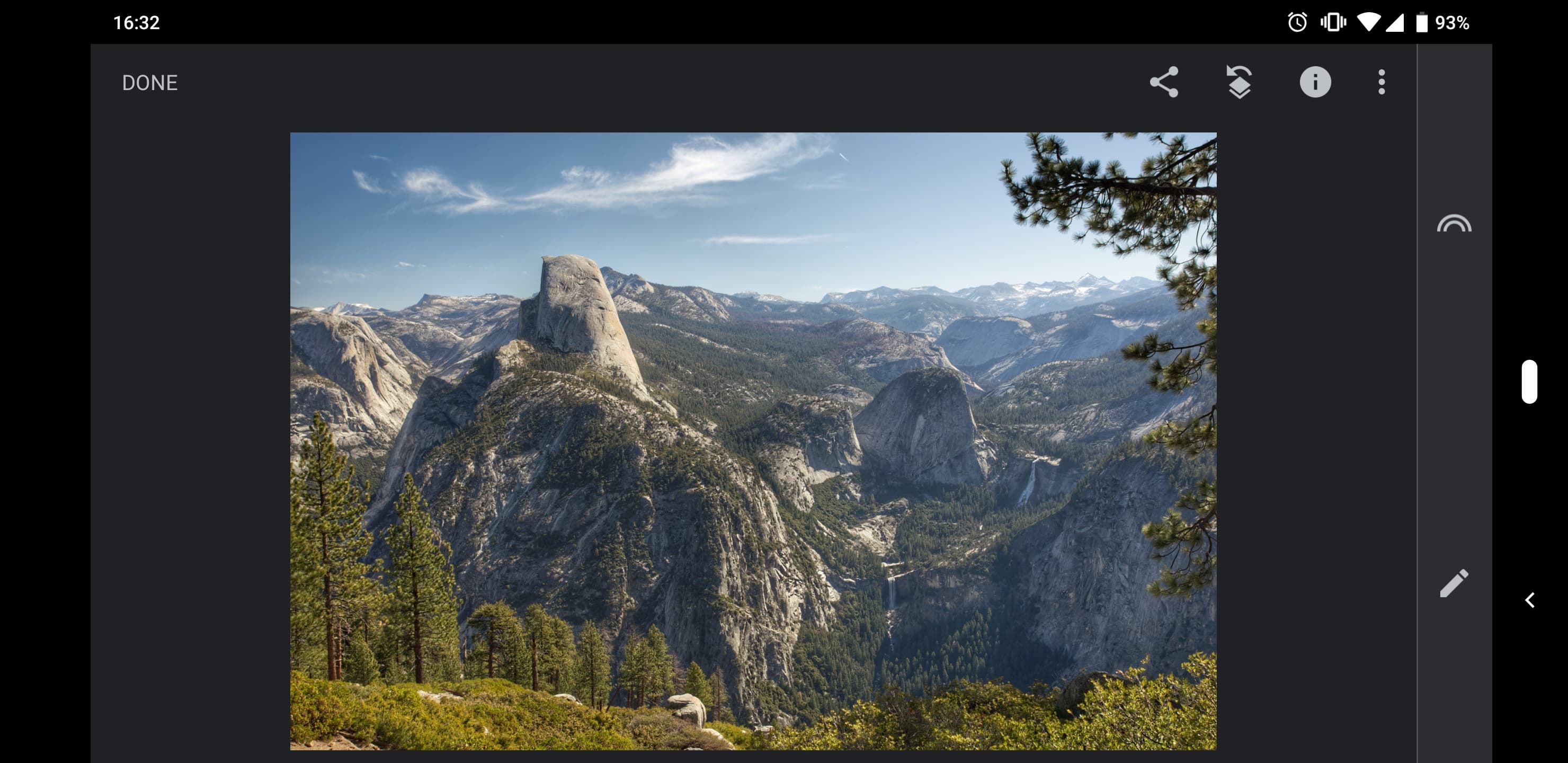
For mobile editing, Snapseed remains my go-to app. It’s free, which is a bonus, but honestly I’d happily pay for an editor of this quality.
It has everything you could want from a mobile photo editor: all the standard adjustment tools, plus an excellent range of filters and effects. You can save your edits as presets, add text to images, and it even supports RAW files in DNG format, which is the most common RAW format used by smartphones.
The limitations are what you’d expect from a mobile app. There’s no photo management, no layer support, and no noise reduction. But for editing the photos taken on your phone, it’s excellent.
Available for: Android / iOS
Best for: Beginner to Advanced
Pricing: Free
Darktable
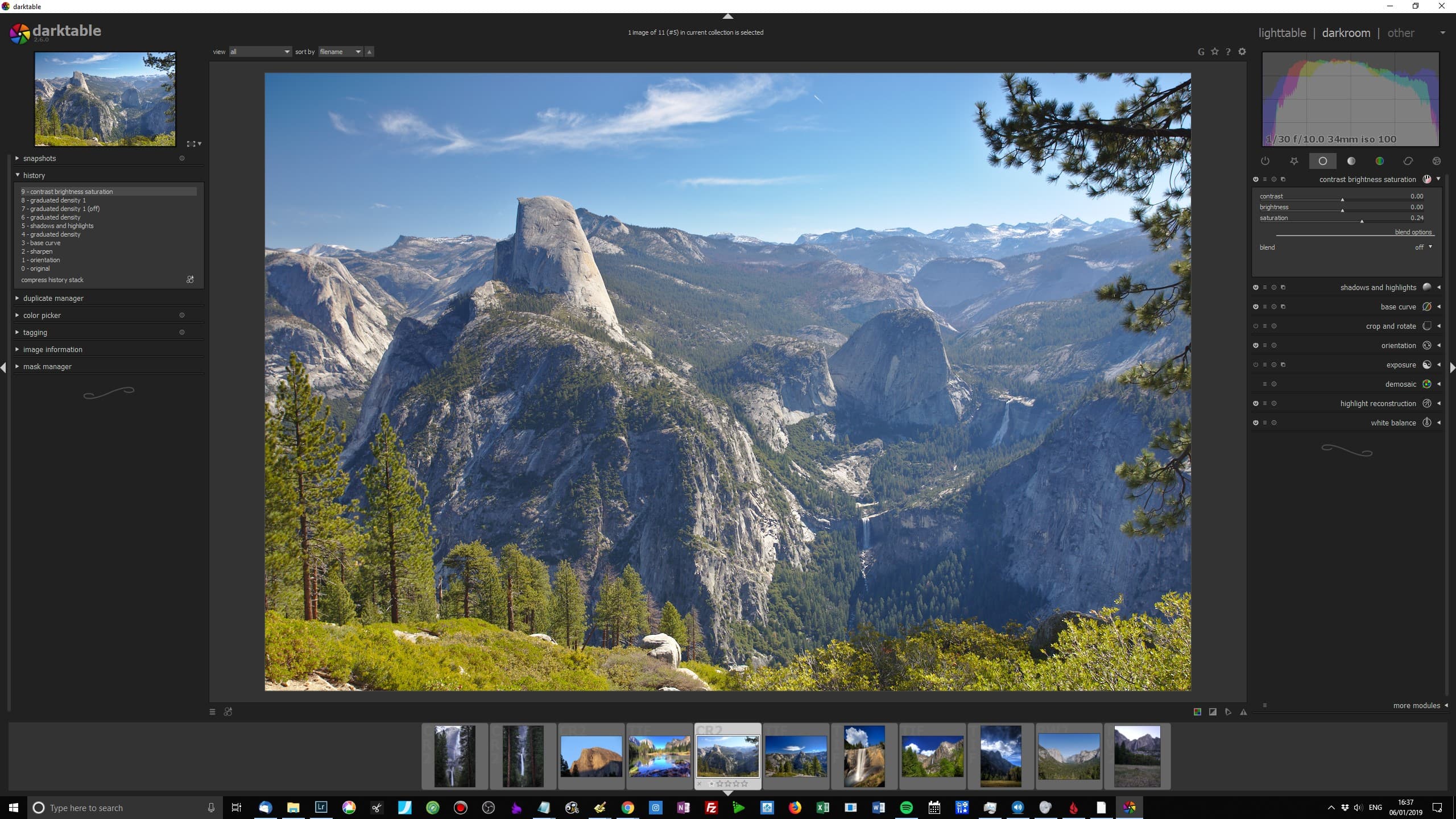
Darktable is probably the closest you’ll get to a free Lightroom experience. It’s an open source RAW editor with a full set of editing tools and a photo management system that supports keywording, ratings, and image cataloguing.
It’s available for both Mac and Windows, and has tethering support. The editing capabilities are comprehensive, and while the final results might not quite match what you’d get from paid software, the gap has narrowed considerably over the years.
The learning curve is steep, as tends to be the case with open source software. But there’s a dedicated community and plenty of tutorials available online.
Available for: Mac / Windows
Best for: Beginner to Advanced (with patience!)
Pricing: Free
GIMP
If Darktable is the free version of Lightroom, then GIMP (GNU Image Manipulation Program) is the free version of Photoshop. It’s been around since 1996 and offers a vast array of tools for manipulating digital images.
Like Photoshop, this means the learning curve is fairly steep. There’s no built-in photo management, and you’ll need to install an additional tool like UFRaw or use Darktable to enable RAW file editing.
All that said, GIMP is a genuinely capable tool for image manipulation. If you don’t want to enter the Adobe ecosystem and don’t mind investing some time in learning, it can do pretty much everything Photoshop can do.
With Affinity now being free though, GIMP has some serious competition for the first time. Affinity is likely to be the easier option for most photographers.
Available for: Mac / Windows Best for: Intermediate to Advanced Pricing: Free
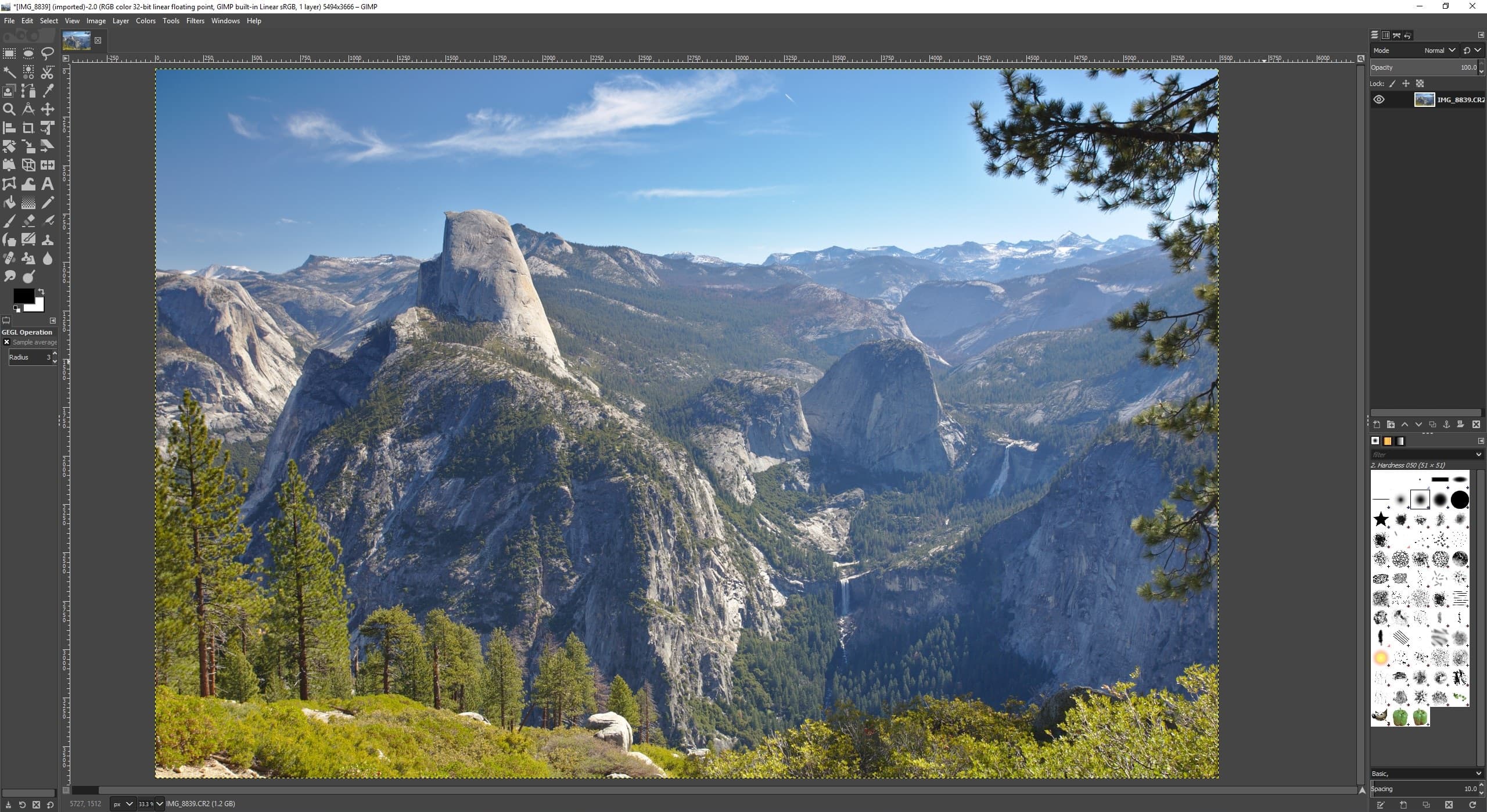
Photo Editing Software from Camera Manufacturers
Most camera manufacturers provide free photo editing software for owners of their cameras. This software is typically limited to RAW files from that manufacturer’s cameras, but it’s often very capable and worth trying, especially if you’re just getting started.
Canon’s Digital Photo Professional, Nikon’s NX Studio, and Fujifilm’s X RAW Studio are all solid options. If you have a camera from any major manufacturer, check their website for free software downloads. You’ll usually need your camera serial number to access them.
So Which Photo Editor is the Best?
Best Overall Photo Editing Application
My pick for the best photo editor for desktop is still Adobe Lightroom Classic, and for mobile it’s Snapseed.
The combination of Lightroom and Photoshop is still hard to beat for a photographer’s workflow. Lightroom’s photo management is the best in the business, and I do about 95% of my editing work there. The pricing changes in 2025 have made it less of a clear-cut bargain than it used to be, but it remains the most complete package available.
Best Without a Subscription
If you’d prefer not to pay a recurring fee, ON1 Photo RAW would be my recommendation. It’s the most direct Lightroom alternative available as a one-off purchase, with a powerful feature set and solid performance.
Luminar Neo is another excellent choice, particularly if ease of use is important to you. It’s less complex than ON1 but still very capable, and the AI tools are genuinely useful for quick edits.
It’s honestly tough to choose between the two. ON1 offers more fine-grained control and is closer to Lightroom in its approach. Luminar is more intuitive and can do more of the work for you. I’d suggest downloading trials of both and seeing which feels right. Both offer free trials or money-back guarantees.
Best Free Option
The answer to this has changed dramatically in late 2025. Affinity by Canva is now completely free and offers professional-grade photo editing with layers, RAW support, and advanced tools. For anyone who wants powerful editing without paying a penny, this is the obvious starting point.
The main thing it lacks compared to Lightroom or ON1 is photo management. But as a pure photo editor, it’s incredibly capable for the price of… well, nothing.
Best for Beginners
If you’re just getting started with photo editing and feel a bit overwhelmed by all the options, I’d suggest starting with either Luminar Neo (paid, but very approachable) or Affinity (free). Both have much gentler learning curves than Lightroom.
If you want something really simple with an Adobe workflow, Photoshop Elements is also worth a look.
And of course, if you just can’t decide, most of the products I’ve mentioned offer free trials. Download a few and see which clicks with you.
Frequently Asked Questions
What is the best photo editing software overall?
I recommend Adobe Lightroom Classic for most photographers. It offers the best combination of photo editing and photo management tools, with full RAW support and seamless integration with Photoshop. I’ve been using it professionally since 2010 and it handles around 95% of my editing needs.
What is the best free photo editing software?
As of late 2025, Affinity by Canva is the best free photo editing software available. It offers professional-grade tools including full RAW support, layers, HDR, and non-destructive editing, all at no cost. For mobile editing, Snapseed is the best free option.
Is there a good alternative to Lightroom without a subscription?
Yes. ON1 Photo RAW is the closest alternative to Lightroom available as a one-off purchase. It includes both photo editing and management tools with full RAW support. Luminar Neo is another excellent option that’s easier to learn.
Is photo editing software worth paying for?
It depends on your needs. With Affinity now completely free, you can get professional-quality editing tools without spending anything. However, paid options like Lightroom and ON1 include photo management features and more complete workflows that save time if you’re editing hundreds or thousands of images regularly.
Do I need Photoshop as well as Lightroom?
For most photographers, Lightroom handles the majority of editing tasks. Photoshop comes into play for more complex work like compositing, advanced retouching, or working with layers. The good news is that Adobe includes both in their Photography plan, so you don’t have to choose.
What computer do I need for photo editing?
Photo editing software benefits from a fast processor, plenty of RAM (16GB minimum, 32GB recommended), and an SSD for storage. A dedicated graphics card also helps with performance. For more details, see our guides to the best laptop for photo editing and the best desktop computer for photo editing.
Further Reading
This post is just one of our many photography guides. Here are some more that you might find useful:
- Photo editing requires a powerful computer. See our guides to the best laptop for photo editing and the best desktop computer for photo editing
- Colour accuracy is important for photography. See our guide to monitor calibration to ensure your screen is set up correctly
- If you’re wondering how to sort and find your photos, see my guide to organising your digital photo library
- No-one wants noisy images. See our guide to the best noise reduction software
- If you’re in the market for a new camera, see our guide to the best travel camera
- Want to learn more about photography concepts? Check out our guides to RAW in photography, depth of field, composition, and long exposure photography
- We also have a guide to Lightroom alternatives if you want even more options
Looking to Improve Your Photography?
If you found this post helpful and want to improve your photography overall, you might want to check out my online travel photography course.
Since launching the course in 2016, I’ve helped over 2,000 students learn to take better photos. The course covers everything you need to know, from the basics of how a camera works through to composition, light, and of course, how to use photo editing software properly.
You get feedback from me as you progress, access to webinars and videos, plus exclusive membership of a community where you can get feedback on your work and take part in regular challenges.
It’s available for an amazing one-off price for lifetime access, and I think you should check it out. You can do that by clicking here.
And that’s my guide to the best photo editing software available in 2026! As always, I’m happy to answer your questions and hear your feedback. Just let me know in the comments below.
Elot says
nice breakdown, for me luminar works best day to day
Laurence Norah says
Glad you find it works for you Elot!
Julie Mungomery says
A big vote for Affinity. Have been using it for years & no nasty subscription, albeit payment for each release (currently only on ‘2’), great support and tutorials too.
Laurence Norah says
Hey Julie,
Glad to hear you are finding Affinity to work for you! The only challenge with the no subscription model is resisting the temptation to keep upgrading to the latest version when it’s released. I know many companies release an update every year and if you were to fall into the rabbit hole of always upgrading, it would end up being not too dissimilar from paying a subscription! But in most cases you can wait a few versions before upgrading, and just ask yourself seriously if the new features are something you really need.
Anyway, thanks for stopping by and sharing your experience, it’s appreciated!
Laurence
JK says
Thank you, this is very helpful. I’m a long-time Gimp fan* and I’m happy to see it on the list.
* admittedly a weird phrase to type 🙂
Laurence Norah says
Haha, I know what you mean. The Gimp is a super powerful tool, glad you hear you find it useful 😀
Prem Nath says
Terrific site, love the name too.
Total beginner here seeking a little advice.
Just wondering if I already own and can use Affinity Photo (as I understand it) for photo manipulation purposes, do I also need something like ON1.
Or would a more basic photo editor do, to compliment it.
Something like Darkroom, which is a better version of Apple Photos, or perhaps Pixelmator Pro.
Or perhaps something else.
P.S. Affinity Photo’s Develop section is destructive as I understand it or it would have been a far more complete solution.
Thanks, Regards,
Prem
Laurence Norah says
Hey Prem,
Thanks very much!
So I haven’t used Affinity but my understanding is that it is quite similar to Photoshop. So it does a wide range of tasks, including photo manipulation. Photoshop also works well as a photo editor, and some people prefer to do their editing in Photoshop over something like Lightroom. So if you are happy with Affinty then definitely stick with it. There’s no “right way” in photography, just the way that works best for you.
What you are missing in a photo management app. I use Lightroom, but that’s just because I also use Lightroom for editing. However, you might find that a standalone photo management app is better suited to your needs. On1 would definitely work. Personally though I find most all-in-one solutions can be a bit clunky, including Lightroom. If you already have a photo editor, then a stand alone tool like Photo Mechanic might be a more lightweight and faster option.
It’s up to you of course, and there are trials available of most of these products so you can try them out and see for yourself.
One last thing, Affinity Photo is non-destructive as far as I understand it. Of course if you load up a jpg file, edit it and overwrite it, then that is destructive. But I believe for RAW files it is non-destructive.
Let me know if you have any more questions, happy to help!
Laurence
Prem Nath says
Thanks for the reply; and the perspective.
Photo Mechanic does look interesting, as does the other advice.
The reason I considered this app called Darkroom is that its on Mac as well as iPad. That way I edit the same way on different devices – does that make sense as a worthwhile agenda.
If not ON1 or Pixelmator Pro it is.
P.S. Affinity takes the RAW file and makes you save it as a native file before exiting the app – so you basically get one chance to edit your RAW file – not sure if that is makes it destructive, but as a beginner it doesn’t help I think.
Regards,
Prem
Laurence Norah says
My pleasure. Darktable is definitely a solid bit of software and the price can’t be beaten, so it’s definitely worth trying it out to see if it suits your workflow. If you edit on multiple devices and it works on multiple devices, then it sounds like a good option for sure.
Yeah, it sounds like Affinity isn’t ideal – technically it’s non-destructive as it’s not changing the original file, but one thing I like about Lightroom (and other software like Darktable) is that it keeps a full history of all your edits on each file. So you can revert edits, take a snapshot at a point in time if you choose to diverge, etc. It makes it really powerful.
I’d probably suggest starting with Darktable as it’s free, and see if it meets your needs 🙂
LAurence
Prem Nath says
Sure, that sounds like a plan! 🙂
And thanks again for the reply.
Regards,
Prem
Arif Mondol says
Really Nice!! I found the best resource about it. Hope it will be helpful for others who search for the best resource like me. Thank you so much.
Laurence Norah says
Thanks Arif 🙂
SonicVision says
Why no mention of ACDSee Photo Studio / Photo Studio Ultimate? On paper, it sounds very similar to ON1 (photo editor and DAM). It’s quite good, lots of features etc. It is currently my DAM and main editor (though I have Affinity Photo too and have been trialing Skylum apps (but found the Skylum ones painfully slow).
Laurence Norah says
The main thing is to find software that works for you! I haven’t tried ACDSee but it sounds like it’s working for you, so that’s great 🙂 I agree that Skylum apps can be quite slow. They are promising the next version will be better, but I am waiting to try it and find out for myself!
Rebecca says
Is Photolemur better for an amateur? I’m wanting to do my own senior portraits so I’d like sky, lighting, and people fixes. I’ve seen some NOT SO GOOD customer reviews about Luminar AI but it looked to be closest to what I want. I plan to use an older Canon powershot, iPhone 10, Google pixel 4, and galaxy s10e phones for photos. My computer seems to have all requirements but someone told me that it being a laptop Luminar AI would probably be too slow. It’s a HP Envy with windows 10. Any suggestions? I don’t have any experience editing, or taking, photos and I have very little time to edit.
Laurence Norah says
Hey Rebecca,
This is a great question. Normally I would recommend grabbing a trial of Photo Lemur, but I just checked and it seems Skylum have discontinued it in favour of their more advanced tools. Honestly though, it was a bit basic – it either worked or it didn’t. So I have removed it as a recommendation from this post.
The good news is that I have found that you can download a trial of Luminar AI, which you can do here. That way you can see if it works on your laptop. It is definitely more demanding in my testing than Luminar 4, but does make editing a bit easier. However, Luminar 4 is also a good option still, and you might find that it works better on your laptop.
I hope this helps!
Laurence
Oscar Buchely says
Nice Article. I am no profesional but I have tried some software like Lightroom, Capture one, Rawtherapy, Camera Raw. I think all of them are great but Darktable is very powerfull. All modules come with parametric masks. It is free but mastering Darktable can be difficult and the amount of modules can be overwellming. After I spend some time watching tutorials and working in Darktable was easy to go and lear Capture one for example. Since Dark table is open source you can see all the science and mathematics behind the sofware in the developers chanels.
Thanks for your articule it is easy to read and goes strait to the point.
Laurence Norah says
Hi Oscar,
My pleasure, I’m pleased you found the article useful and thanks for sharing your feedback on Darktable. It’s definitely a great free option, although like many OSS in my experience, the learning curve can be quite steep.
Laurence
Jon says
Great review, thanks for putting your time and energy to pull something like this together.
Laurence Norah says
My pleasure Jon, I hope you found one that works for you 🙂
Lorna Rudd says
I’m a windows 10 user with a canon flatbed scanner/printer. Some time ago, i used Microsoft Picture-It and then bought the Microsoft Digital Image 9. Those were so EASY. I could scan my pictures and easily edit them. I can’t find a software that will allow me to scan to jpg and then apply effects. Am i missing something?
Laurence Norah says
Hi Lorna,
So are you looking for an all in one software that lets you both scan and edit? There are definitely still options out there. I believe Adobe Photoshop Elements lets you do this – you can download the trial version and see if it works for you.
If you want something free, paint.net is an option which appears to support scanning. It seems to have an active community and plenty of tutorials online, so that might be something to try as well.
I hope this helps!
Laurence
Lorna Rudd says
Photoshop Elements page says i have to use the Canon scanner dedicated software.
Laurence Norah says
Hi Lorna,
Hmm. This makes sense in a way – it is a challenge for photo applications to keep up to date with all the various models of scanner out there, and they are mainly designed for editing images rather than scanning images. Most scanners come with software to scan the images to JPG or TIFF, which you can then open up in any a wide range of editing apps. This might end up being the way to go if you can’t find an all in one solution.
Laurence
Lorna Rudd says
Thank you.
I miss Microsoft Digital Image.
Laurence Norah says
Hi Lorna. I feel your pain. My favourite photo management software for a long time was Google’s Picasa, which they discontinued. When I read about Microsoft Digital Image, it took me down a rabbit hole of what it became, products that were also discontinued. It’s definitely a shame when something that just works disappears for no good reason other than the illusory march of progress!
I hope you find something to meet your needs 🙂
Laurence
Bill Walter says
Nice review… thanks!
Laurence Norah says
My pleasure 😀
David Tachauer says
I agree that Affinity is by far the nearest to Adobe’s editing software package and compared to Adobe’s price it’s unbeatable. As you mentioned, it has no image management facility but certainly on Mac that is easily overcome by Apple Photos (by itself pretty good) which works seamlessly with Affinity and together make an almost unbeatable combination.
Laurence Norah says
Thanks for your comment David 😀
Michael Kent says
Hello:
I am looking for desktop PC based software that can do the following: (a) convert B&W photos to color (b) after convert to color be able to adjust color and contrast for sharpness (c) after I crop a photo of a large group to create a portrait of only one person in the group the result has the pixels showing, the one person is not clear or crisp. Most are old photos from yearbooks or family albums and are scanned into PC. Some are scanned as PDF then convert to JPG. I am not a professional photographer just a regular Dad trying to do this.
Laurence Norah says
Hi Michael,
To be honest I am not aware of any desktop software that can do B&W to color conversions. That’s quite a complicated task, and most services are online only. Have you tried any of the online services for what you are after?
Laurence
James Dodson says
I enjoy portrait and astro photography with my Canon 6D, but am frustrated with using GIMP despite having learned advanced techniques (I.e. changing eye color, smoothing complexion, etc.). My priorities are tethering, RAW editing, and photo management. I’ve narrowed it down to On1 or Luminer. Subscriptions are not an option.
Which one would you recommend?
Laurence Norah says
Hi James
If you’ve narrowed it down to those two, I think On1 is the best choice as I don’t believe that Luminar supports tethering. On1 also has photo management and RAW editing features, as well as support for layers.
Capture One is also a very popular choice for those shooting tethered, but it is somewhat more expensive.
My recommendation would be to download the trial of On1, which I think lasts for 30 days, and see what you think 🙂
Laurence
Dr. James Dodson says
Thank you so much! I was leaning that way ????????
Albin says
Good rundown across some platforms. Those looking for a surprisingly capable (free, ad free) Windows viewer / editor for RAW / DNG should try FastStone. Dual booting Mint Linux with Windows, XnViewMP is light and edits RAW basics, and I’m using DarkTable for more intensive editing now that’s it’s also cross-platform.
Laurence Norah says
Hi Albin,
Thanks very much, your input is appreciated and I’m sure will help other readers looking for more options 🙂
Laurence
Maciek Mierzwinski says
Thanks for this infrormative Article. Which of the following software Besides Photoshop, would be Best for focus stacking?
Laurence Norah says
Hi Maciek,
So Affinity Photo is a good value option for focus stacking. On1 Photo is another option which has built in focus stacking.
I think those are the best two options to support it natively in the app without needing third party software or plugins 🙂
Best
Laurence
Maciek Mierzwinski says
Thanks. I did in fact narrow my results down to On1 but someone later told me about Elements+ which i could add to my already existing PS Elements, and if combined with Aurora HDR instead, could also make for an interesting editing platform. Aurora is great for HDR which is another thing i’d like to have. My current software setup can do a little bit of each here and there, and the results aren’t bad but when i get the Time, can download free trials of On1 and Aurora.
Laurence Norah says
That is definitely the best option – as all the software I list has a free trial, I can highly recommend trying a few and figuring out which fits best into your workflow 🙂 I hadn’t heard of Elements+, which also looks like a good option.
Danny says
“final results might not be quite as perfect as you’d get from a paid product”
That may be true, if you don’t know what you are doing. Otherwise darktable is much more flexible and powerful tool at least compared to LR or C1.
Laurence Norah says
Hi Danny,
Thanks for your comment. Certainly Darktable is a great tool given the price point. I’m not sure I agree it’s more powerful than Lightroom, but everyone has their own preference 🙂
Laurence
Danny says
Thank you for your response.
However i think darktable would be great sw at any price point.
Compared to the mentioned programs, it seem much more feature complete, i has e.g.:
liquify,
retouch – for advanced retouching using wavelet decompose
filmic – for simulating film material tone response
high pass/low pass and many other modules…
and most important for me, it’s possible to blend the output of almost all modules using modes (like soft light, overlay…) and limiting it also via parametric masks (on L,h,C,A,B,g channels).
Laurence Norah says
Awesome, thanks for the clarification 😀
Annette Choti says
Thank you so much for this! I dabbled in photograph in college (didnt we all?) and while I’ve taken some courses, now that I am (much) older, and we have our own set of adventures we are going on soon in our converted Sprinter Van – this information is SO HELPFUL as I learn more and more about photography. Thank you for sharing!!!
Laurence Norah says
Our pleasure Annette! Sounds like you have some wonderful adventures coming up 😀
Stephen says
You listed some software I’ve never heard of before, like Photolemur . I’ll have to give it a try man! This is a great post Lawernce, very detailed!
Laurence Norah says
Thanks Stephen! Photolemur is a great piece of software, especially if ease of use is important to you 🙂 Enjoy the options – let me know if you find one you like 😀
Natalie says
How about PhotoWorks software for Windows, have you tried it? I find it perfect for beginners (me :D) !
Laurence Norah says
Hi Natalie,
I haven’t tried that one, but thanks for the recommendation!
Laurence